How do I give an assignment with Google Classroom?
 Updated
by
Gayle McKee
Updated
by
Gayle McKee
Before you are able to give an assignment with Google Classroom, you must first integrate Progress Learning with Google Classroom. Read the following article for more information: How do I integrate Progress Learning with Google Classroom?
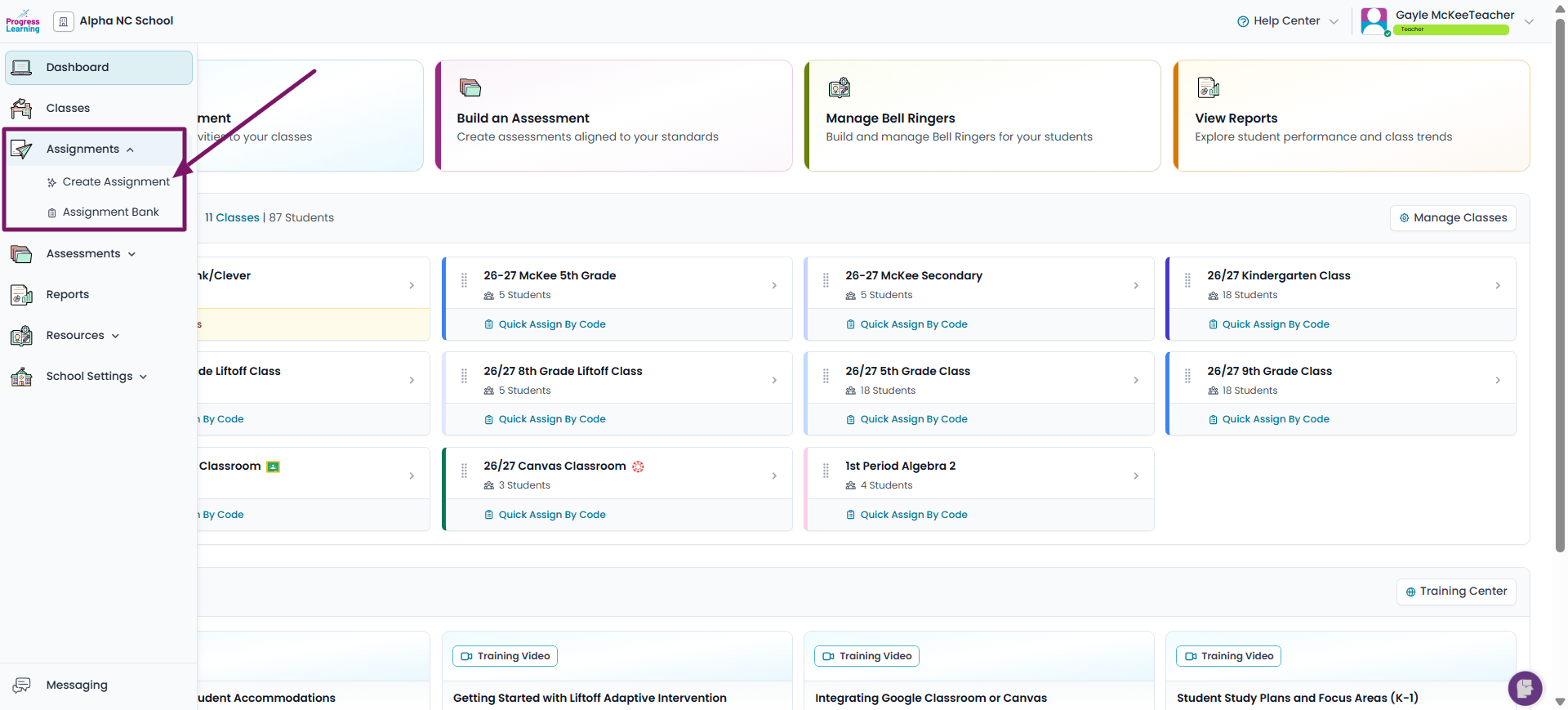
- From the left side menu, select Assignments and click on Create Assignment
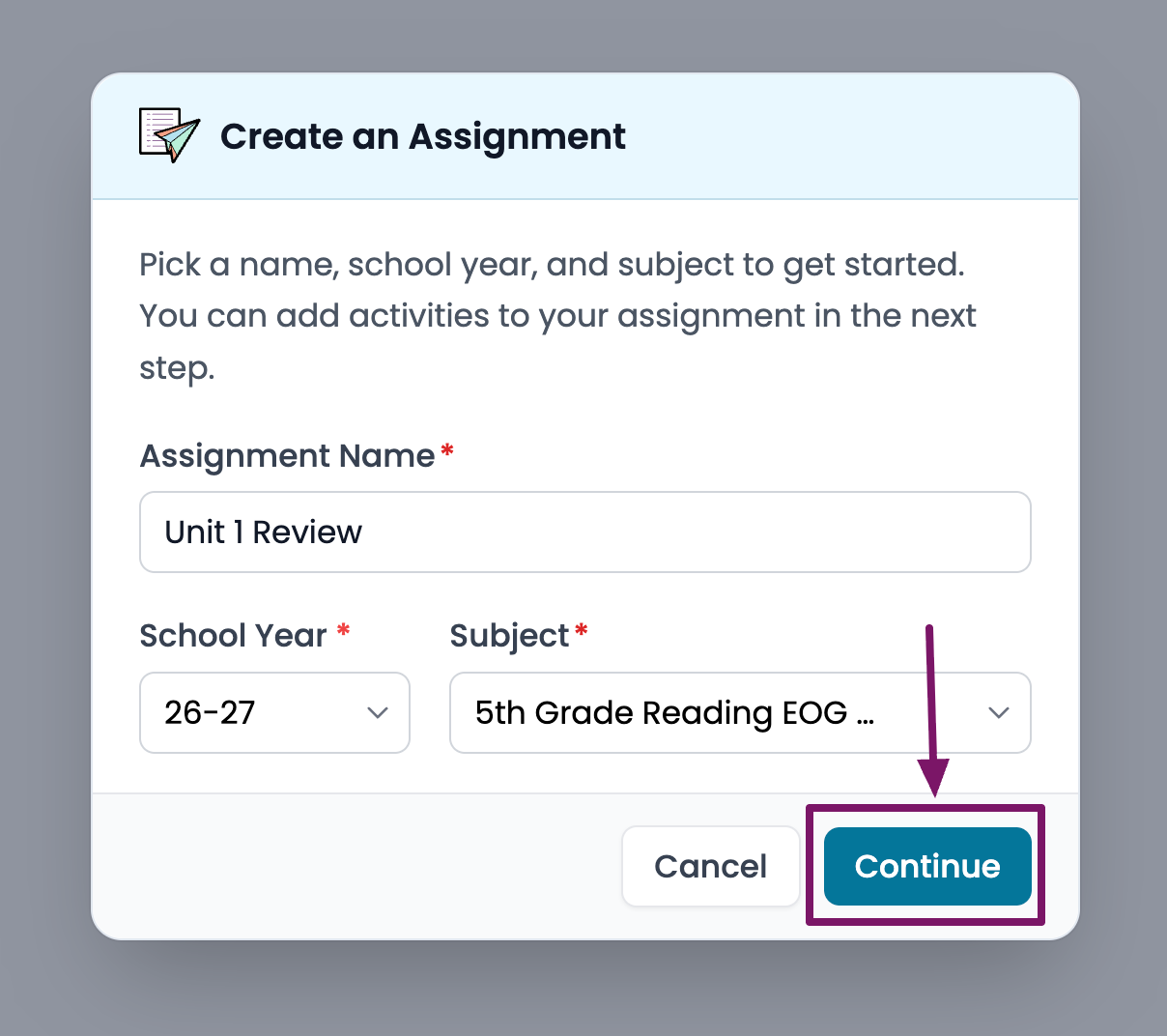
- Give your Assignment a name, select a subject and click on Continue
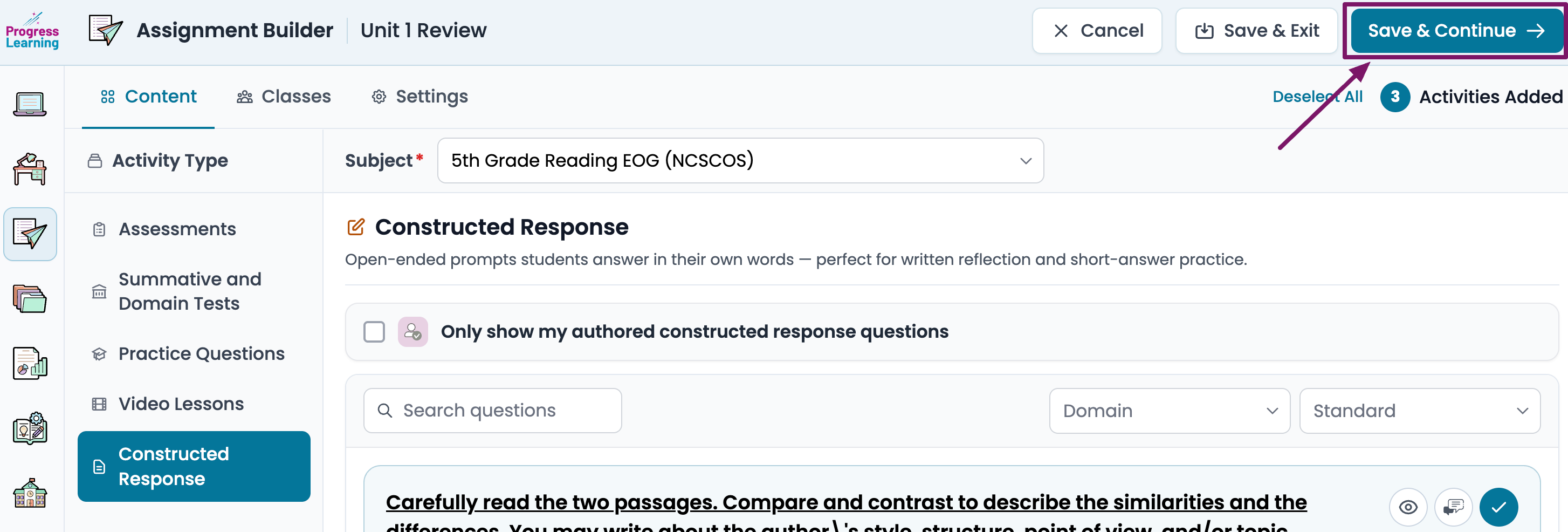
- Utilize the Activities section to assign Assessments, Progress Learning Summative and Domain Practice Tests, Practice Questions, Video Lessons, and/or Constructed Response Questions. Then click Save and Continue. For more details on How to Create an Assignment, please refer to the help article: How to Create an Assignment.
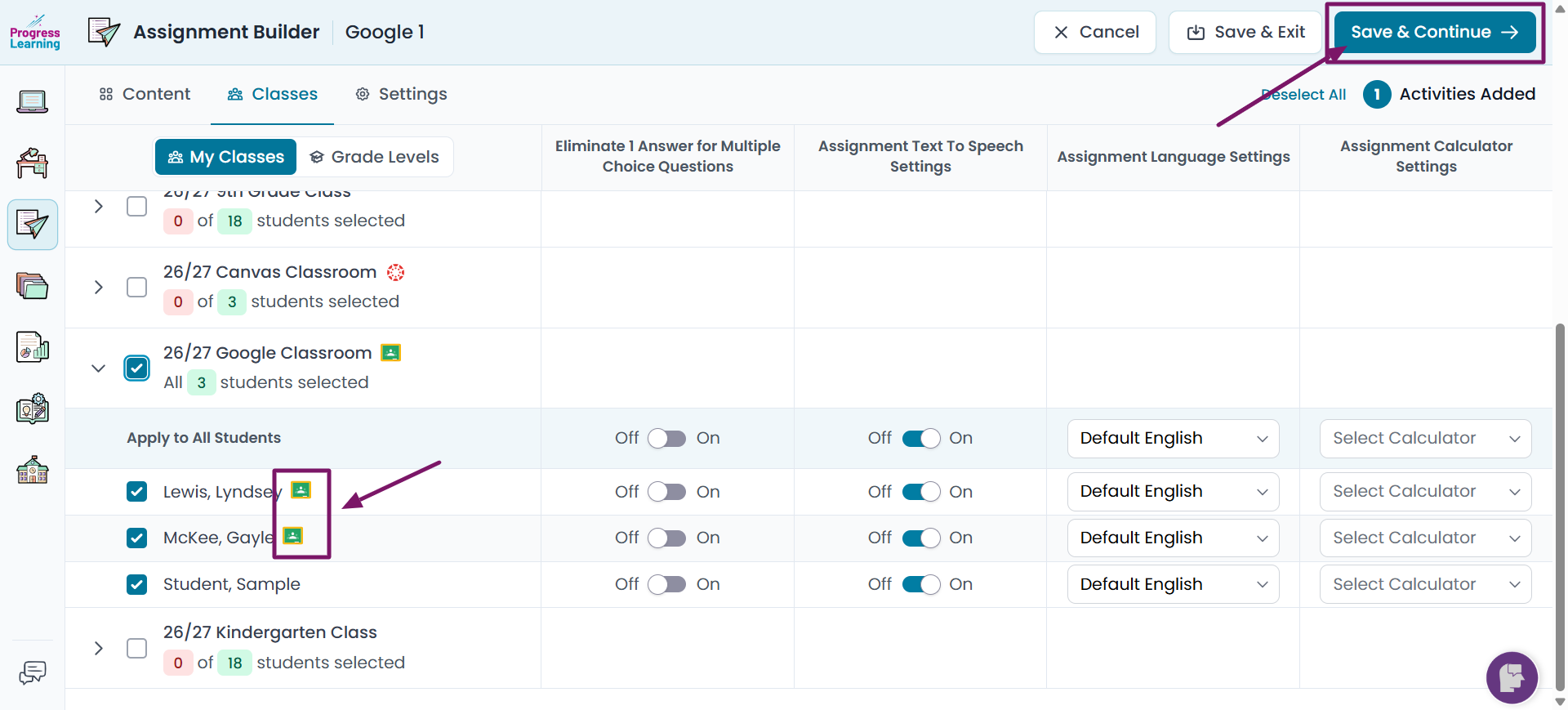
- Select the class and students to be assigned this assignment. Teachers can confirm if students have connected to Google Classroom by checking for the Google Classroom icon next to their name. Students who are not connected will not receive the Progress Learning assignment within Google Classroom. Click Save and Continue.
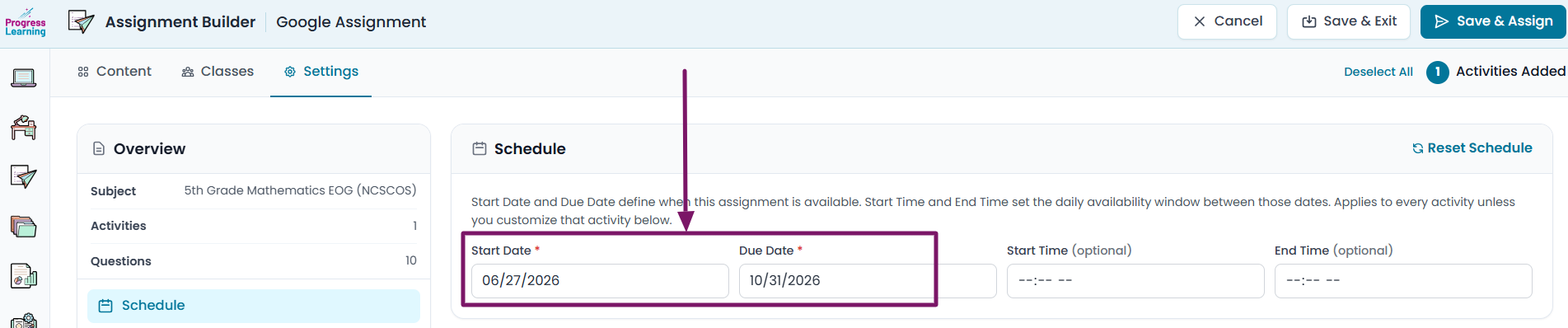
- Set your Start date and Due Date.
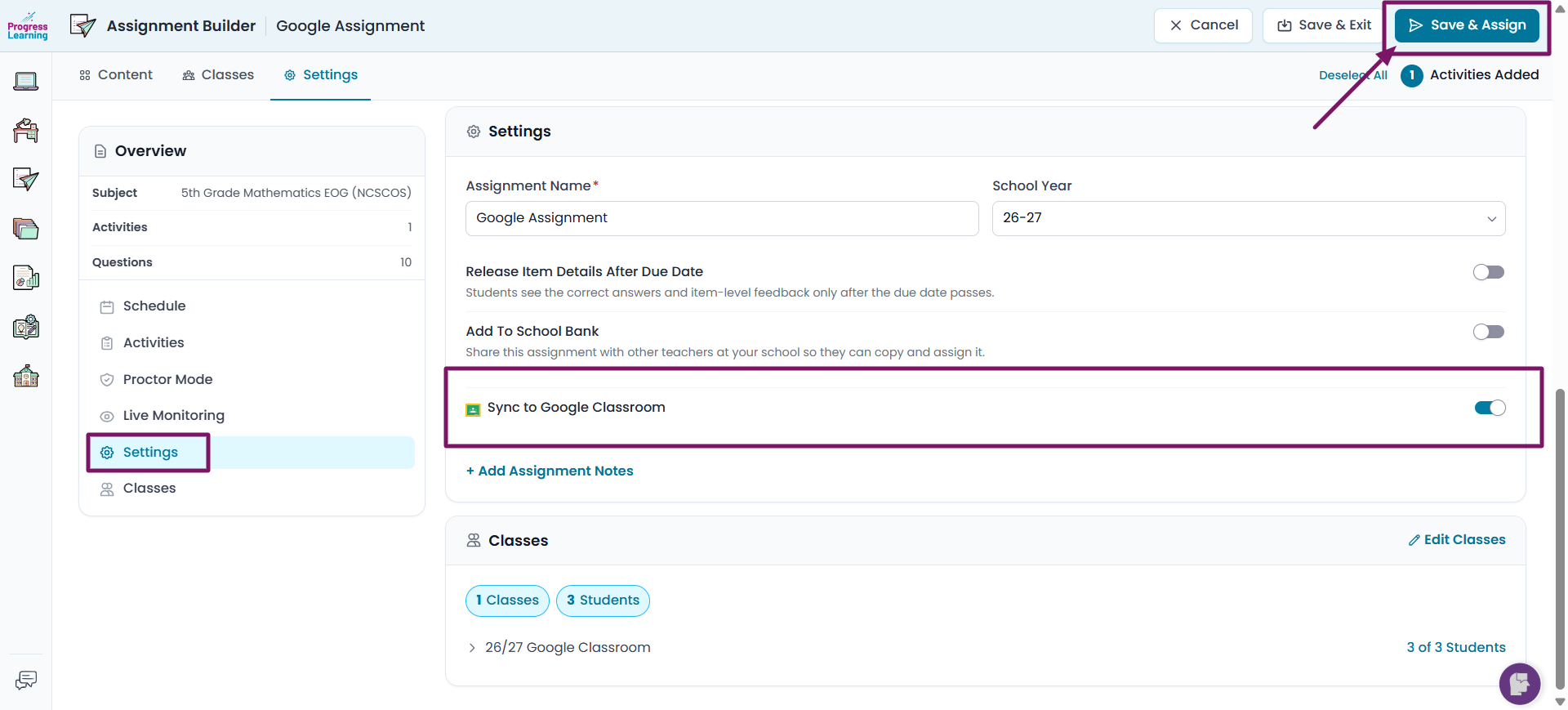
- From the Settings tab, ensure the Sync to Google Classroom Toggle is enabled, then click Save and Assign.