How can I sign in with Google?

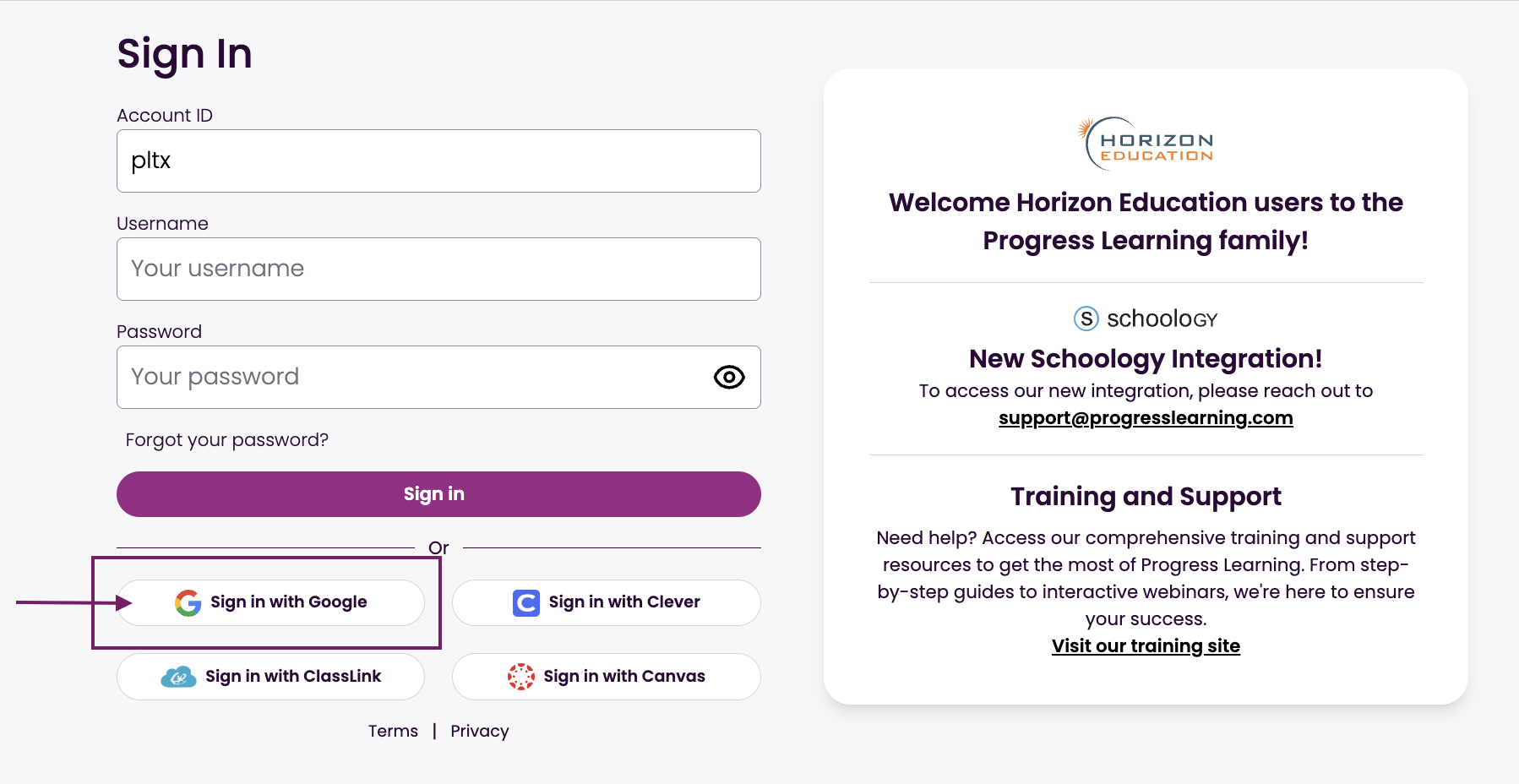
To use the Sign in with Google option shown below on the Progress Learning login page, teachers and students must first integrate their Progress Learning account with their Google account.
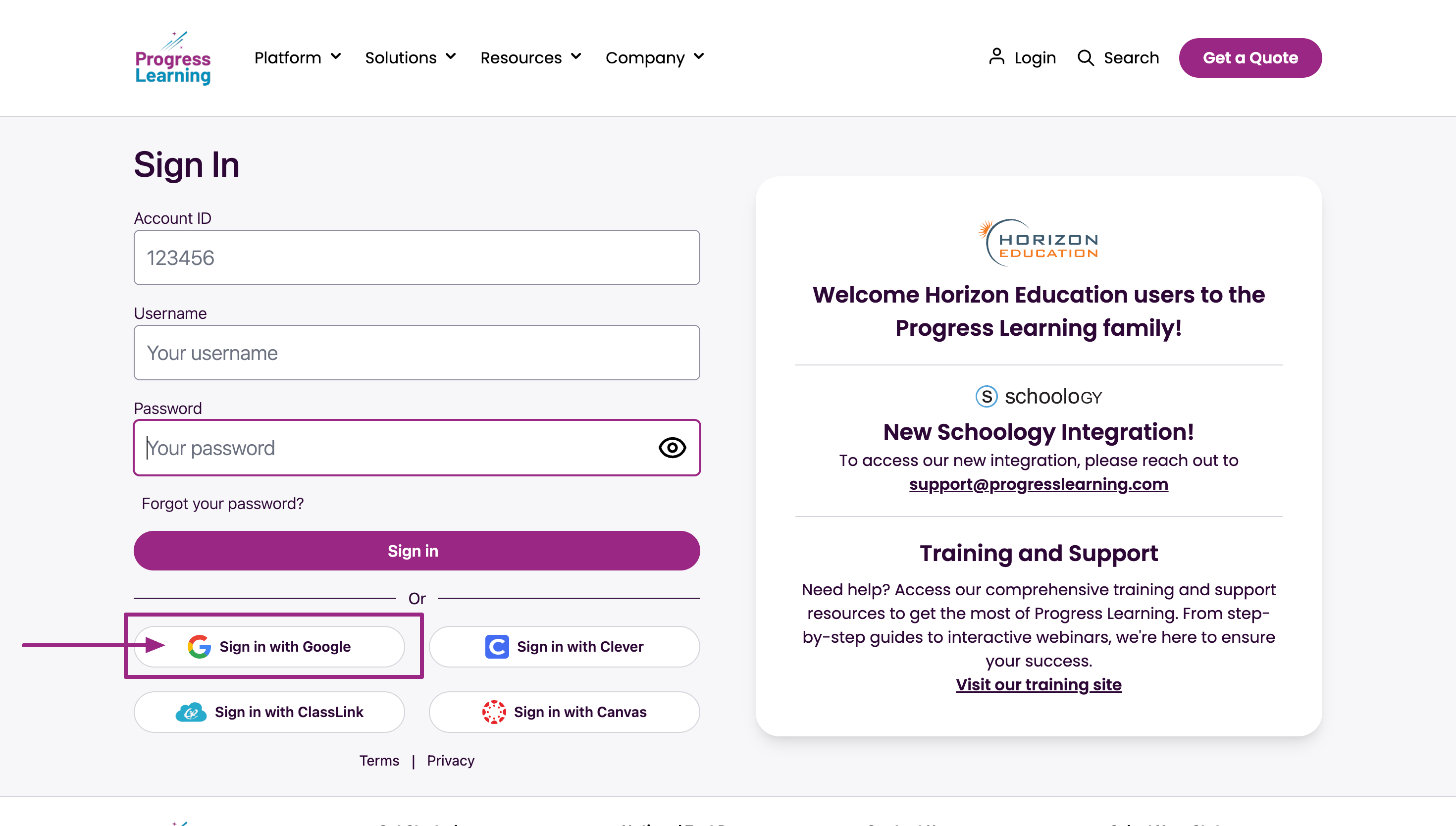
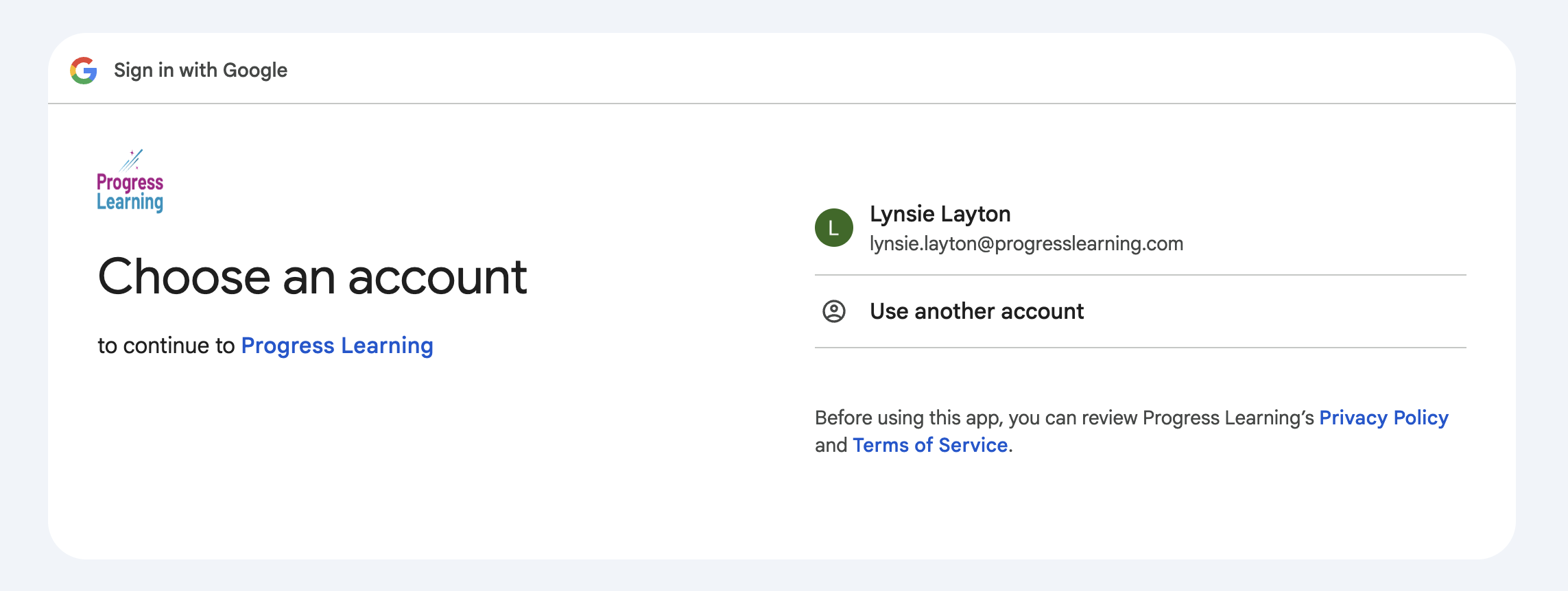
If you click on the Sign in with Google button shown above, and you see this pop-up prompting you to sign in to Progress Learning, your accounts are not connected. Follow the steps below to set up the initial connection.
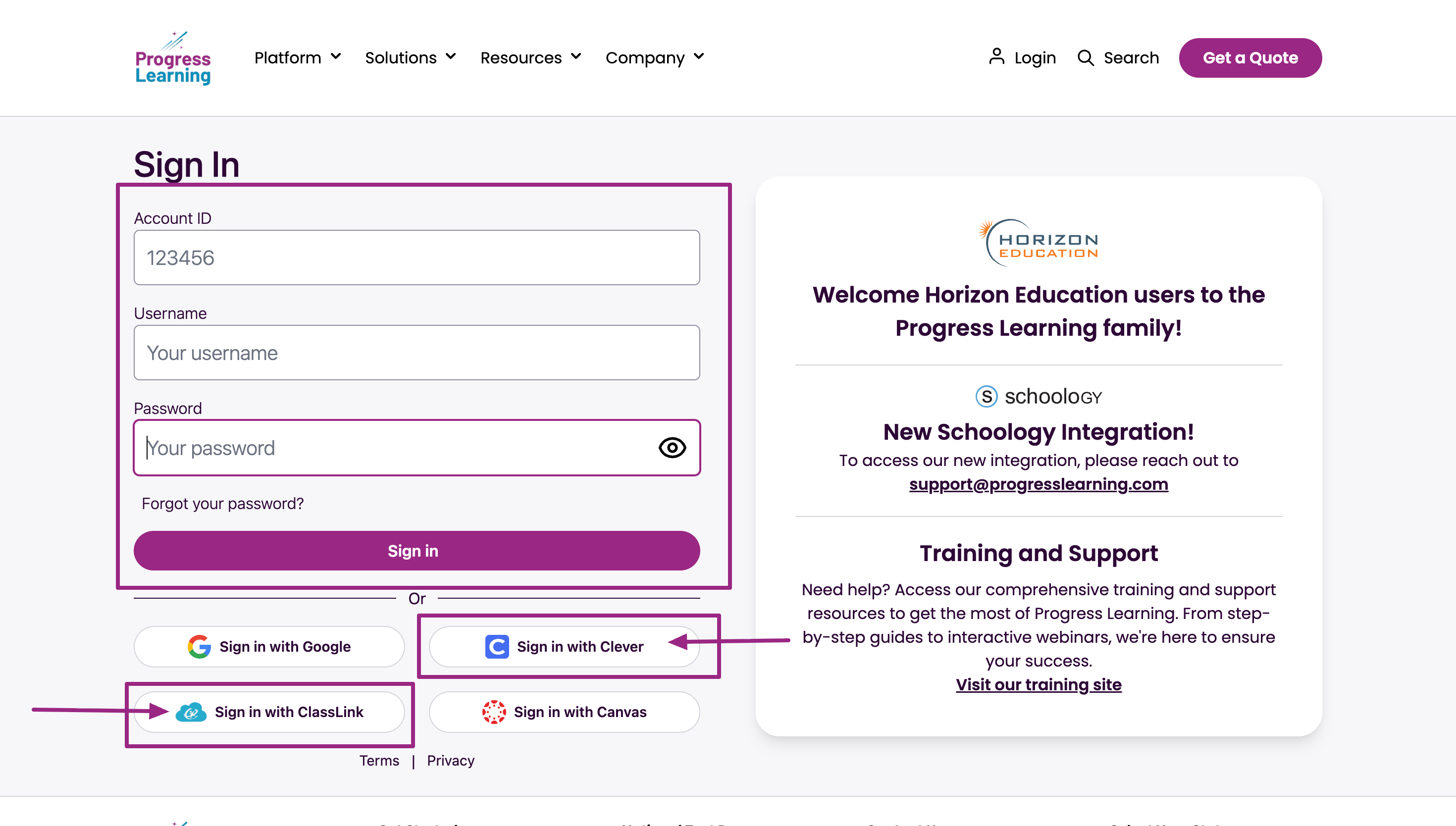
- Log in to your Progress Learning account via account ID, username and password, Clever, or ClassLink. You can also log in to Progress Learning through your Clever/Classlink portal by clicking on the Progress Learning icon.
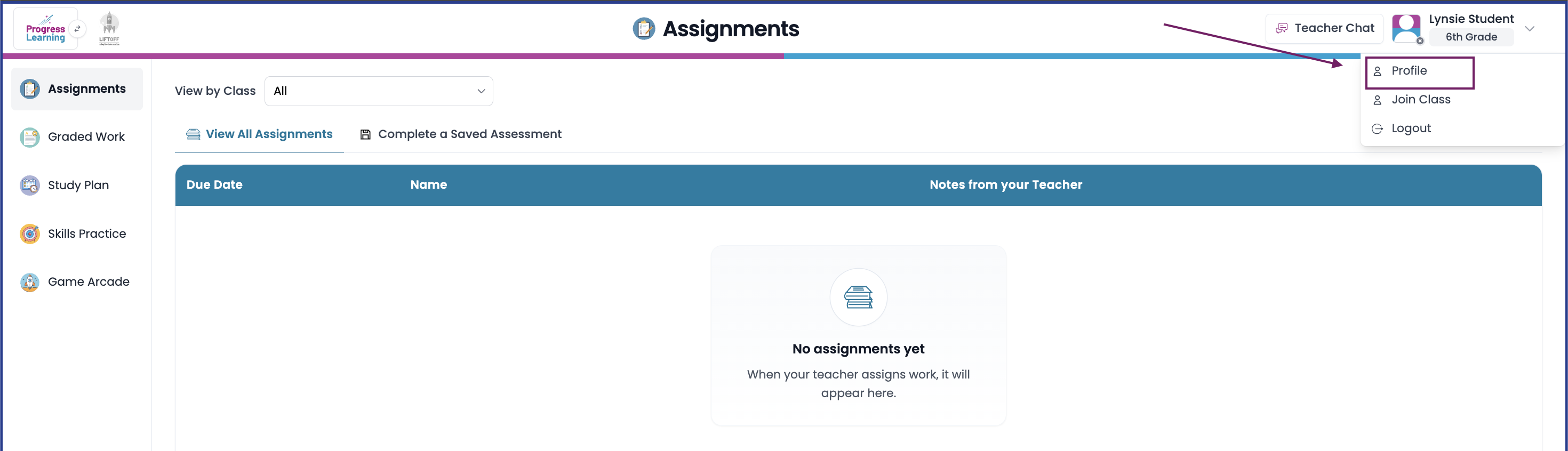
- From the home page, click on your name, then select Profile
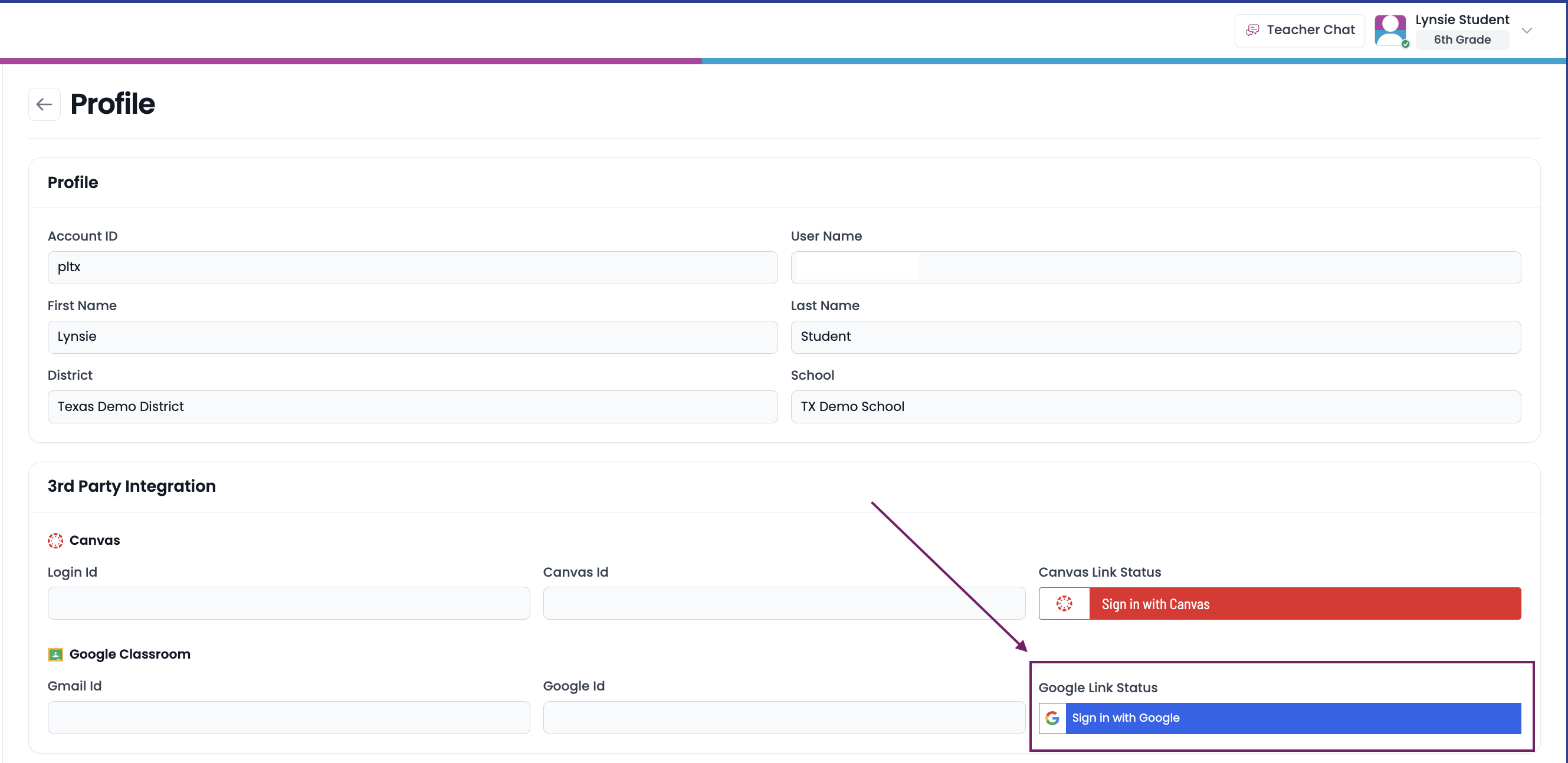
- Click Sign in with Google.
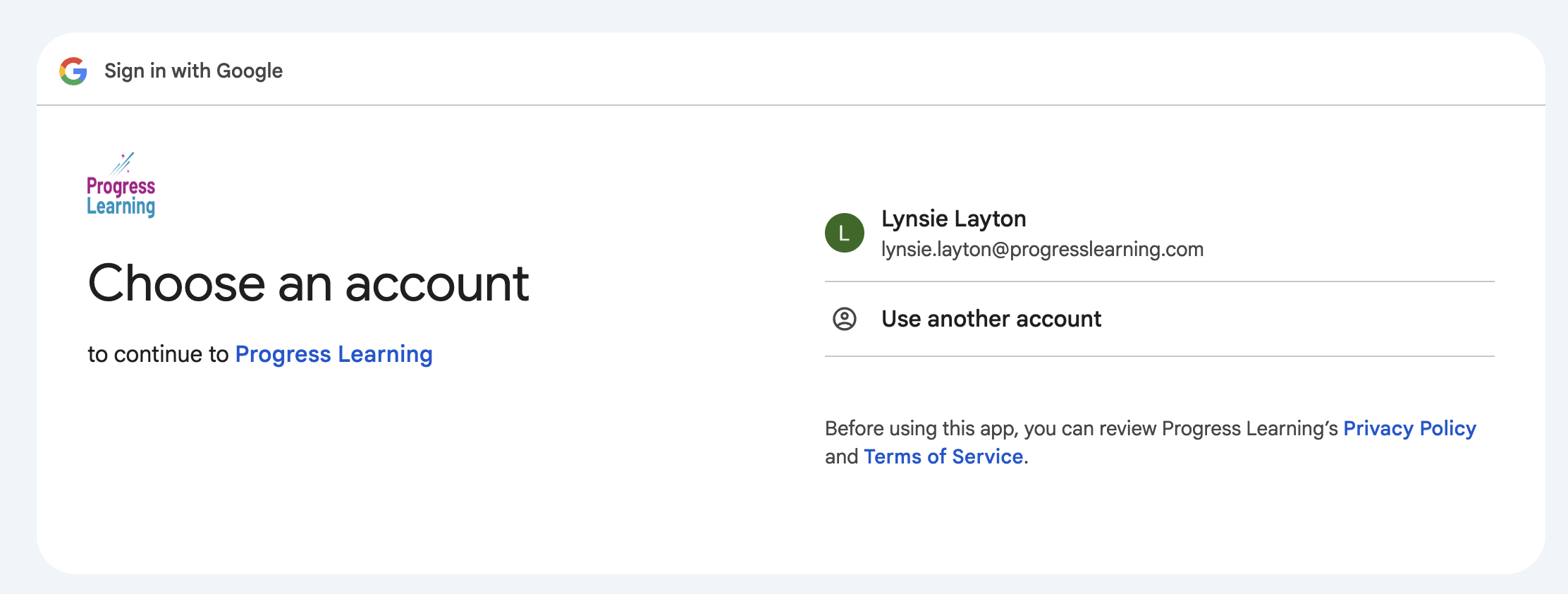
- Select the Google account that you would like associated with your Progress Learning account.
- You can now select the "Sign in with Google" button to log into Progress Learning via Google SSO.
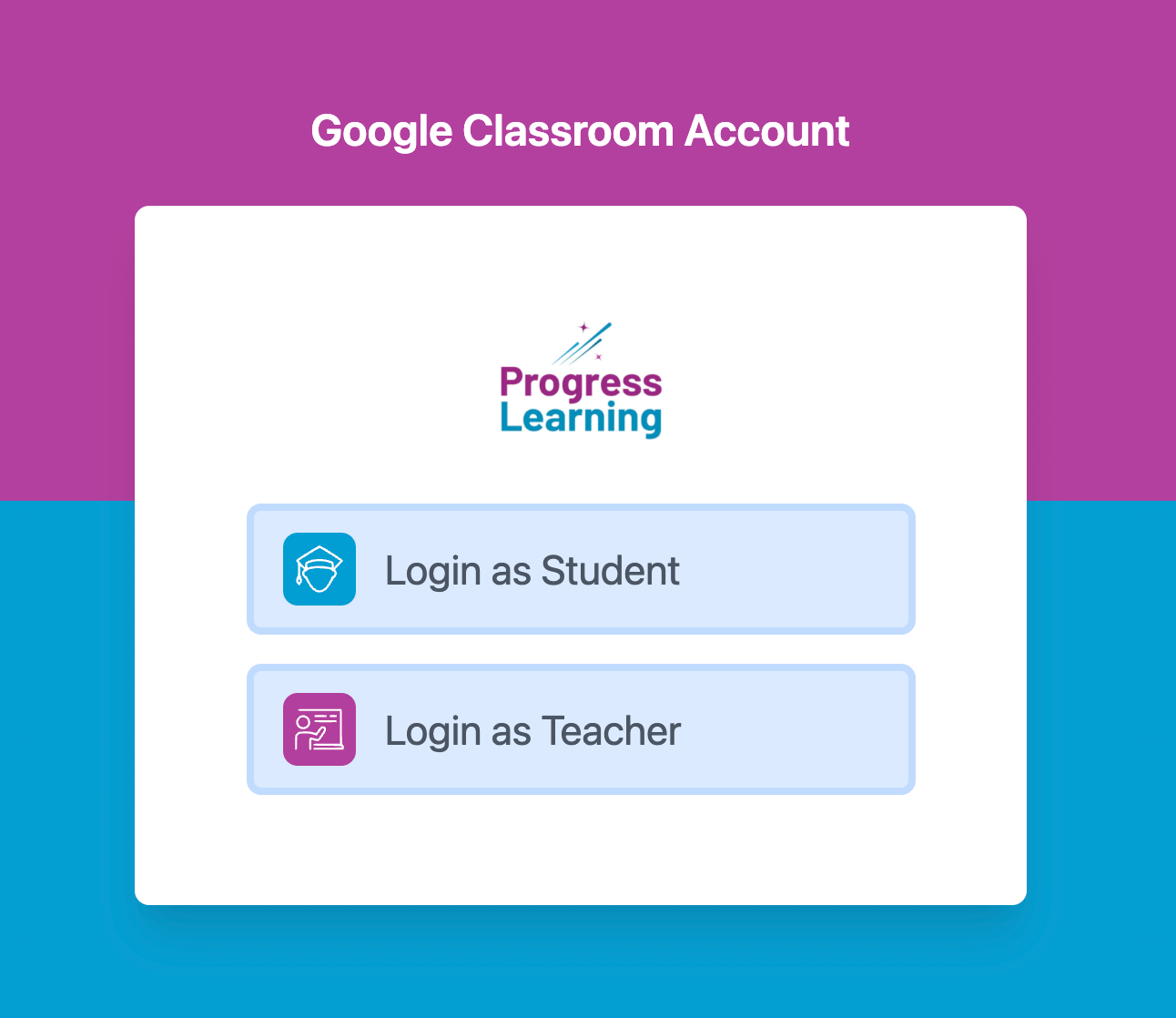
- Students should select "Login as Student" and teachers should select "Login as Teacher."
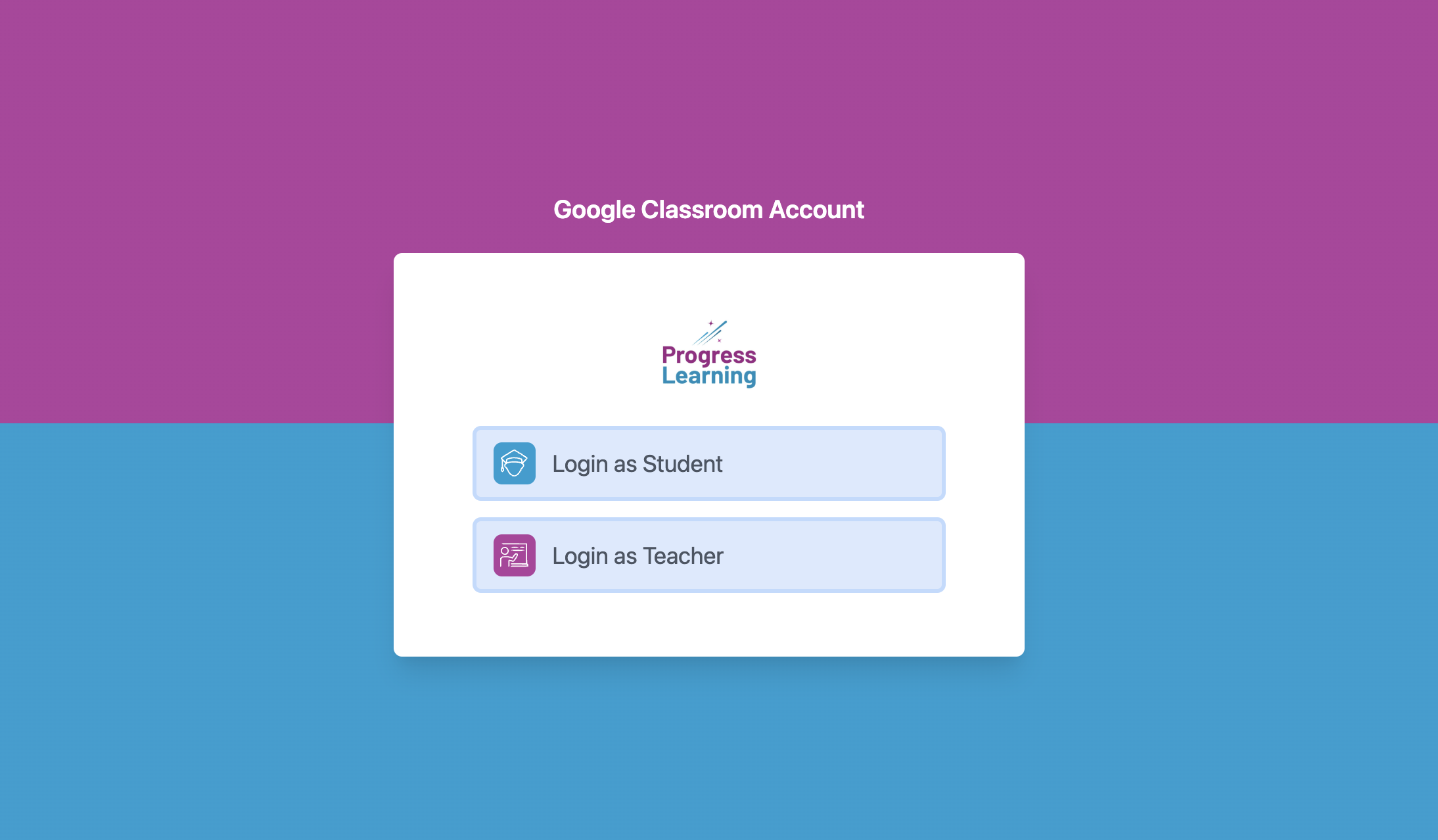
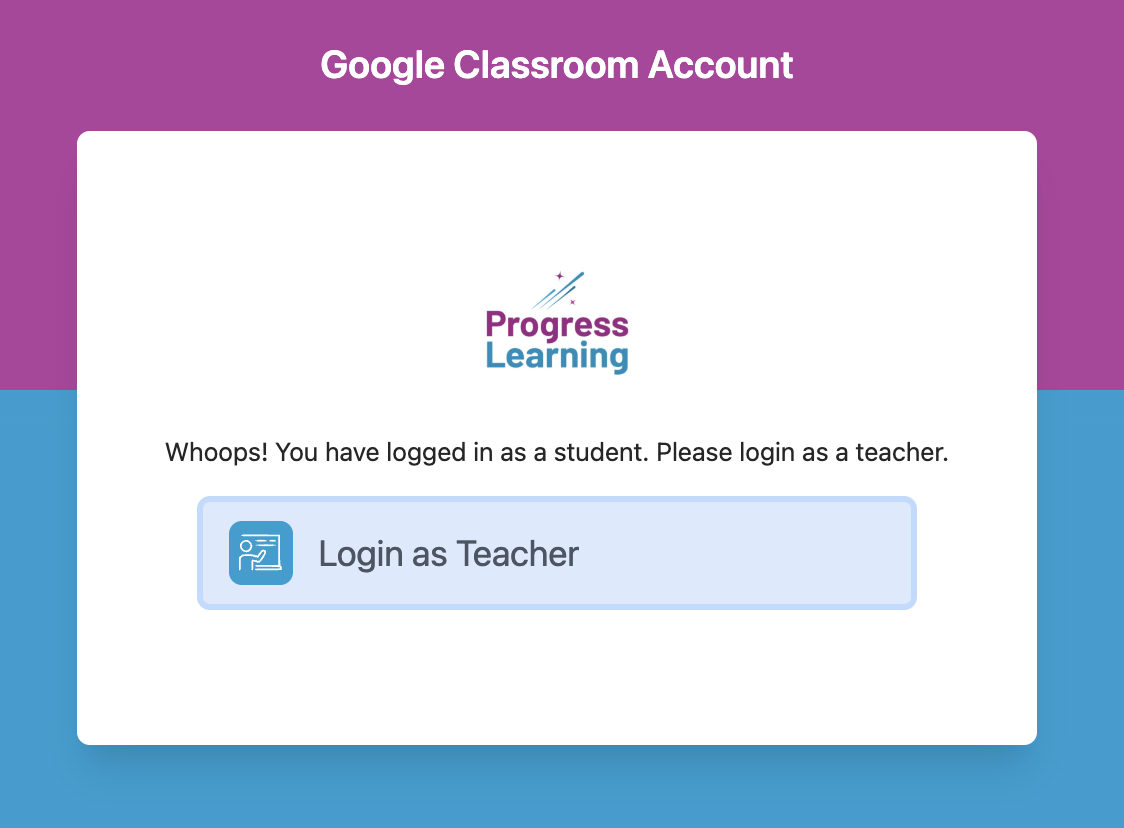
If the wrong selection is made, you will get a message redirecting you to log in as a teacher/student.
- Then select your Google account that is associated with your Progress Learning account.