How do I organize my assessments?
 Updated
by
Gayle McKee
Updated
by
Gayle McKee
You are able to organize your assessments by adding tags to assessments.
Assessment tags are great for organizing your assessments and running reports based on only the assessments labeled by that specific tag.
This functionality allows you to see and compare performance on a group of assessments.
Assessment Tags are only viewable by the user that created them.
Adding Tags when creating an assessment
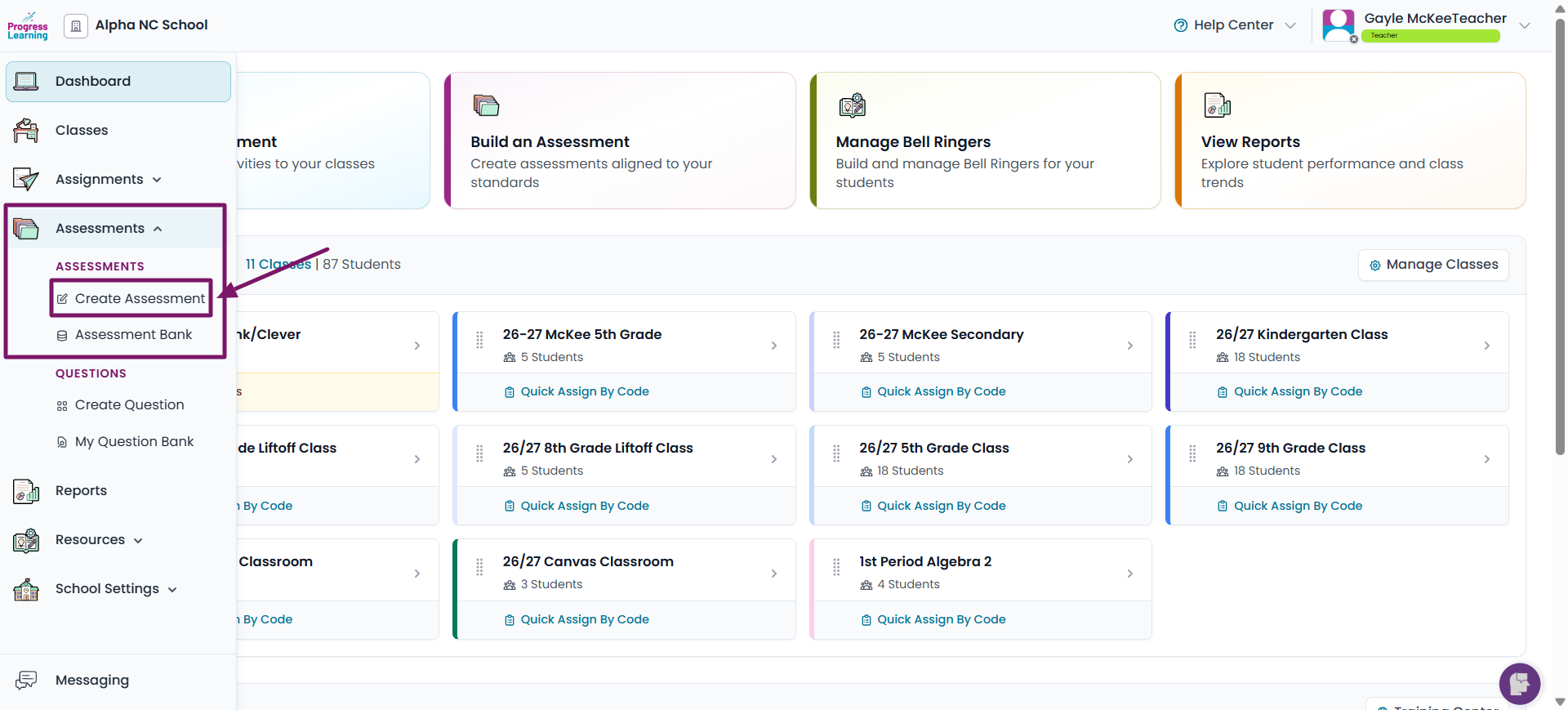
- From the left side menu select Assessments and click on Create Assessment
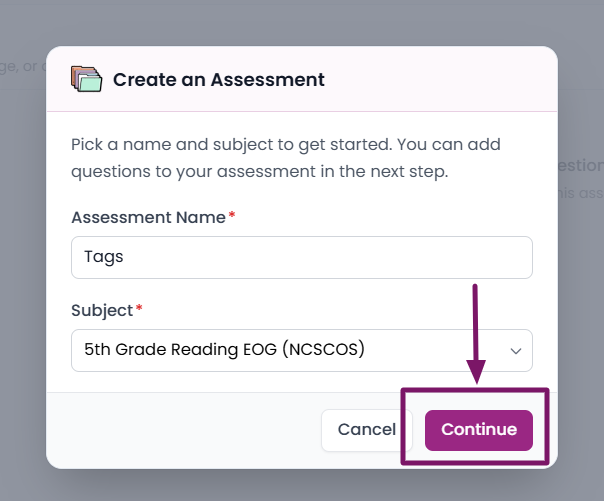
- Give your Assessment a name, choose a subject and click on Continue
- Build your Assessment and click Save and Continue

- From the Details tab, locate Tags and click on the dropdown menu
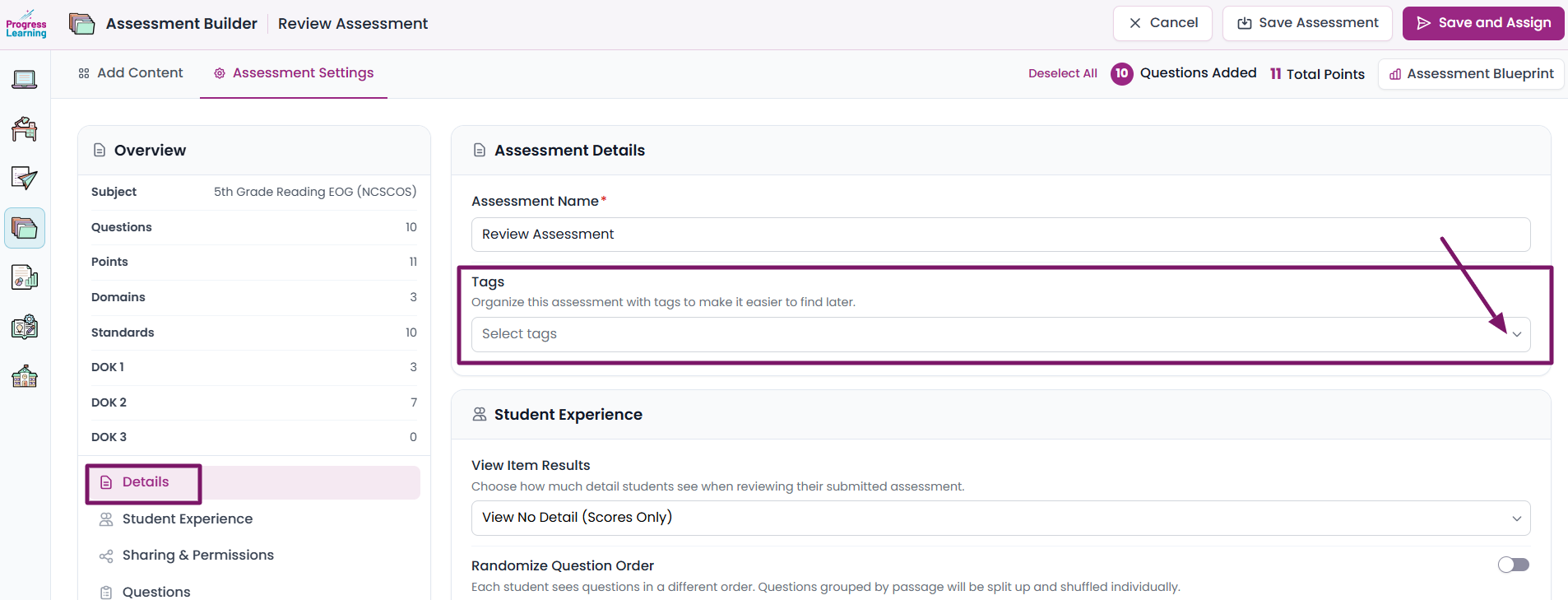
- Locate the Add new tag field.
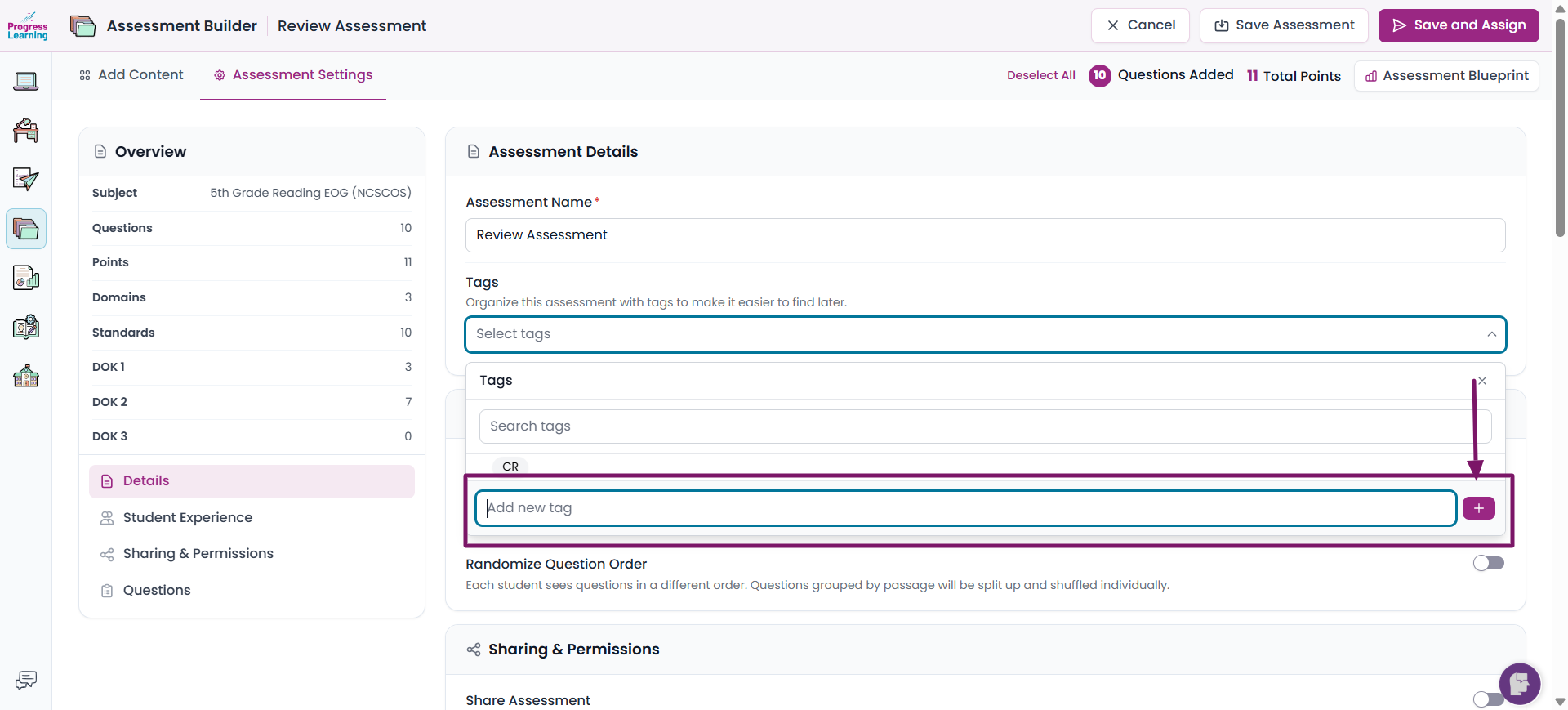
- Type in the name of the Tag and click on the plus (+) sign
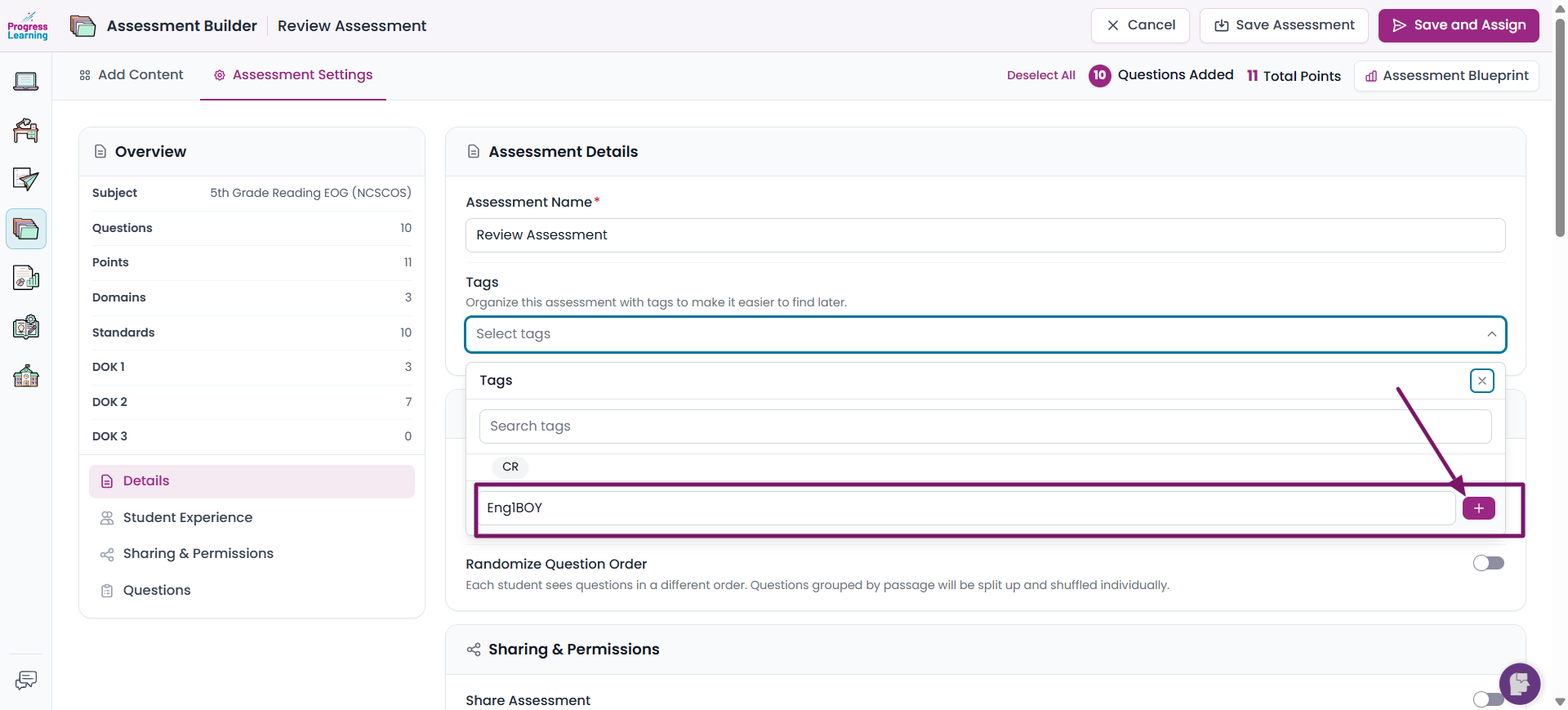
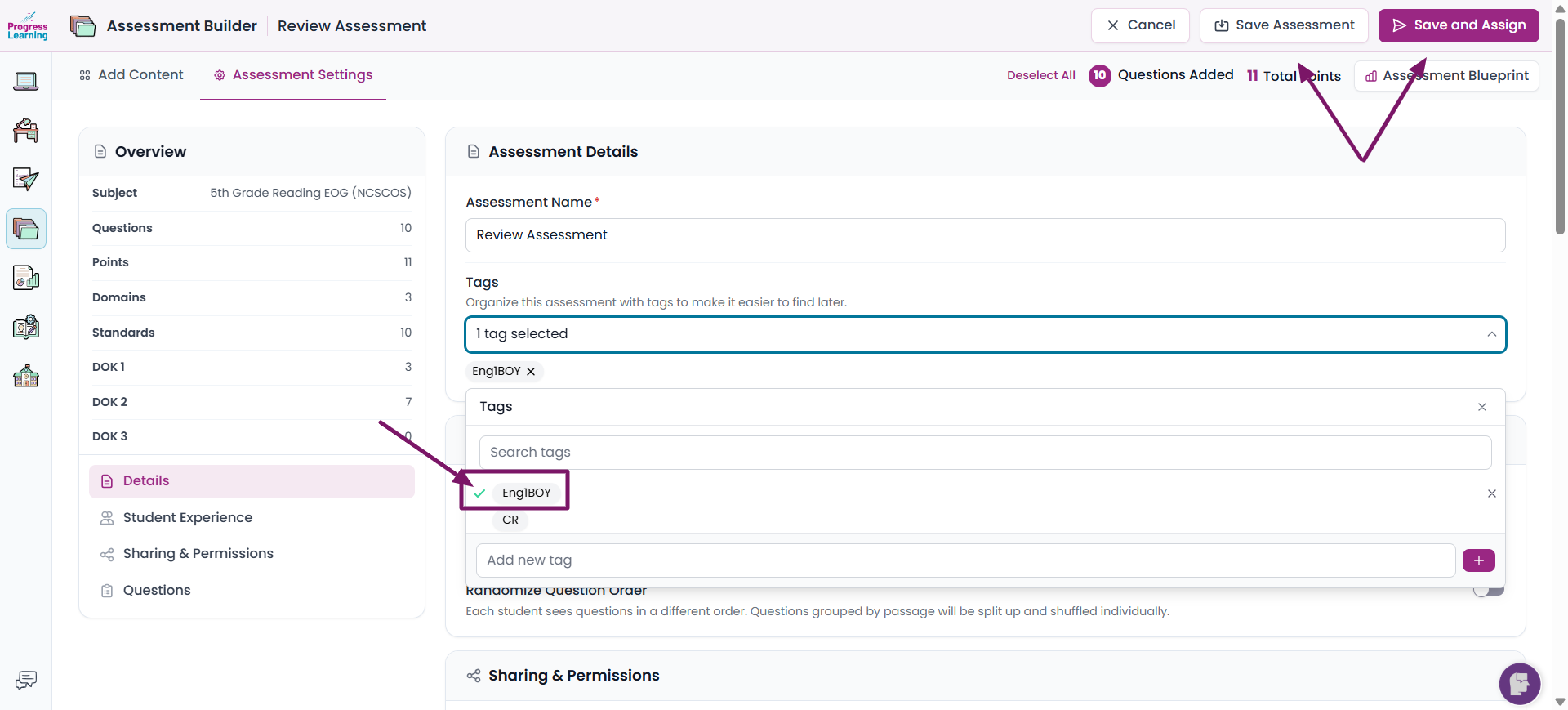
- Click on the name of the tag that you just created until you see a green check mark beside it. Click on either Save Assessment or Save and Assign.
Adding Tags from the Assessment Bank
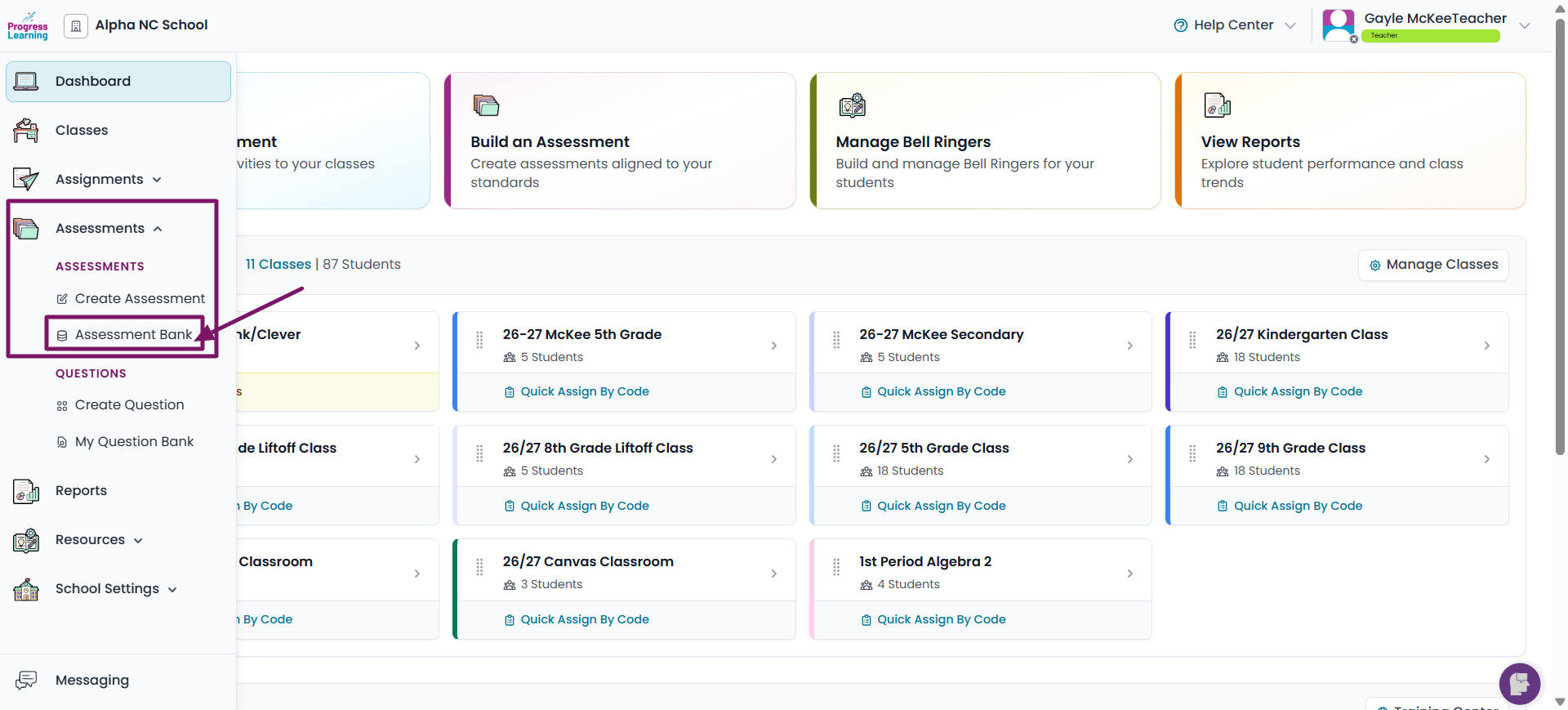
- From the left side menu select Assessments and click on Assessment Bank
- Tick the box beside the name of the assessment you want to tag. Click on Add Tag from the menu above.
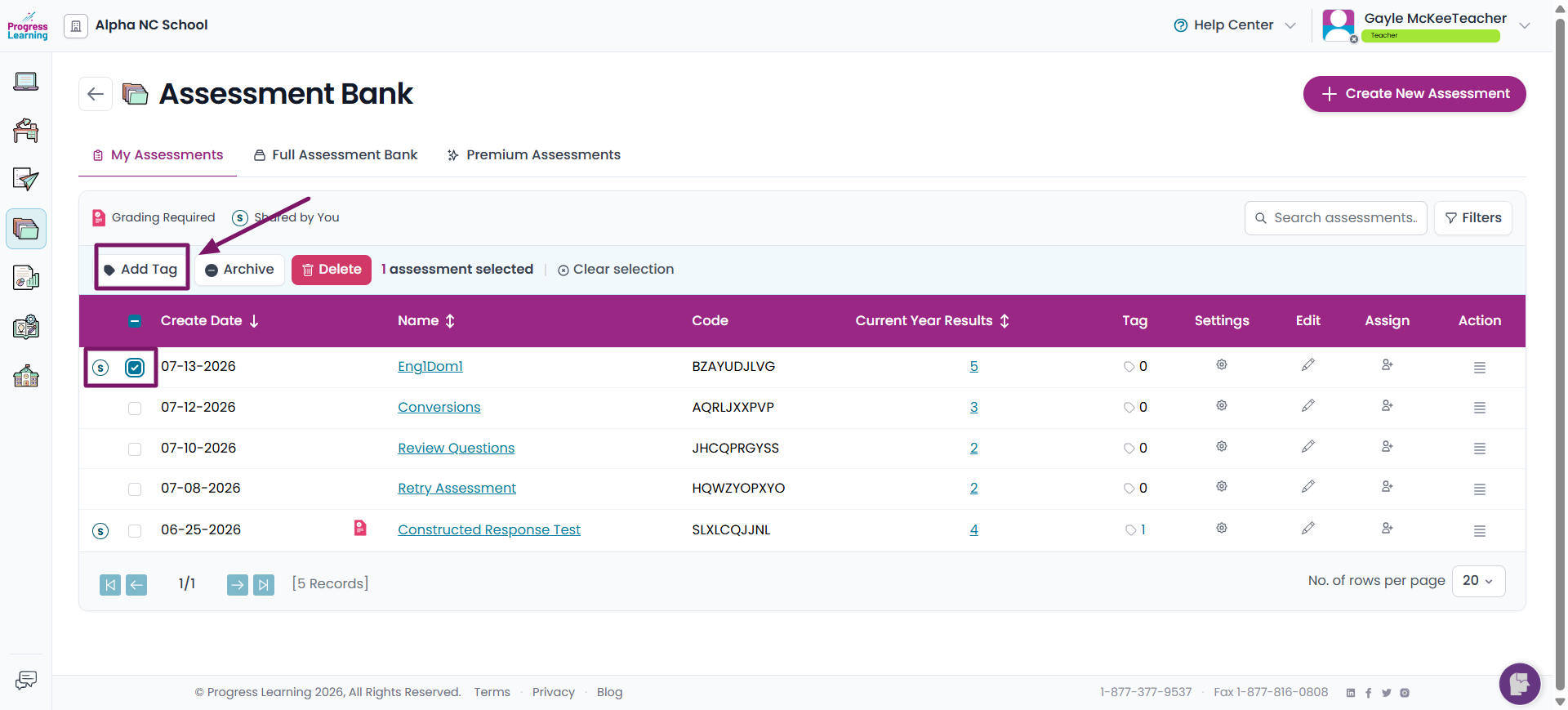
- A pop up will appear. Scroll down until you find the option to Add new tag
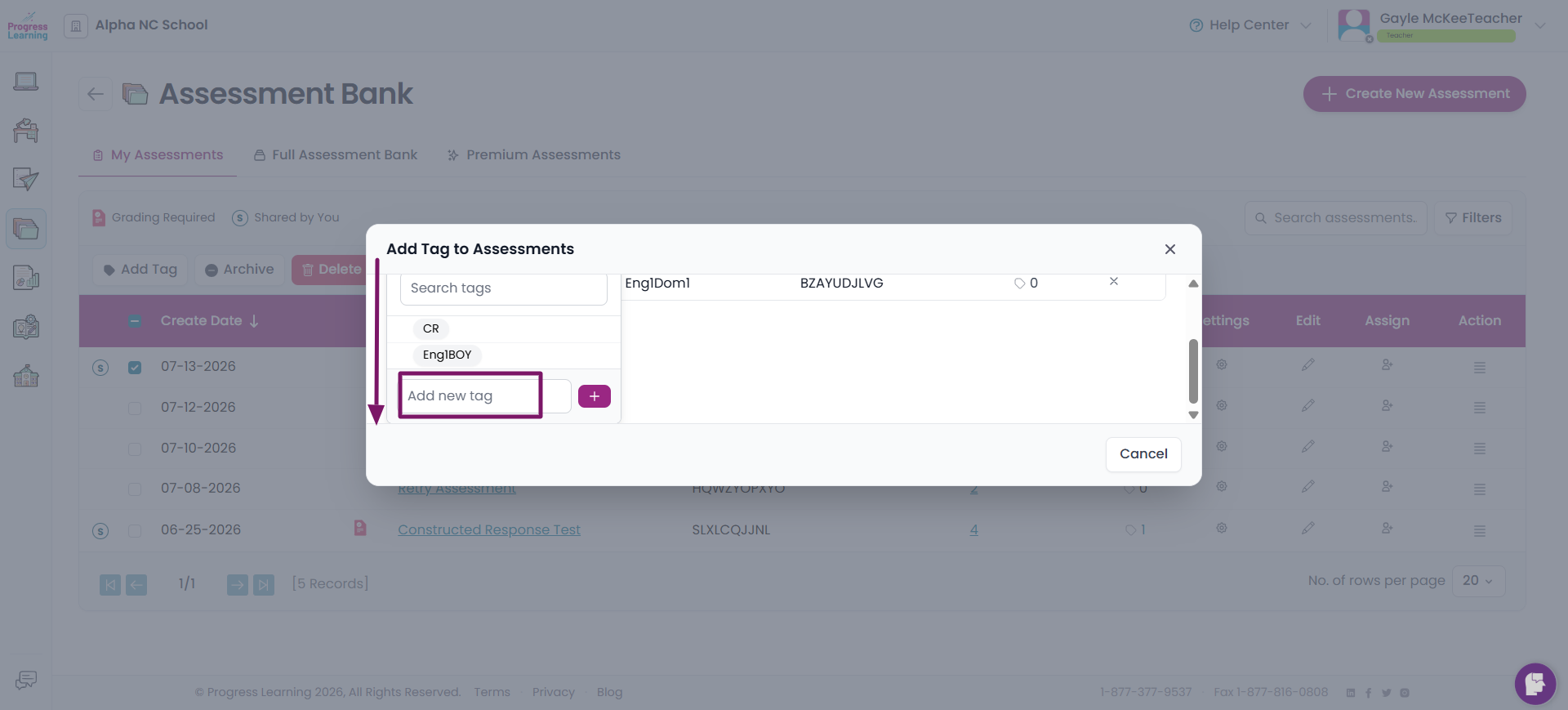
- Type in the name of your tag and click on the plus sign (+)
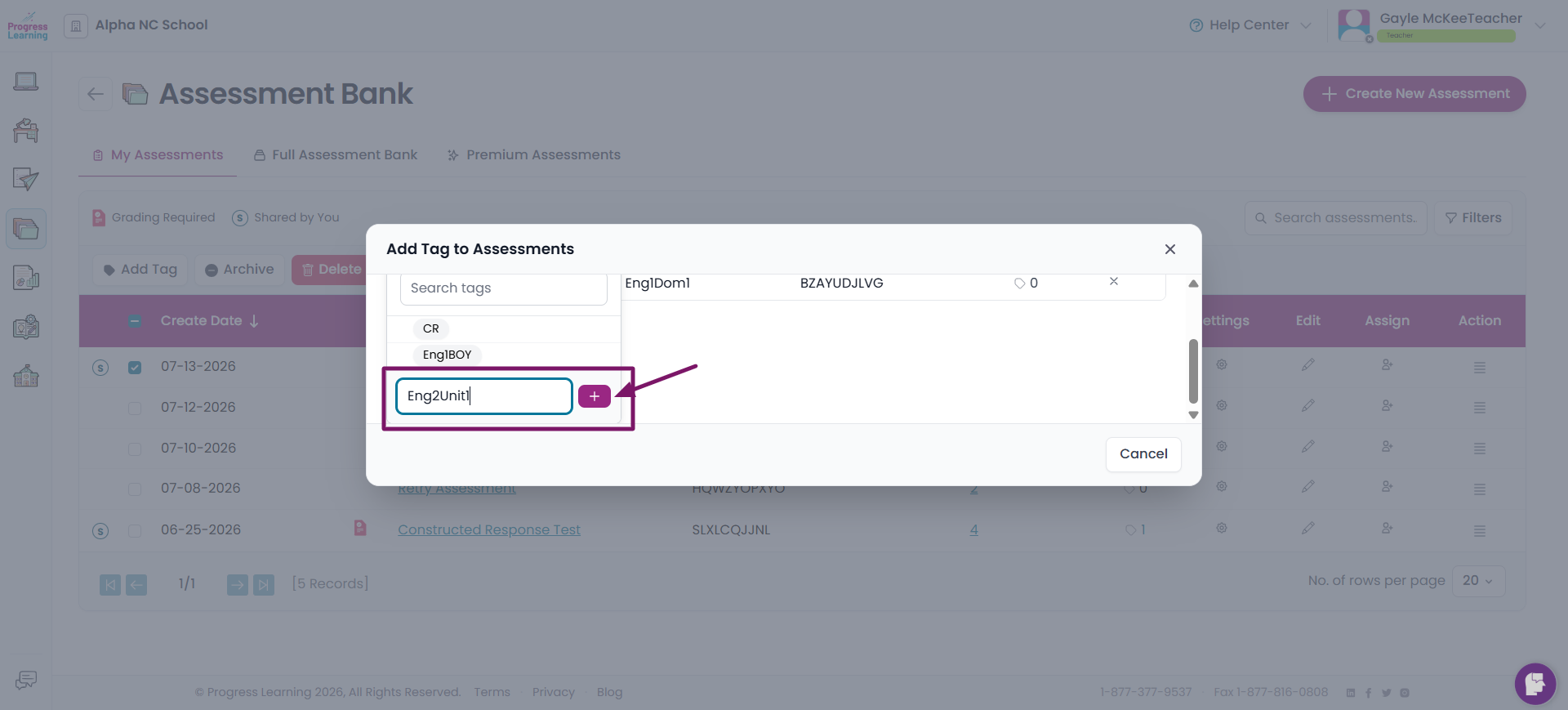
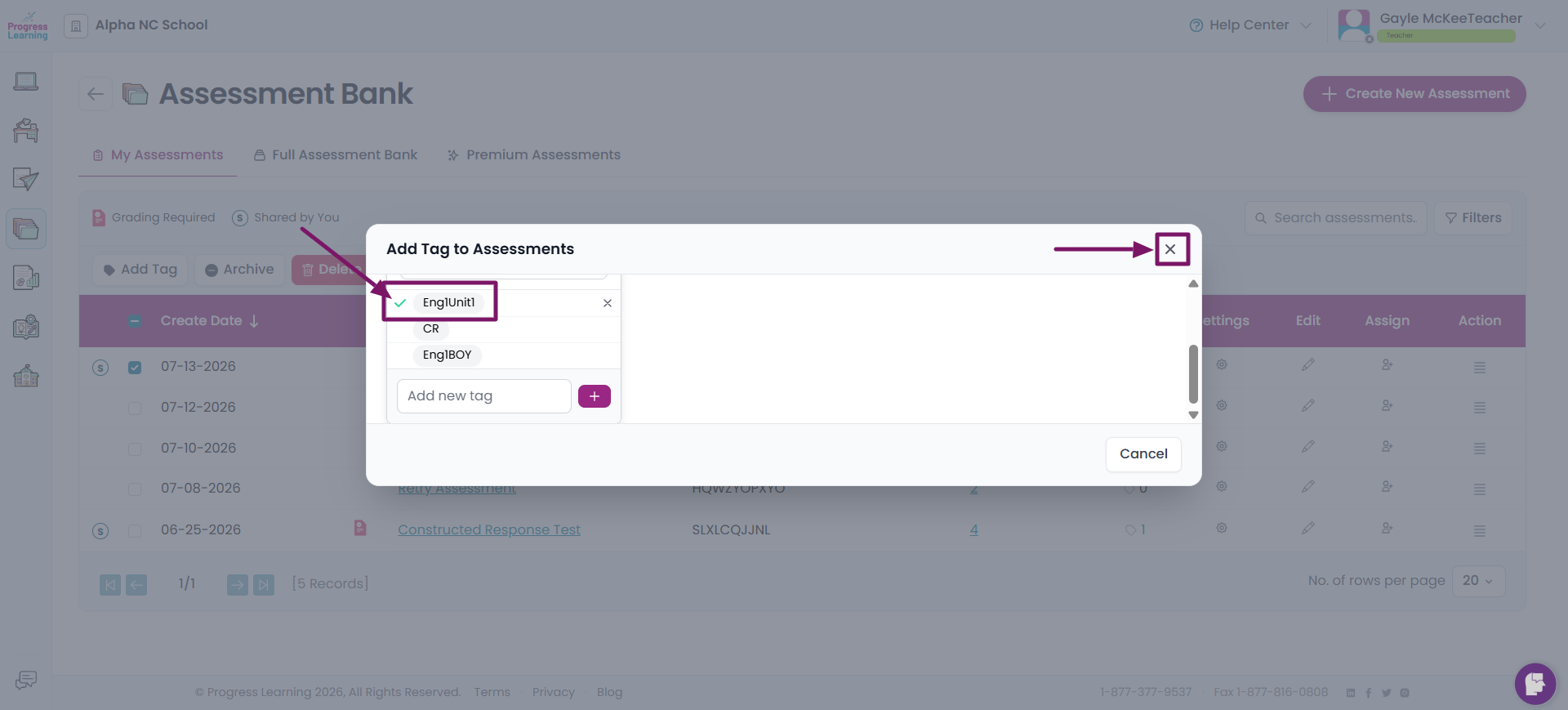
- Your new tag name will be added to the list. Click on the new tag until there is a green checkmark. Click on the X in the top right side of the pop up.
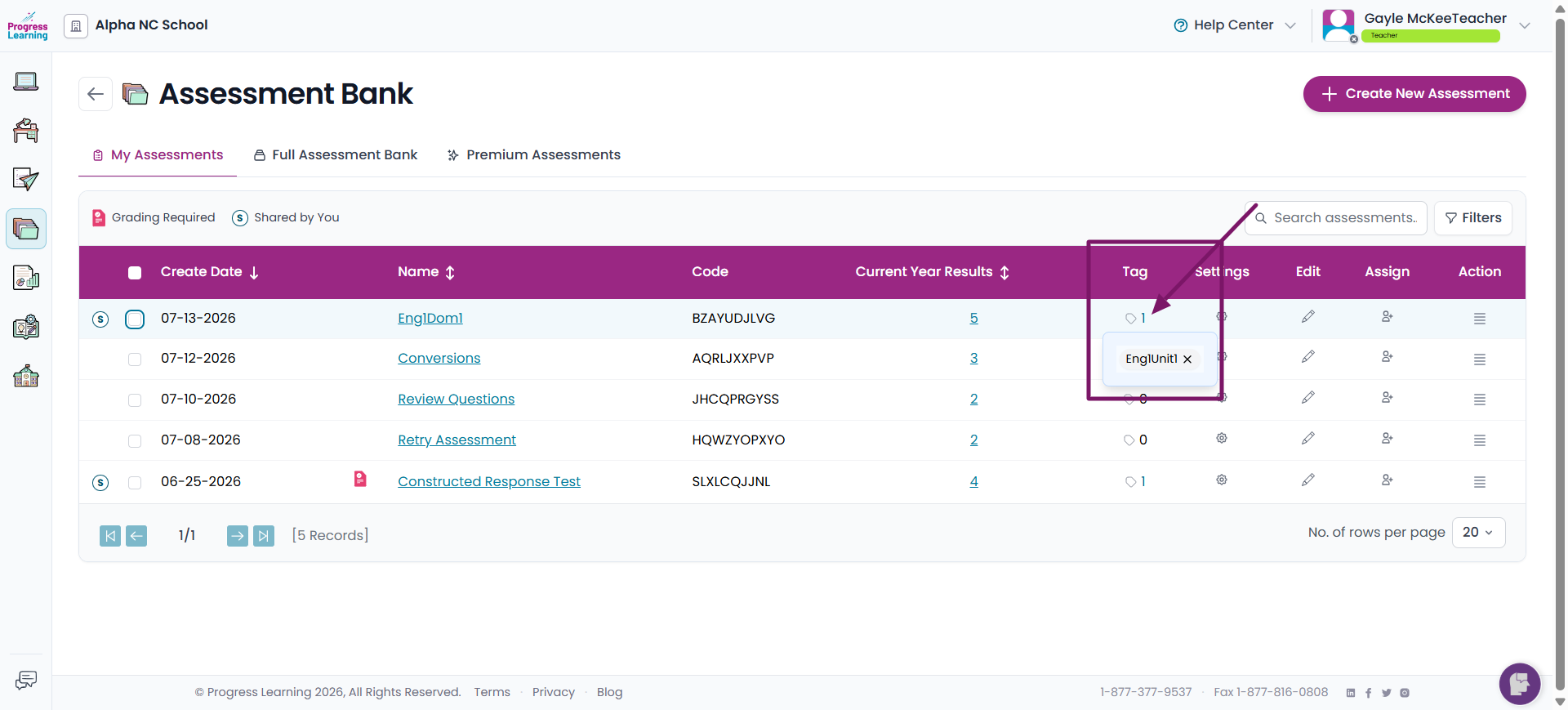
- If you hover over the number in the Tag column, you will see the name of the tag you assigned to that assessment.