How do District and School Administrators use Content Management?
 Updated
by
Cody Darr
Updated
by
Cody Darr
Content Management allows district and school administrators to control access to Premium Assessments, specialized Item Banks, and AI Authoring. Teachers do not have access to Content Management, but the settings determine which content and actions are available to them.
Access Content Management
- Go to School Settings.
- Select Content Management.
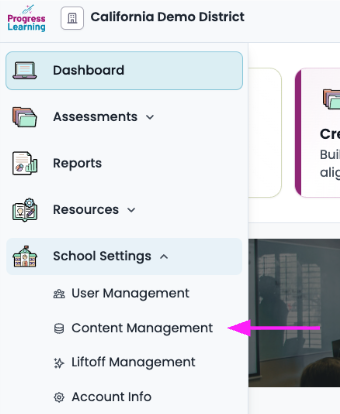
Open Content Management from the School Settings menu.
Understand the available tabs
The tabs you see depend on your administrator role. District administrators can access all four tabs. School administrators can access Premium Assessments, Item Banks, and AI Authoring.
Tab | Available to | Purpose |
School Permissions | District admins | Choose whether the district or each school manages its Content Management settings. |
Premium Assessments | District and school admins | Control teacher permissions and assessment availability. |
Item Banks* Available for Georgia UGA Item Bank subscribers only. | District and school admins | Choose who can use specialized Item Bank questions when building assessments. |
AI Authoring | District and school admins | Choose who can use AI Authoring for supported question types. |

Set School Permissions
The School Permissions tab is available only to district administrators. Use it to decide whether Content Management settings are managed by the district or by each school.
Enabled: The school administrator can manage teacher access to Premium Assessments, Item Banks, and AI Authoring for that school. The district cannot change those settings while the school manages them. The school row is displayed as Managed by School. This is the default setting.
Disabled: The district manages the settings. School administrators can open Content Management, but the page is read-only and displays Settings are currently managed by the district.
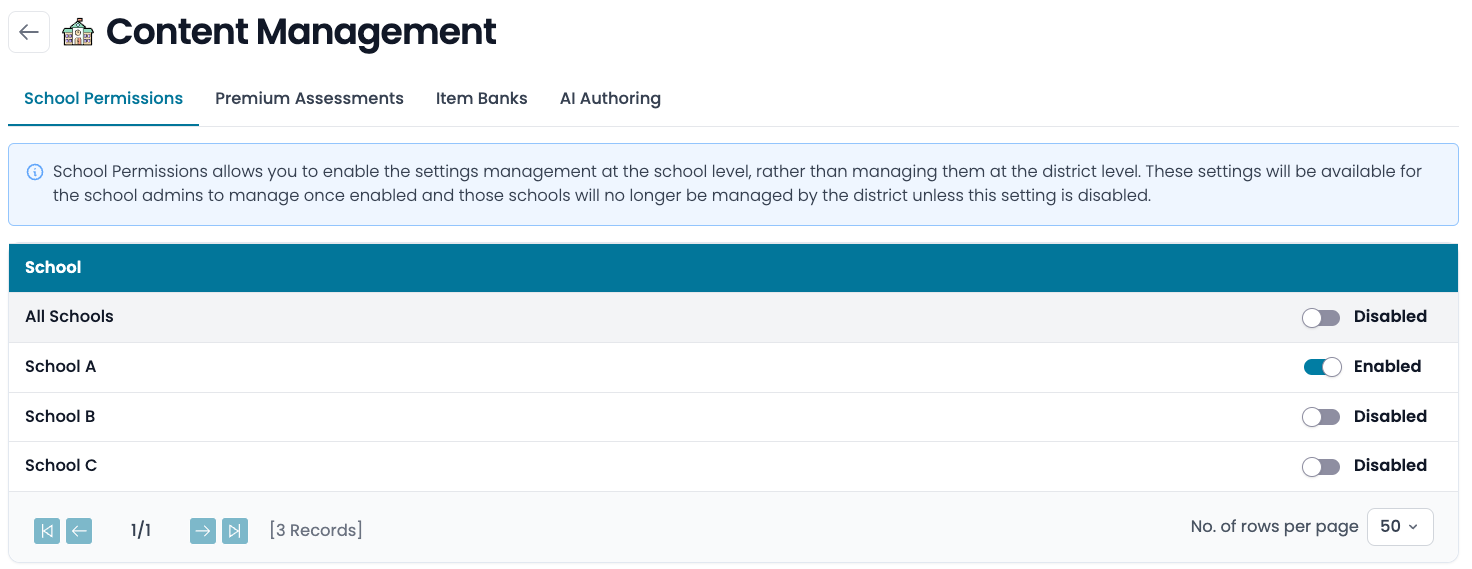
Manage Premium Assessments
Premium Assessment controls are divided into two areas:
- Assessment Settings gives you the ability to control what teachers see in regards to Premium Assessments
- Allow Teachers to View Detailed Results- defaults to enabled
- If View Detailed Results is enabled, then teachers will have full access to results reporting. If disabled, teachers will see the overall grade for the assessment in Gradebook, but have no access to other results reporting or details.
- Allow Teachers to Preview Content- defaults to disabled
- If Allow Teachers to Preview Content is allowed, the teachers will have access to preview assessment content. If disabled, then teachers will not have access to preview or view the assessment or Item Analysis, but still be able to view other results when enabled in the Detailed Results setting.
- Allow Teachers to View Detailed Results- defaults to enabled
- Manage Access by Assessment controls whether an assessment is available to each school.
Teachers can still see that a Premium Assessment exists when it is turned off. They cannot use actions that an administrator has blocked.
- Manage Access by School controls which Premium Assessments are avaiable on a campus by campus basis.
Teachers can still see that a Premium Assessment exists when it is turned off. They cannot use actions that an administrator has blocked.
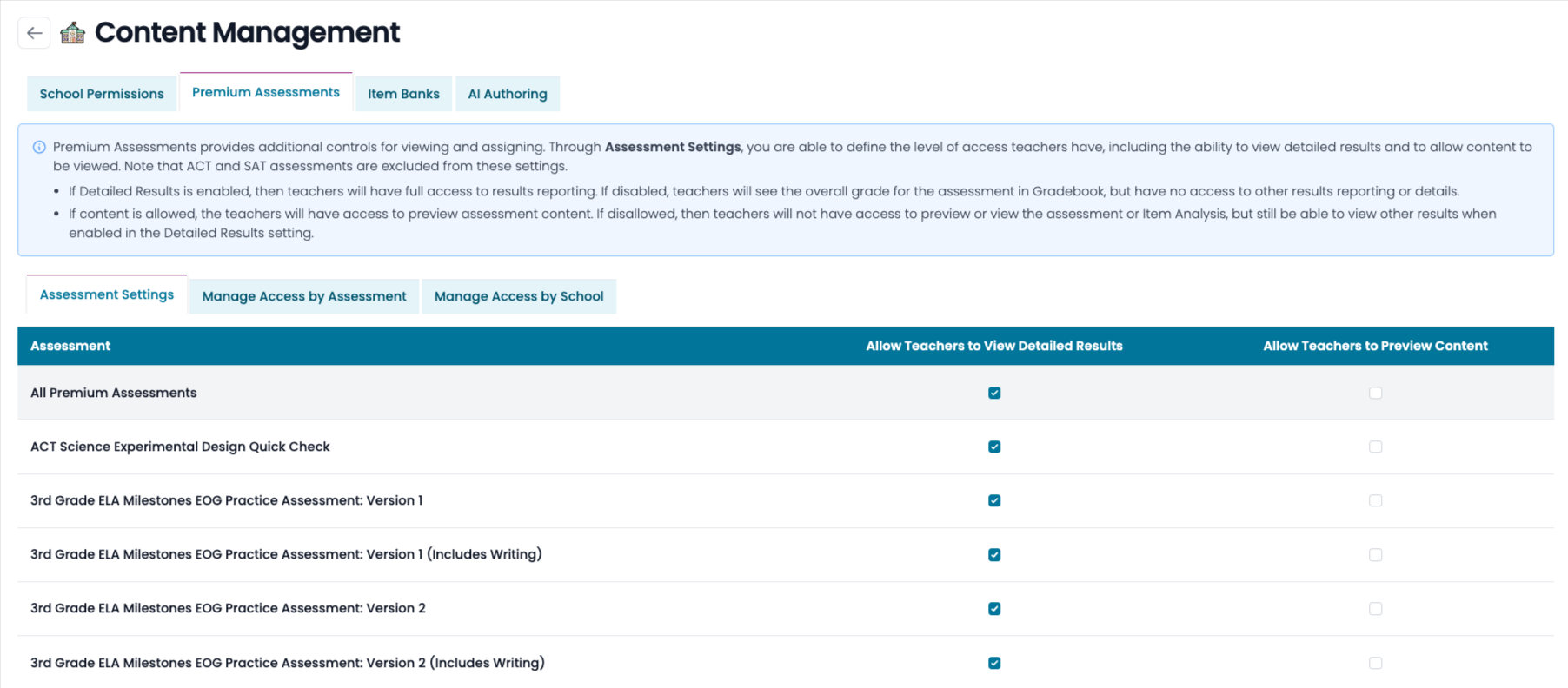
Choose what teachers can do
Assessment Settings define the level of teacher access for each Premium Assessment.
Allow Teachers to Assign: Teachers can create a new assignment using the assessment when this option is selected.
Allow Teachers to View Detailed Results: Teachers can access detailed results, including the Results Report, exports, Gradebook links, and the Assessment Results Report when this option is selected.
Allow Teachers to Preview Content: Teachers can preview and print the assessment, view the answer key, and see question-specific results when this option is selected. When it is not selected, those actions and Item Analysis in the Results Report are unavailable.
Control assessment availability
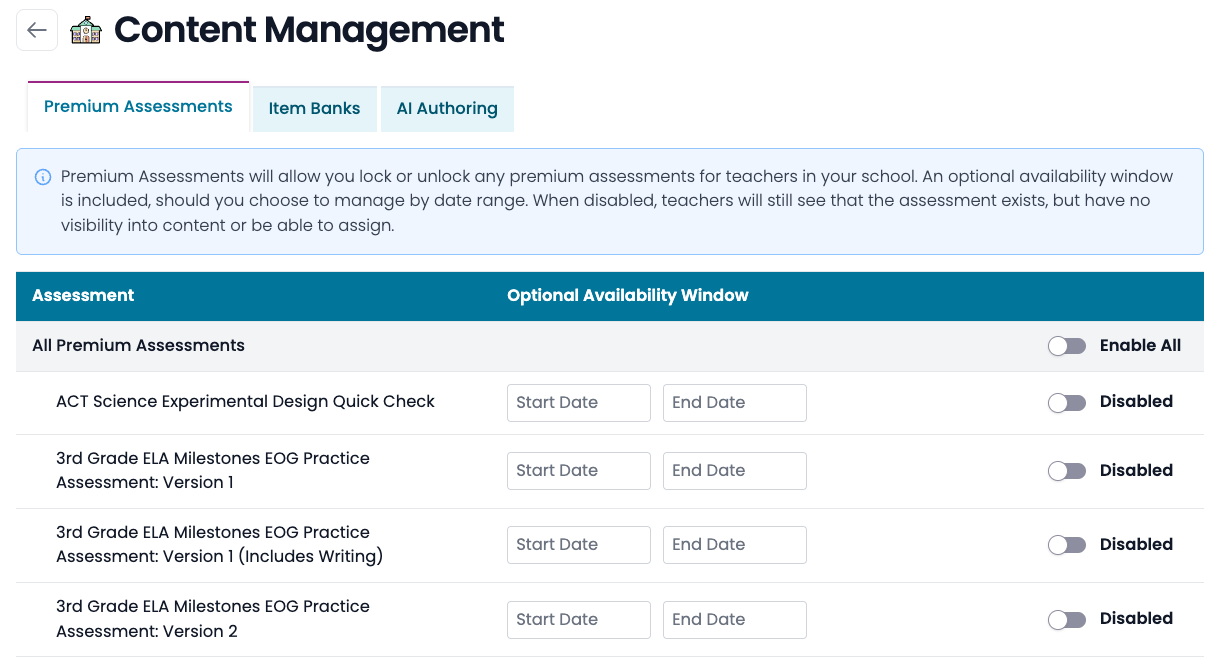
Manage by Assessment and Manage by School allow district administrators to control which Premium Assessments can be added to new assignments. You can manually enable or disable availability or control it with an optional date range.
- An assessment becomes available automatically when its start date arrives.
- Availability is removed automatically after the end date.
- Use the first row to enable or disable all Premium Assessments.
- Use an assessment row to manage one assessment, or expand the row to manage individual schools.
When a school administrator manages the settings, the view is slightly different, but the same options are available. The school administrator can manually enable or disable each assessment or use an availability window.
What teachers see when an assessment is off
- Teachers can still see that the assessment exists.
- Teachers cannot assign or preview the assessment.
- A blocked action displays: Your Admin has disallowed the ability to view details or perform specific actions on this activity.
Manage availability from Content Management
Premium Assessments can no longer be locked or unlocked from the Assessment Bank. Manage their availability from Content Management instead.
- School administrators are directed to Content Management or asked to contact the district administrator when they select a lock icon in the Assessment Bank.
- Teachers see a message that their administrator has restricted access.
Manage Item Bank access
The Item Banks tab allows administrators to choose who can use specialized Item Bank questions when building or editing assessments. This tab appears only for accounts with a specialized Item Bank subscription.
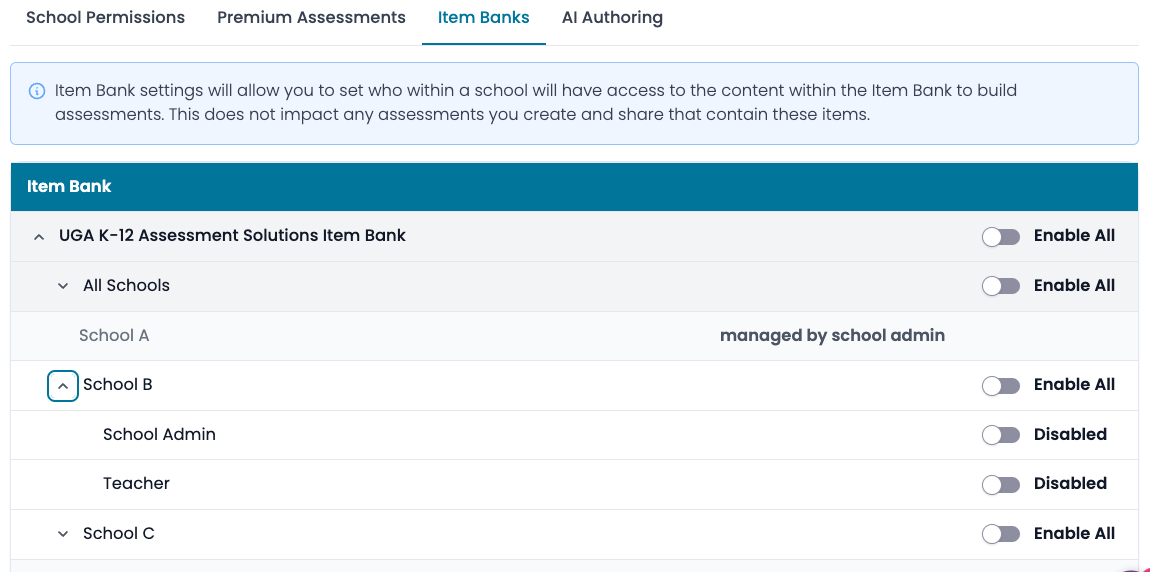
District administrators can manage access for all schools or for school administrator and teacher roles within an individual school. When a school manages its own settings, the school administrator enables or disables Item Bank access for teachers.
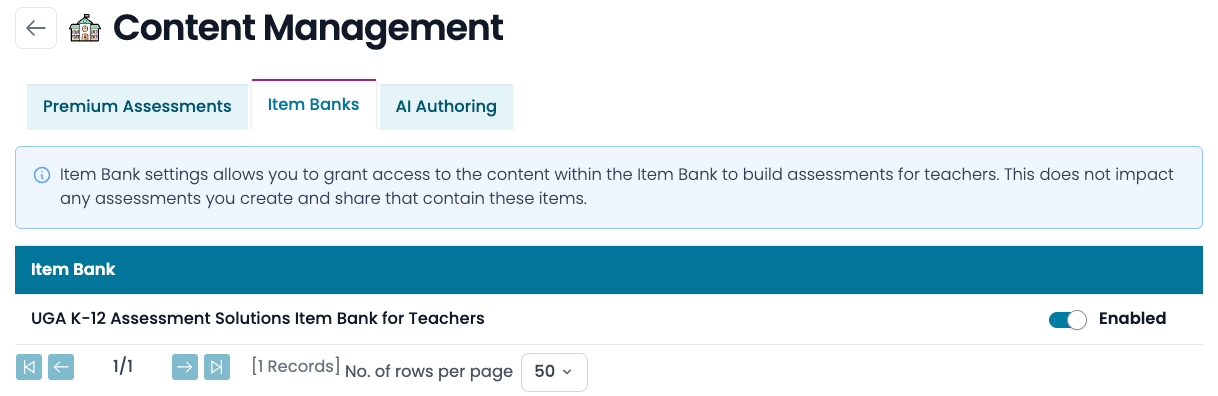
Important: Changing Item Bank access does not affect assessments that already contain Item Bank questions. It controls access only when users build or edit assessments.
Teacher access to specialized Item Banks is off by default until a district or school administrator enables it.
Manage AI Authoring access
The AI Authoring tab allows administrators to choose who can use AI Authoring for supported question types on the Create Question screen.
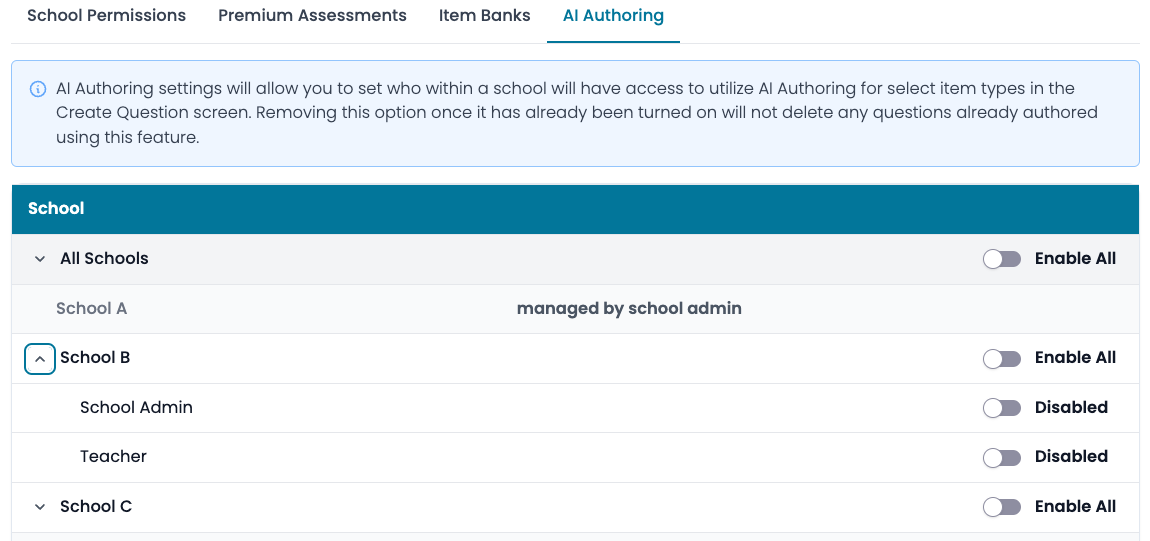
District administrators can manage access for all schools or for school administrator and teacher roles within an individual school. When a school manages its own settings, the school administrator enables or disables AI Authoring for teachers.
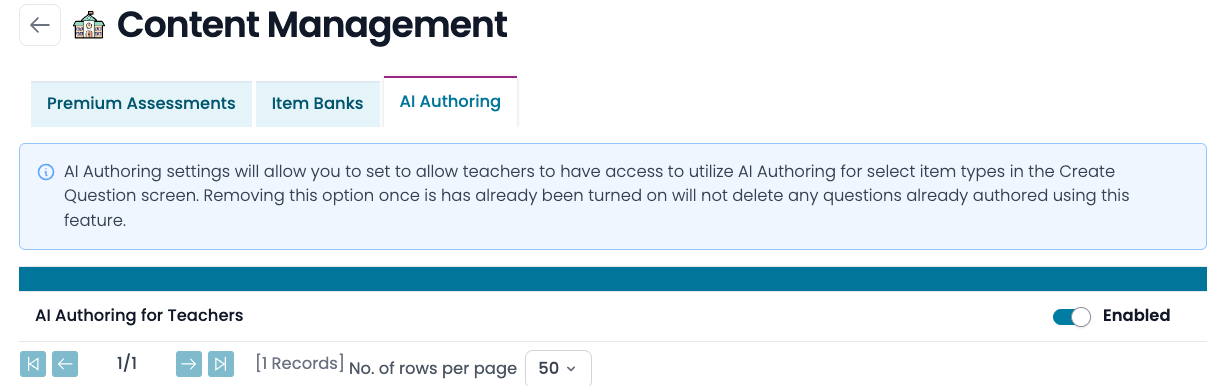
Important: Turning off AI Authoring does not delete questions that were already created with the feature.
AI Authoring is available to all users by default.
Frequently asked questions
Why can’t I make changes for a school?
If the row displays Managed by School, that school manages its own settings. A district administrator can take control again by turning off School Permissions for that school.
Why can’t I assign an assessment even though I can see it?
The assessment may be turned off for the school, or Allow Teachers to Assign may not be selected. Check both the assessment availability and the Assessment Settings.
Why don’t teachers see Item Analysis when detailed results are enabled?
Turn on Allow Teachers to Preview Content. Item Analysis remains hidden when preview access is off, even if detailed results are enabled.
Why did the on/off toggle disappear after I set a date range?
This is expected. The dates now control availability, and Enabled by Dates replaces the toggle. Select Reset to return to manual toggle control.
Will turning off Item Banks or AI Authoring remove existing work?
No. Assessments that already include Item Bank questions and questions already created with AI Authoring are not removed.
