Family Connect Guardian Instructions
 Updated
by
Gayle McKee
Updated
by
Gayle McKee
Family Connect is the new parent and guardian portal in Progress Learning giving you a clear view of your student's assignments, activities and results in one place.
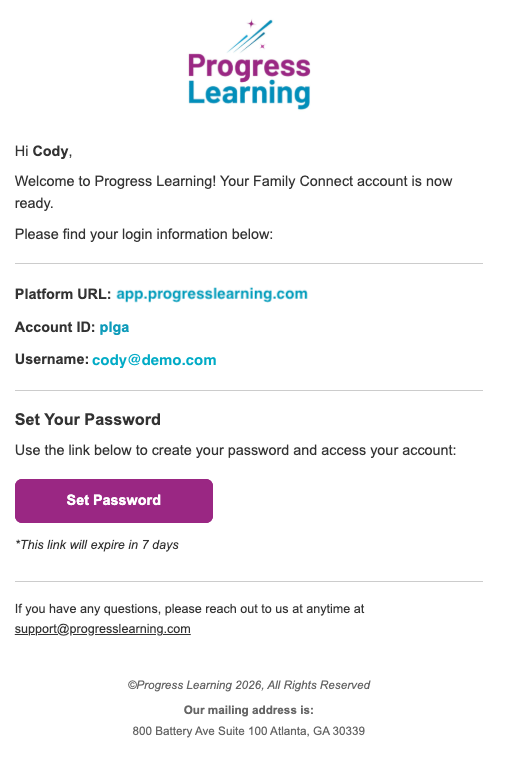
Once you have been set up in the system by your School Administrator, you will receive an email with the following information:
- The Progress Learning login link
- Your Username and Account ID
- A Set Password button
The email will look like this. You will need to click on the Set Password button to set up your personal password.
Logging In
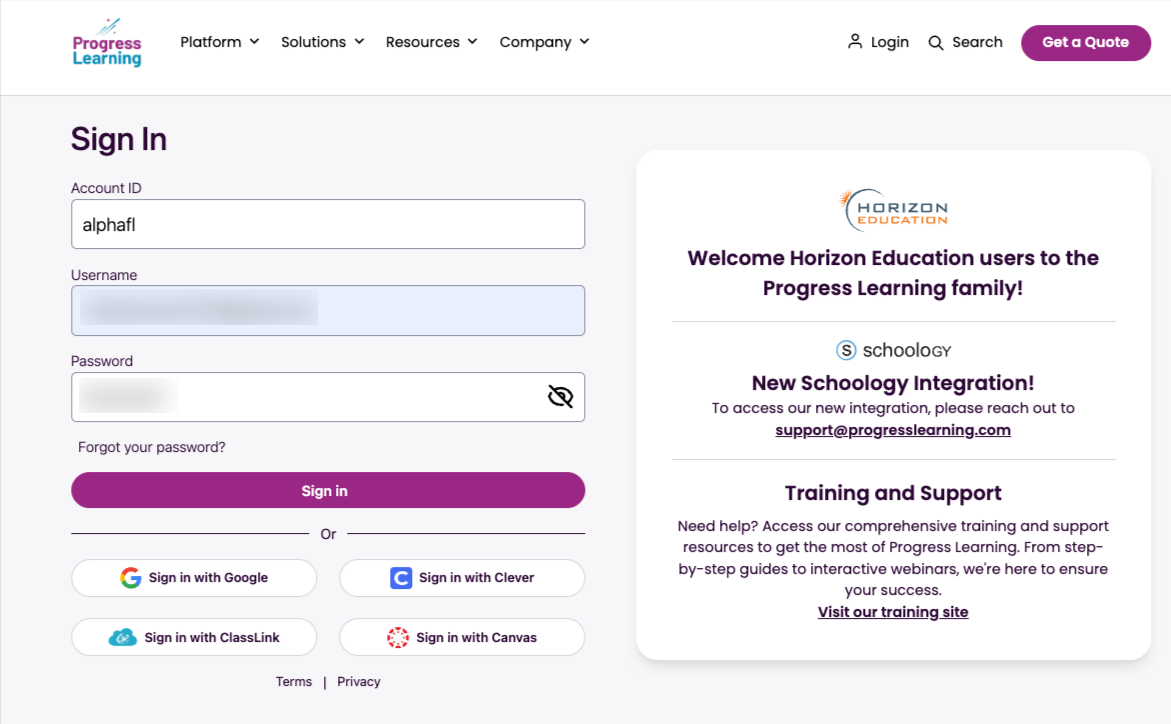
You will go to app.progresslearning.com to log in. Enter the Account ID, Username and Password from the previous step.
Guardian Dashboard
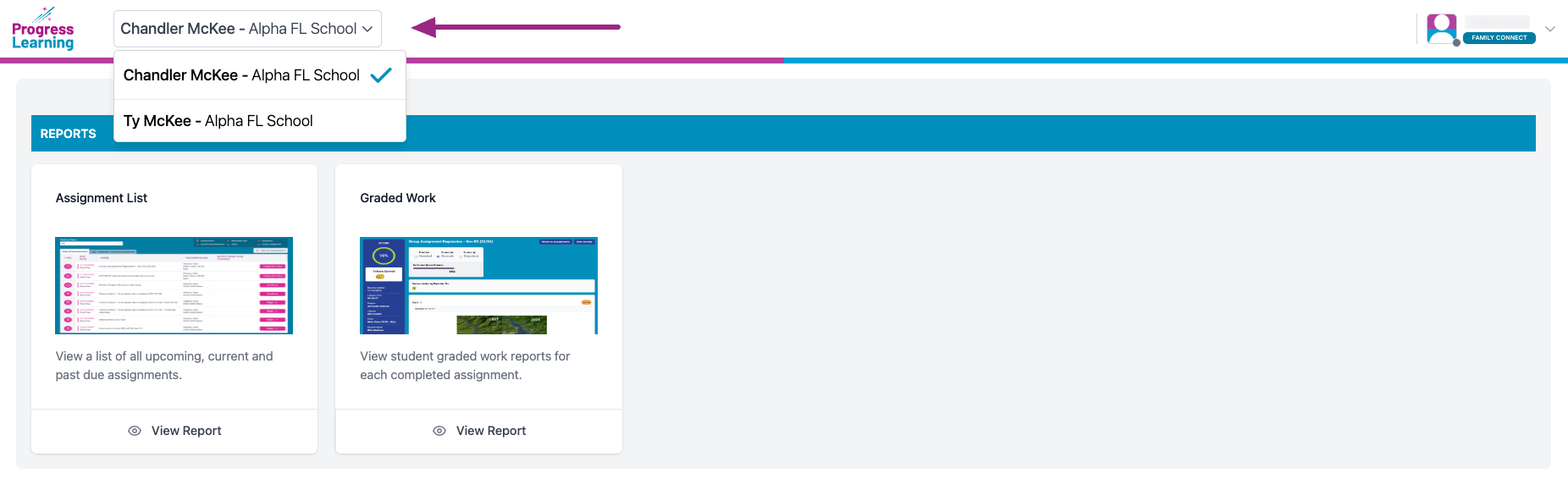
If you have more than one student, you can use the dropdown menu at the top to select the student whose data you wish to see.
Assignment List
Once you've chosen the student you wish to monitor, you have the option to pick which class for which you would like to see data.
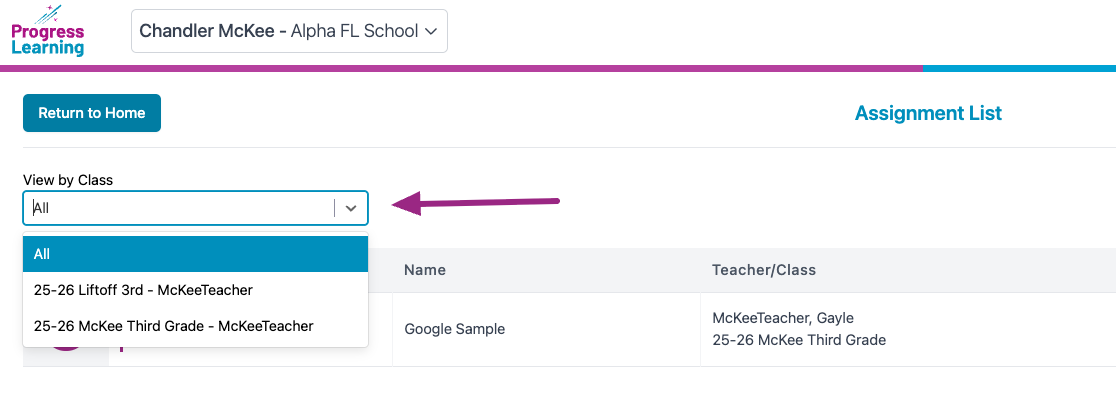
Here you will see a list of assignments that your student is responsible for. Any assignments in blue are current. Any assignments in pink are past due.
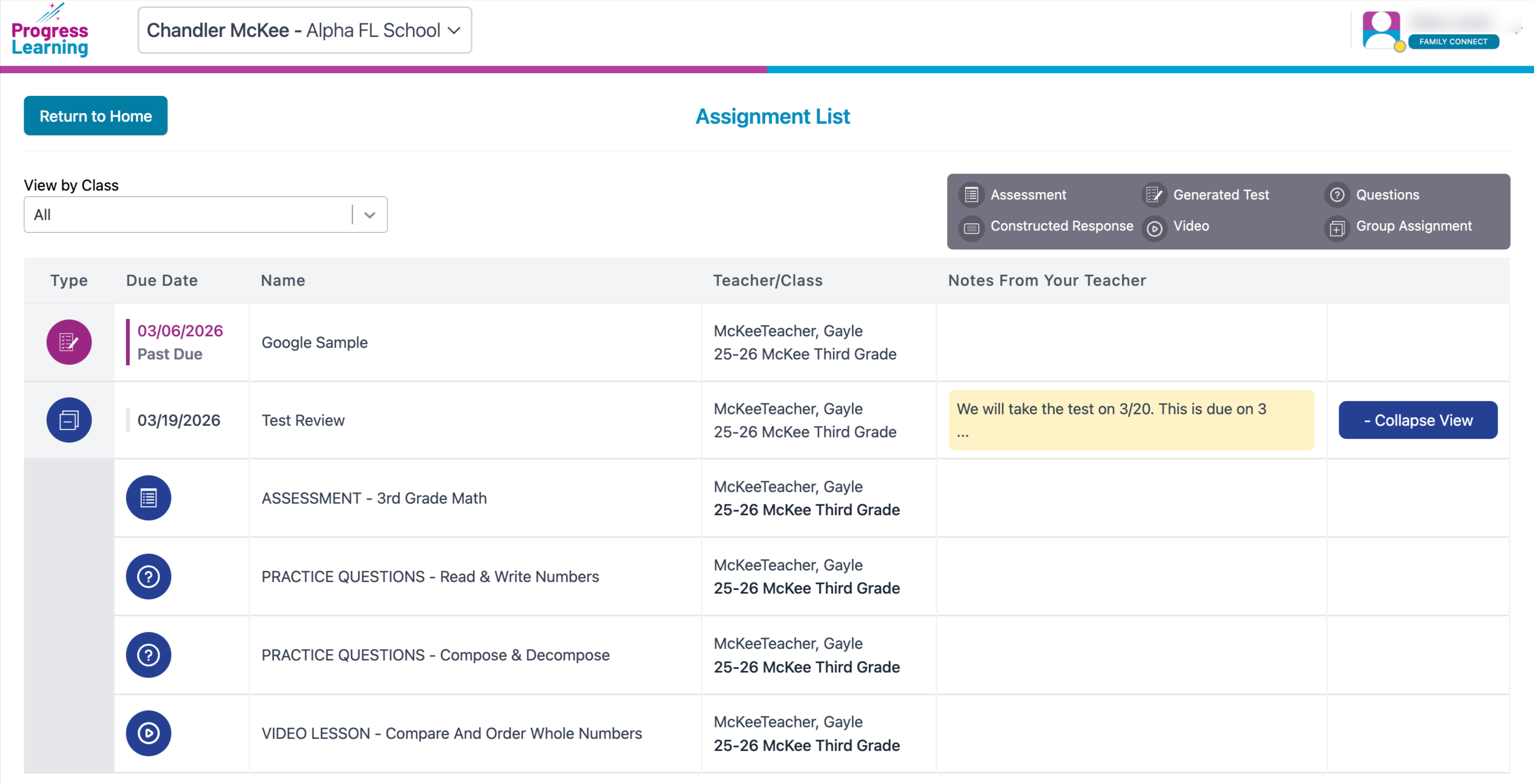
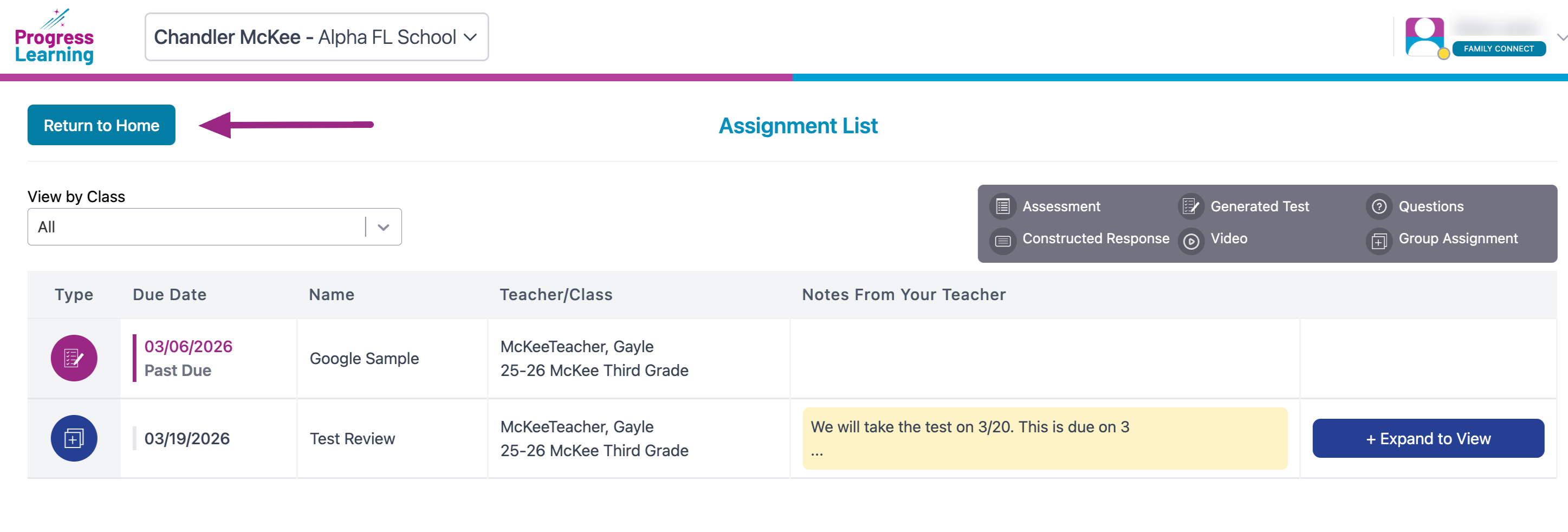
Clicking on Return to Home will get you back to your home screen
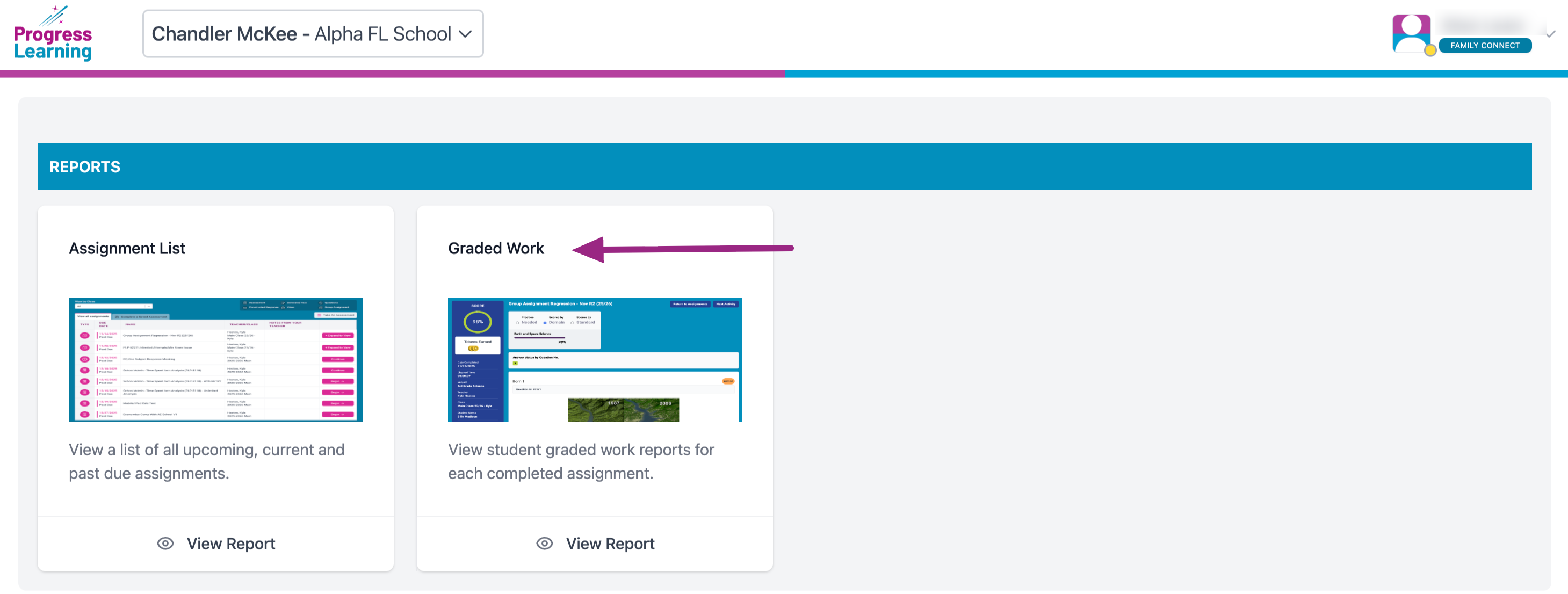
Graded Work
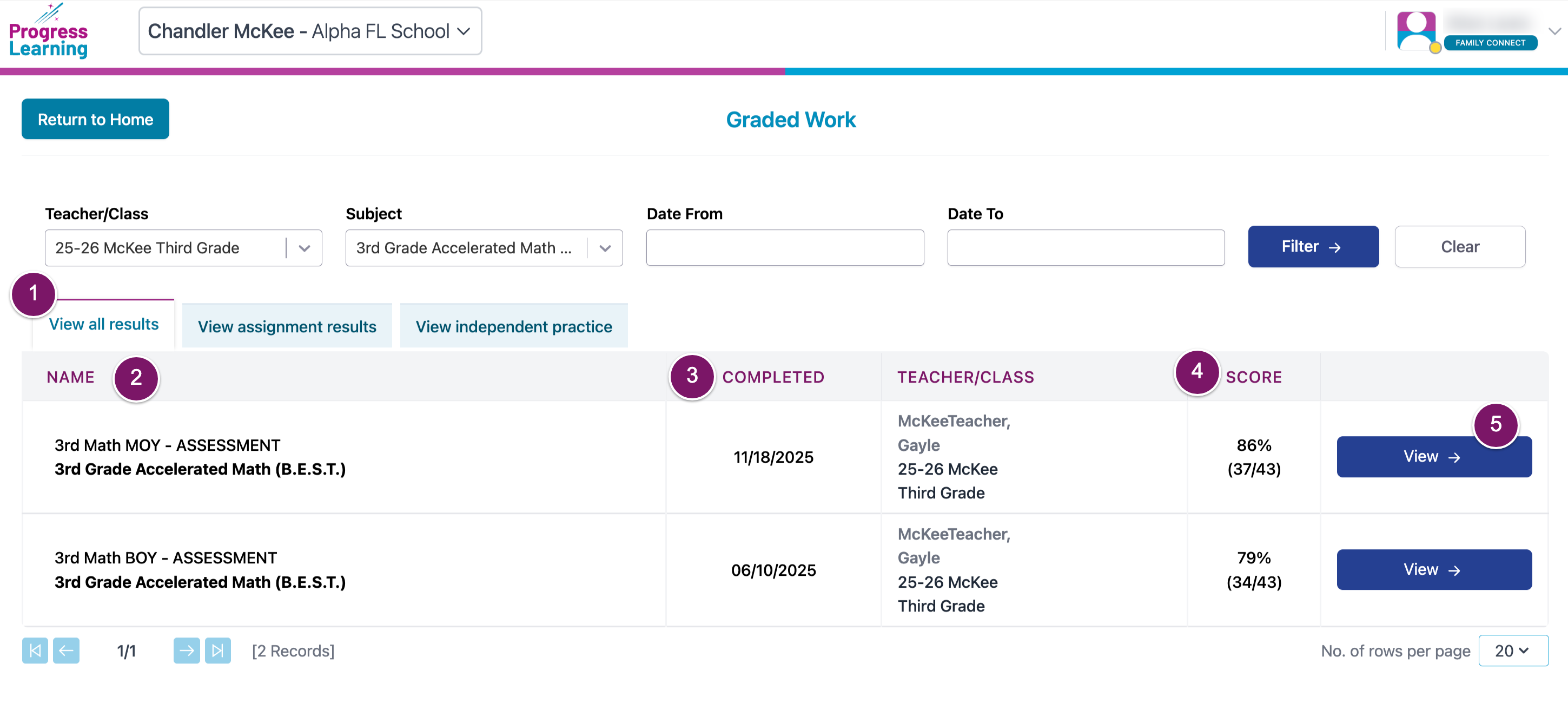
Back on your home screen, you also have the option to look at your student's Graded Work. This will include all activities that your student has completed and submitted in the Progress Learning platform.
You have the ability to filter by Teacher, Subject and/or Date Range

On this screen, you will see various pieces of information:
- You have the option to View All Results, View Assignment Results, View Independent Practice
- The name of the Assignment
- The date it was completed
- The Score
- Clicking on View will open up the details of the Assignment