What features can be found in the user Profile?
 Updated
by
Rebecca Baker
Updated
by
Rebecca Baker
Every user in Progress Learning has a profile, whether you have a Student, Teacher, School Administrator or District Administrator account. Let's take a look at what you are able to see and do from your profile.
Teacher Account Profile
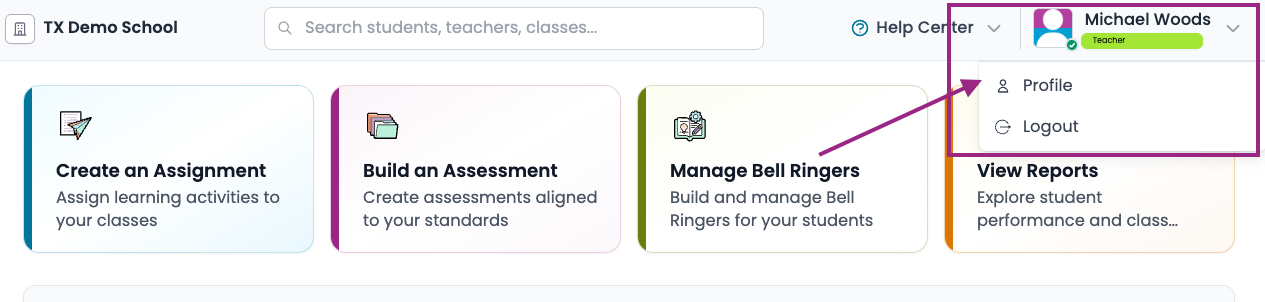
To find your profile, you will navigate to the top right corner of your screen and click on the avatar or the caret and select Profile
Profile Tab
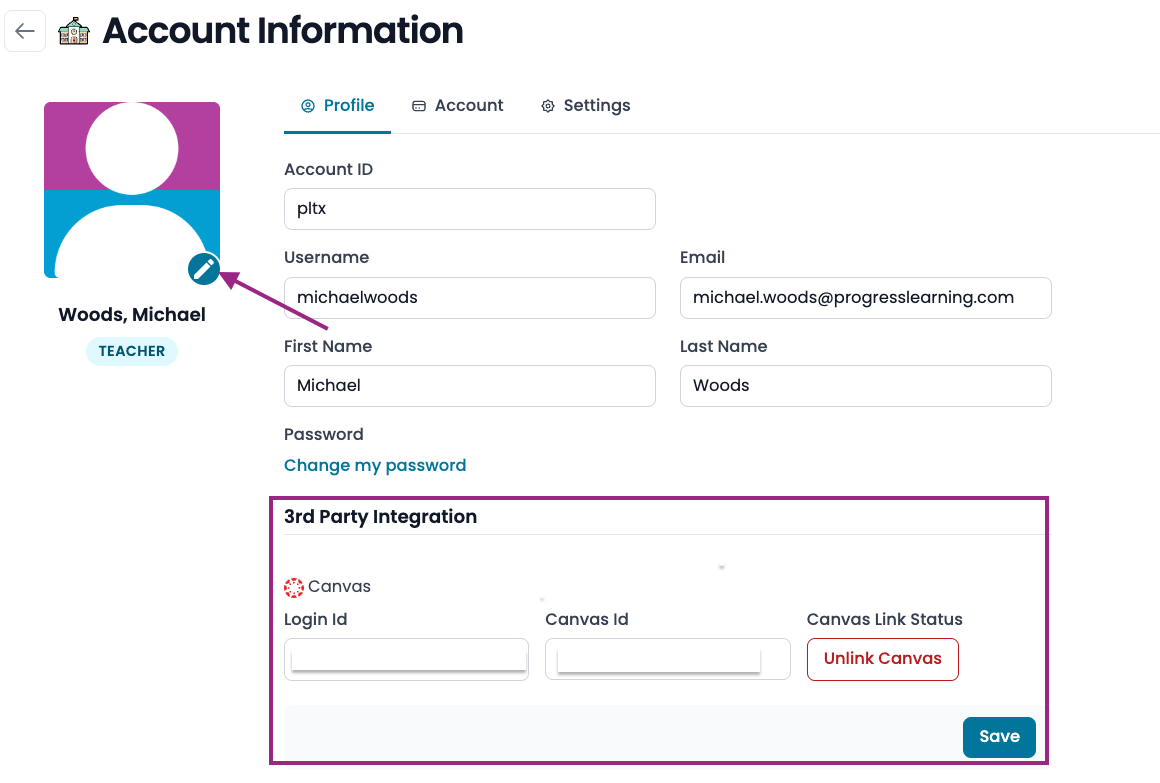
- You are able to edit your avatar/photo by clicking on the pencil icon in the lower right corner
- You are able to see your account information, change your password and set up your 3rd Party
Integrations like Canvas and Google Classroom
Account Tab
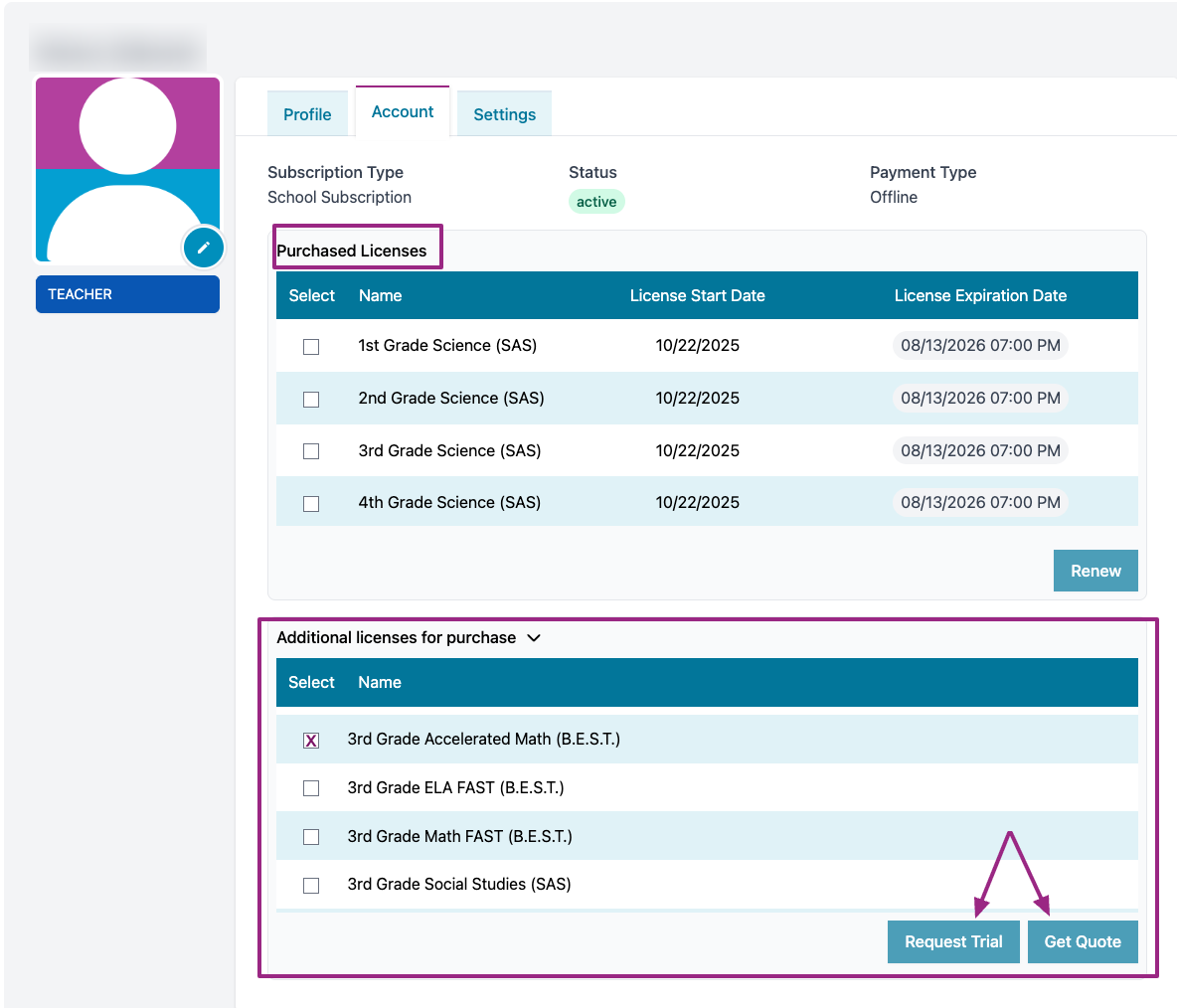
- Here you are able to see what content/licenses your school has purchased. At the bottom of this section, you can see all additional content areas available for purchase. Simply click the tick box next to a content you'd like to try and click Request Trial and/or Get Quote
School Information Tab
- The School Information Tab allows you to see when the School Year Reset Date. If the School Year Reset Date needs to be changed please contact support.
Settings Tab
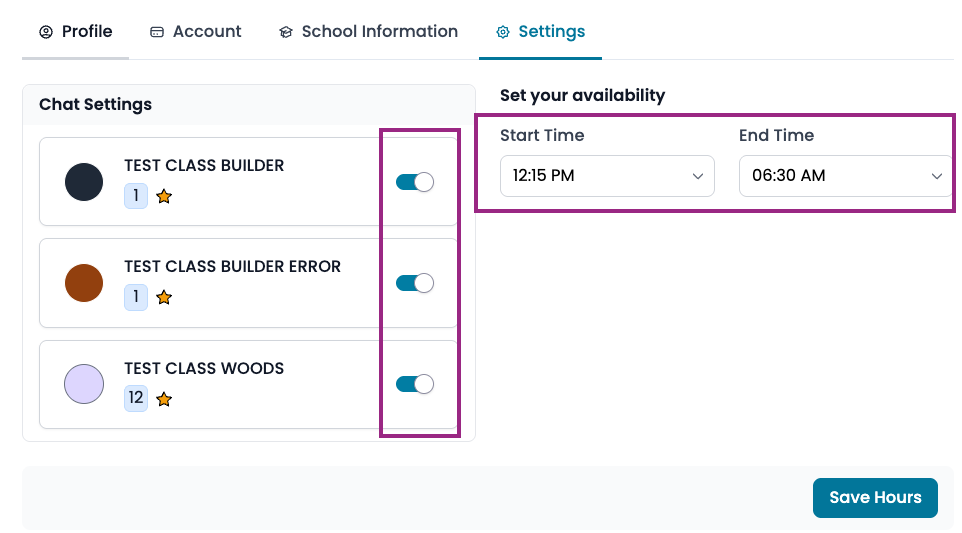
- The Settings Tab allows you to enable/disable the Student Messaging function as well as set your hours of availability to accept messages from students. Simply toggle the button in the on position (blue) to activate the Student Messaging function for each of your classes. Choose your availability start and end times from the dropdown menu.
School Admin Account Profile
Profile Tab
- You are able to edit your avatar/photo by clicking on the pencil icon in the lower right corner
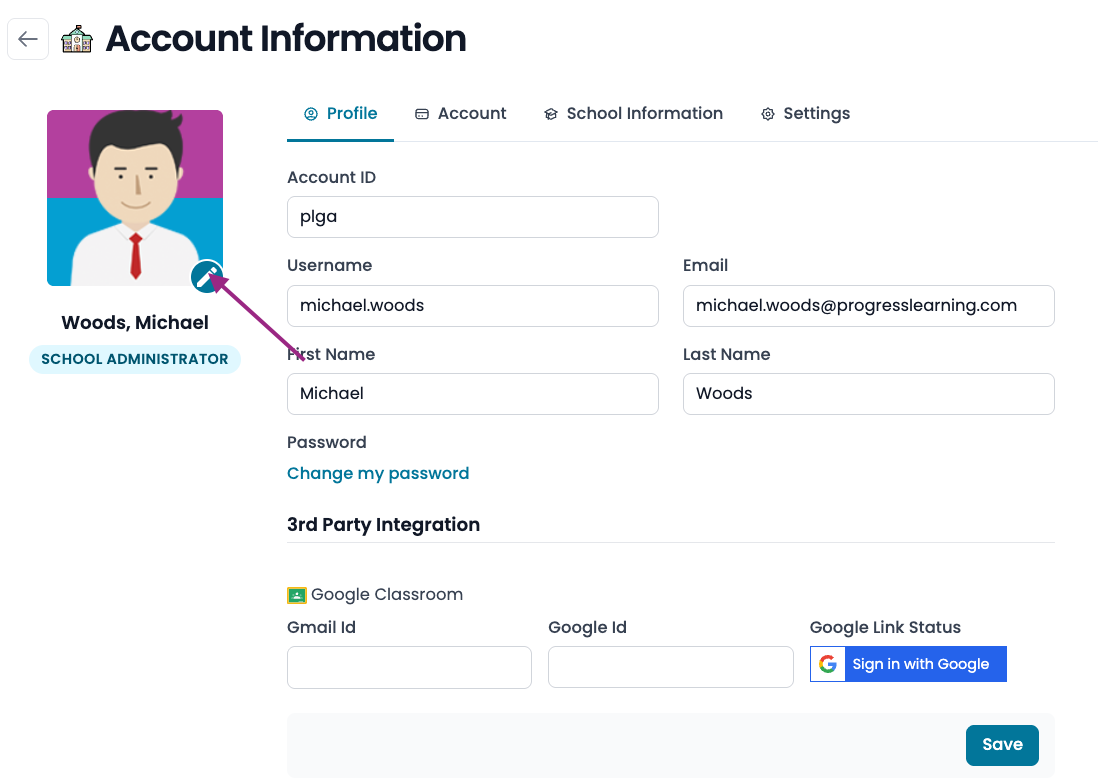
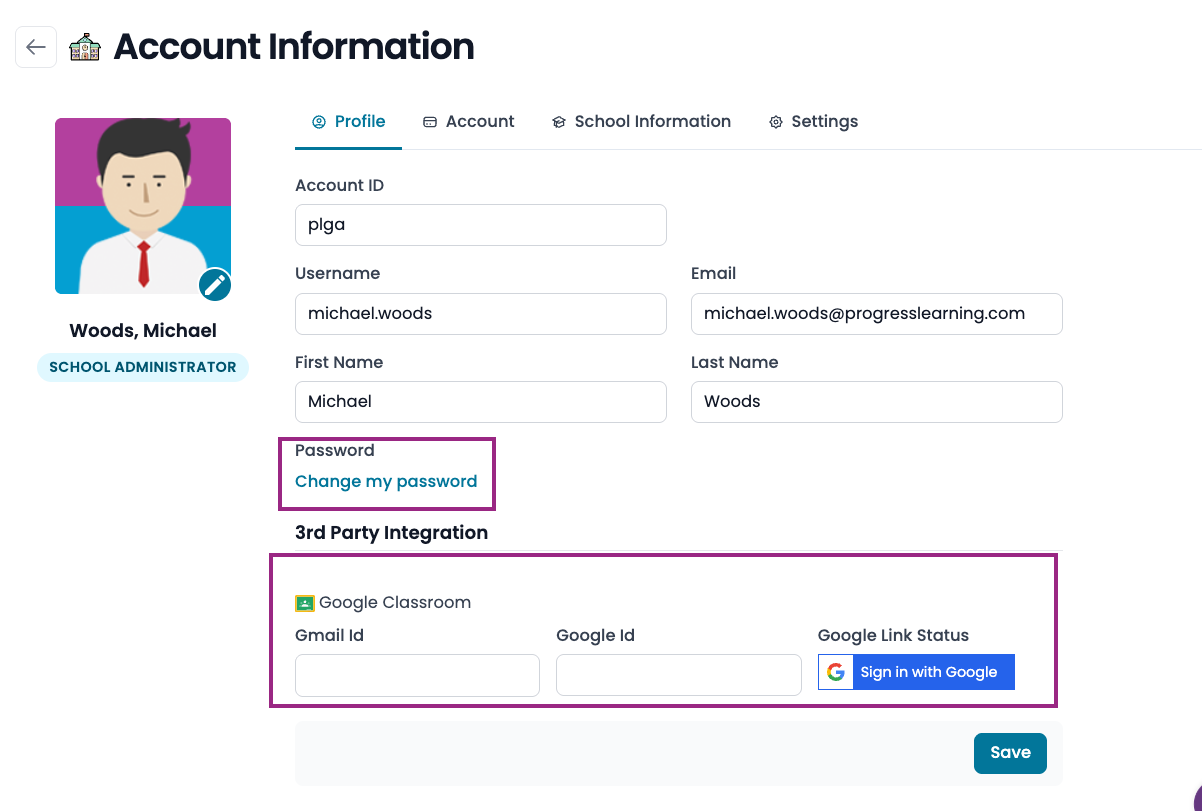
- You are able to see your account information, change your password and set up your 3rd Party Integrations like Canvas and Google Classroom
Account Tab
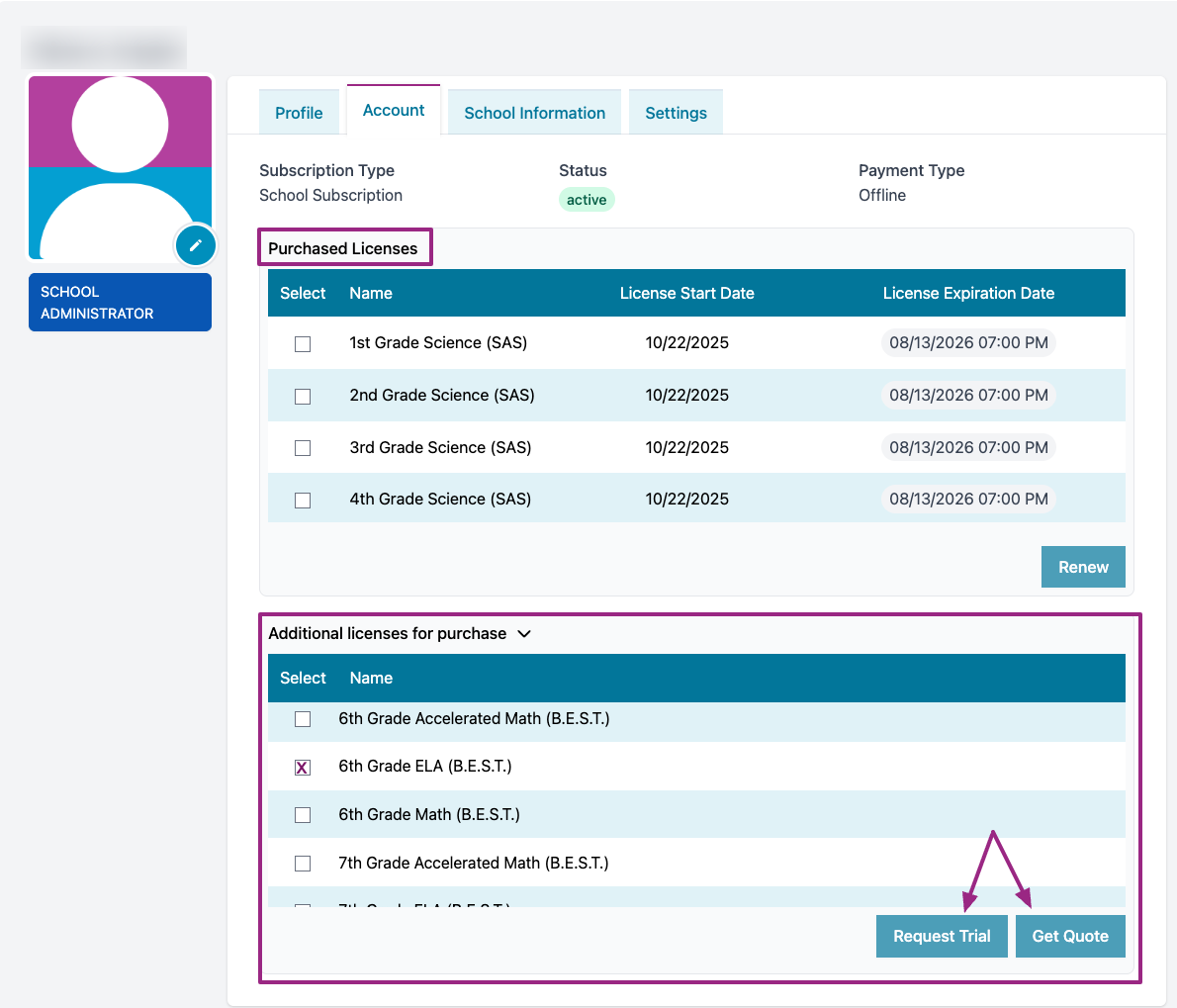
- Here you are able to see what content/licenses your school has purchased. At the bottom of this section, you can see all additional content areas available for purchase. Simply click the tick box next to a content you'd like to try and click Request Trial and/or Get Quote
School Information Tab
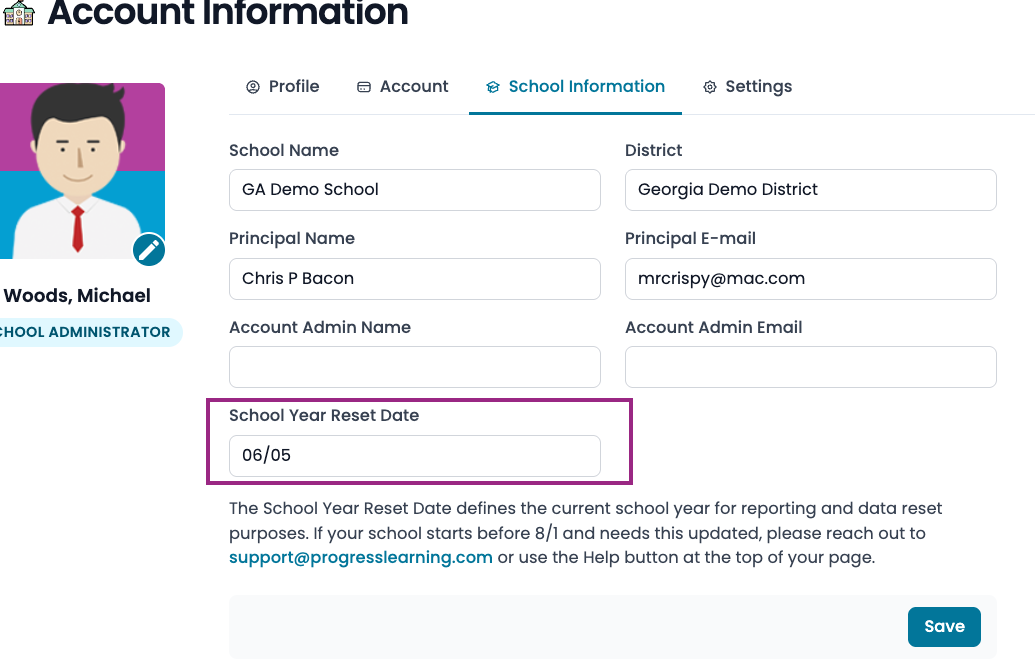
- This tab lists all of your school information. It is helpful to keep this information up to date so that you get all updates throughout the year. The School Year Reset Date indicates what date your current school year data will be archived and when the platform will roll over to the next academic year.
- The default date is generally 8/1, but if your school starts before that date, please reach out to support@progresslearning.com or use the Help button at the top of the page.
Settings Tab
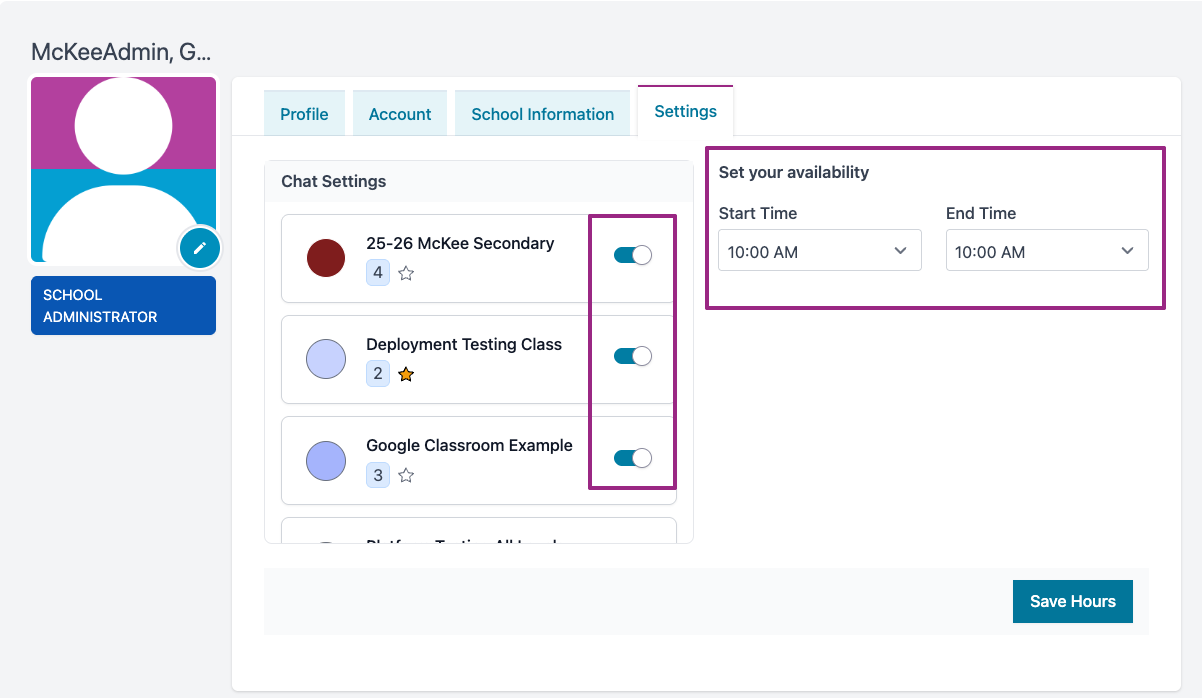
- The Settings Tab allows you to enable/disable the Student Messaging function as well as set your hours of availability to accept messages from students. Simply toggle the button in the on position (blue) to activate the Student Messaging function for each of your classes. Choose your availability start and end times from the dropdown menu.
District Administrator Account Profile
Profile Tab
- You are able to edit your avatar/photo by clicking on the pencil icon in the lower right corner
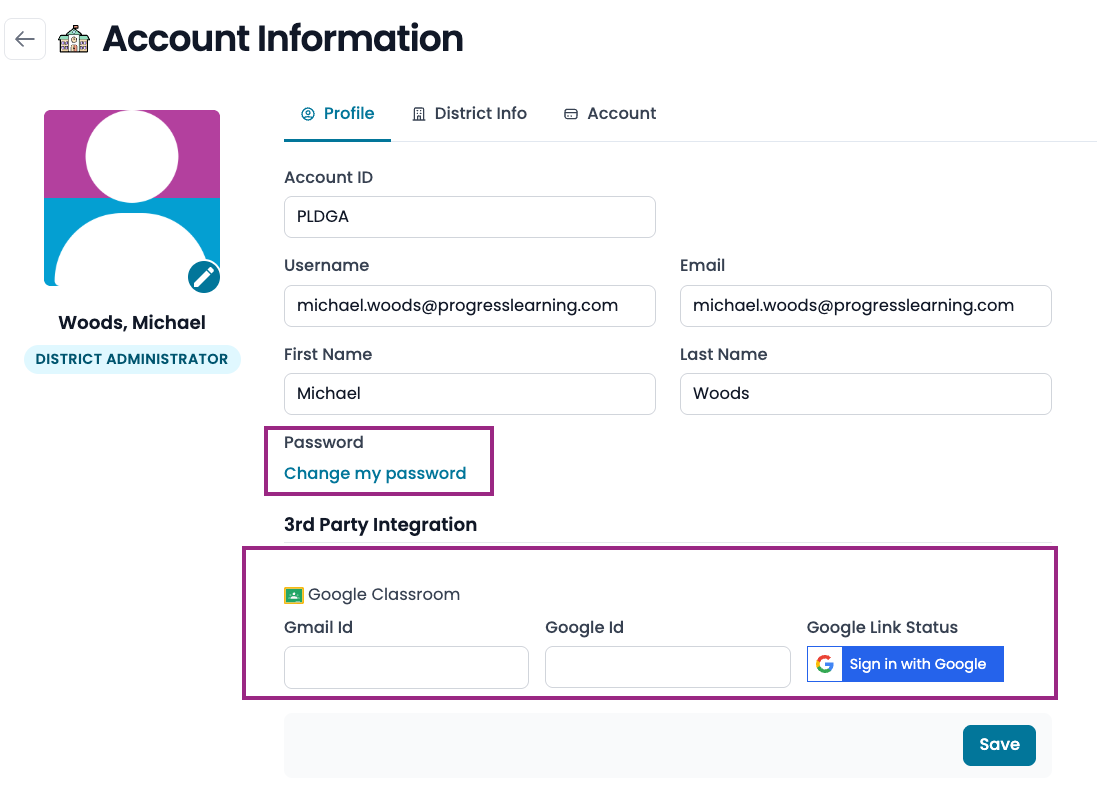
- You are able to see your account information, change your password and set up your 3rd Party
Integrations like Canvas and Google Classroom
District Info Tab
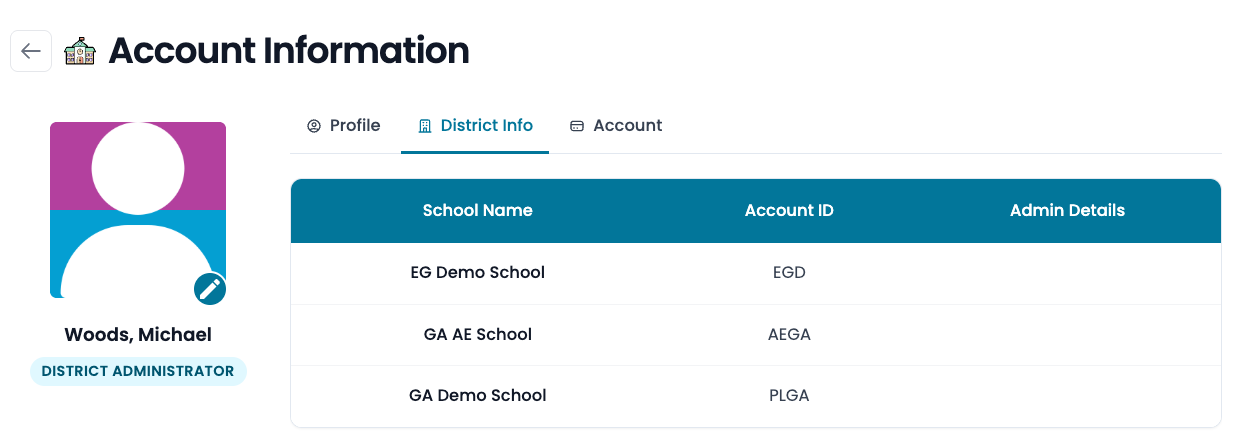
- This tab lists all of the schools/campuses in your district that have Progress Learning.
Account Tab
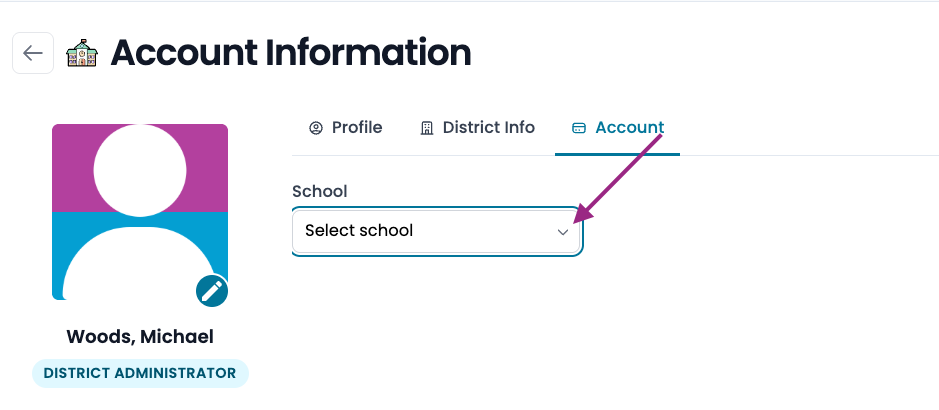
- From the School dropdown menu, select a campus to see what licenses are active at that campus
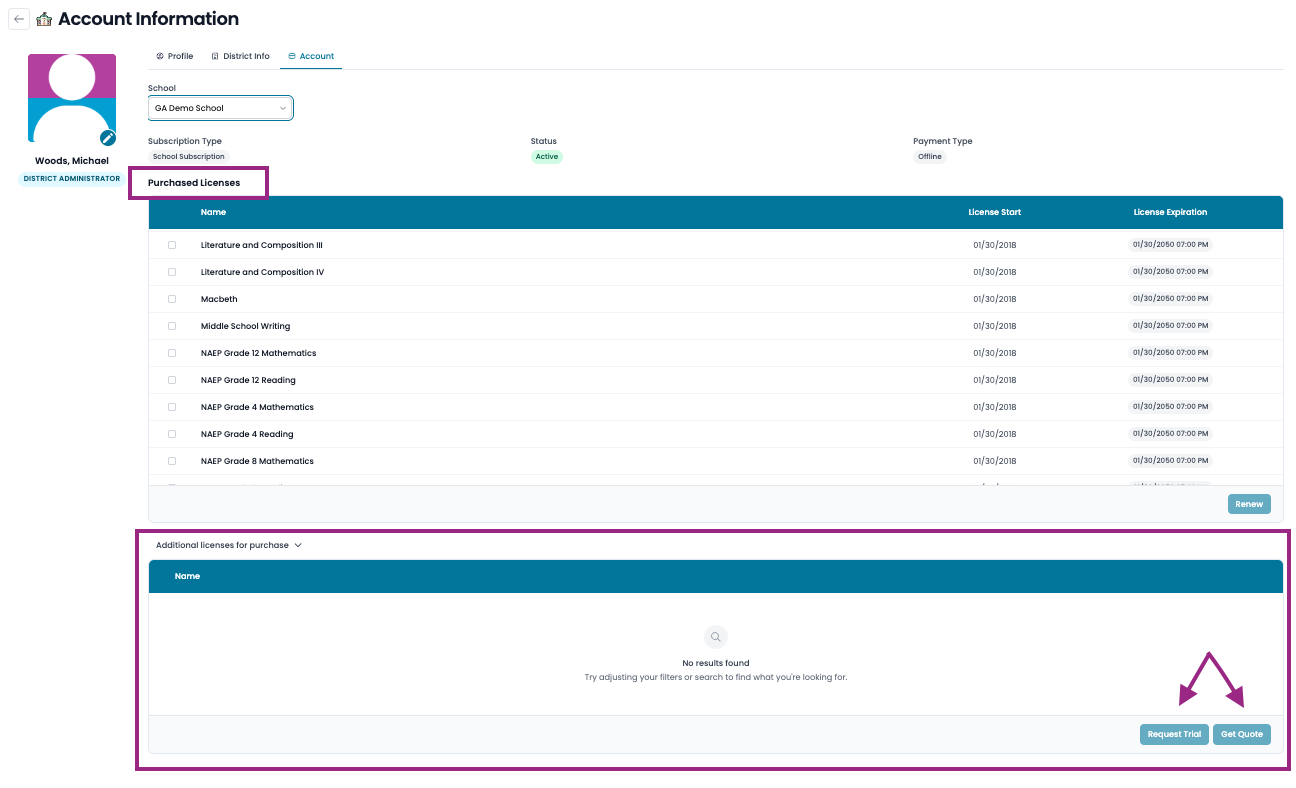
- Once you've selected a campus, you are able to see what content/licenses this school has purchased. At the bottom of this section, you can see all additional content areas available for purchase. Simply click the tick box next to a content you'd like to try and click Request Trial and/or Get Quote
Student Account Profile
Profile Tab
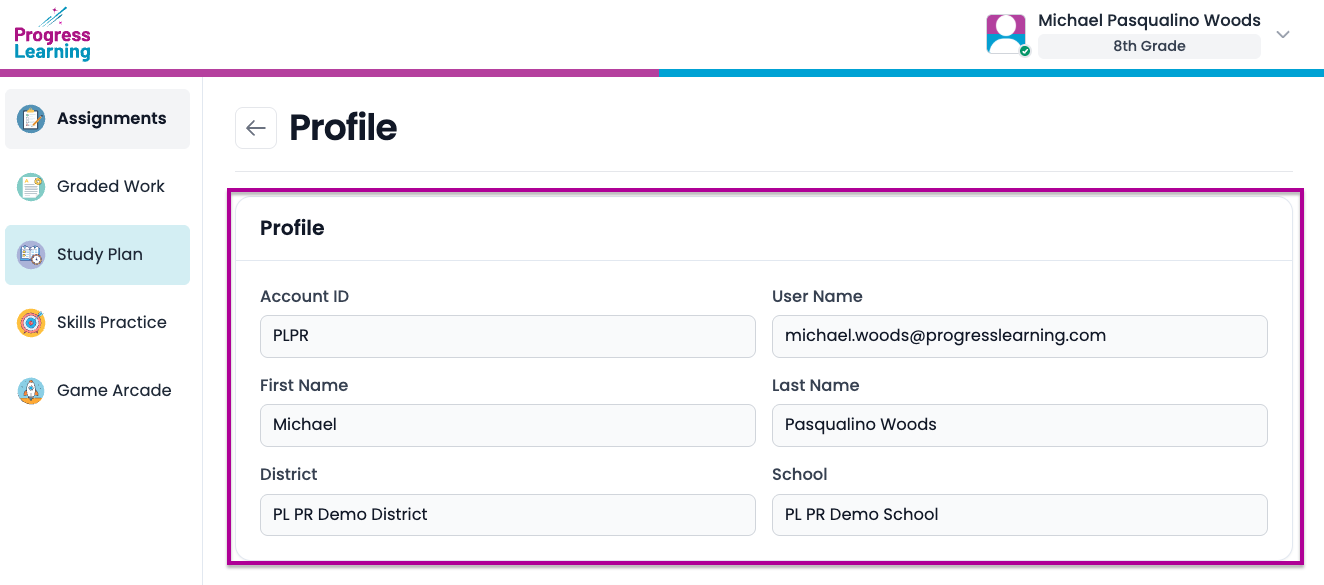
- The Student's Profile tab allows them to see their Account ID and Username as well as what School they are assigned to