How do I assign and score Georgia Premium Assessments that include writing?
 Updated
by
Gayle McKee
Assigning the Assessment
- From the left-side menu, select Assessments and click on Assessment Bank.

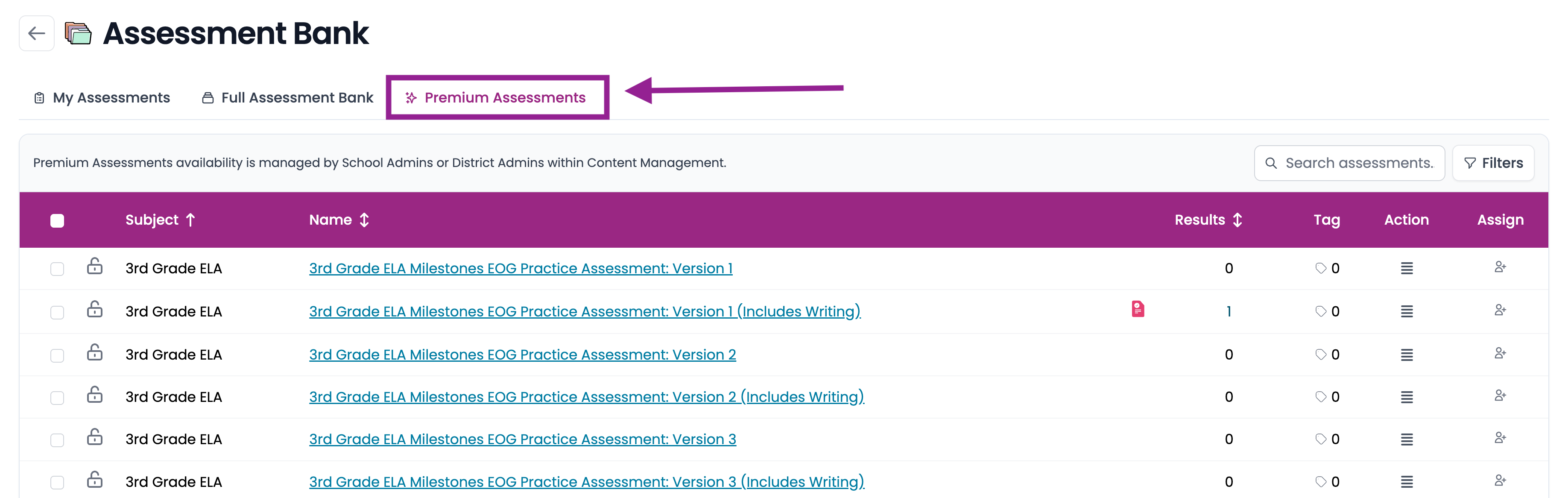
- Click on the Premium Assessments tab.
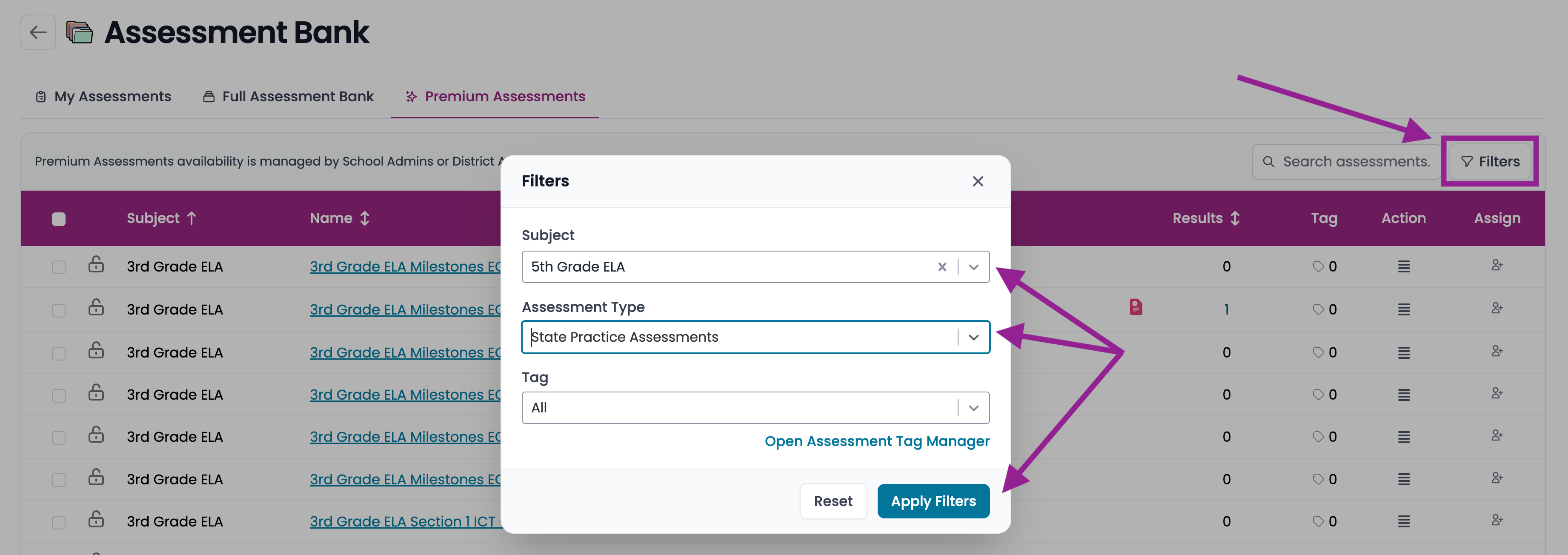
- Click on the Filters button and use the drop-down menus to select the subject and assessment type. Click on Apply Filters.
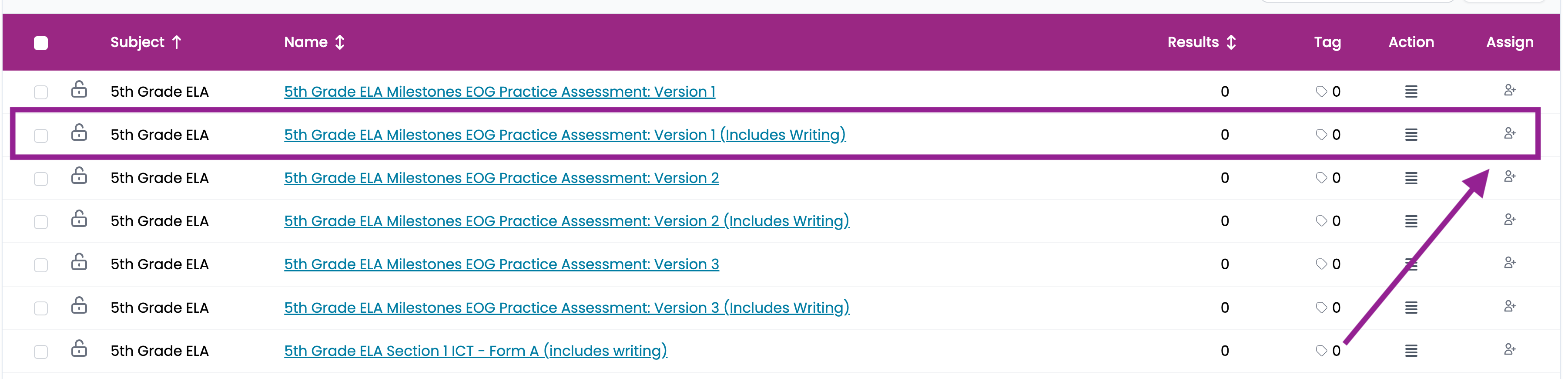
- Click on the Assign Icon next to the correct assessment.
- Assign by My Classes, Additional School Classes, or Grade Levels.
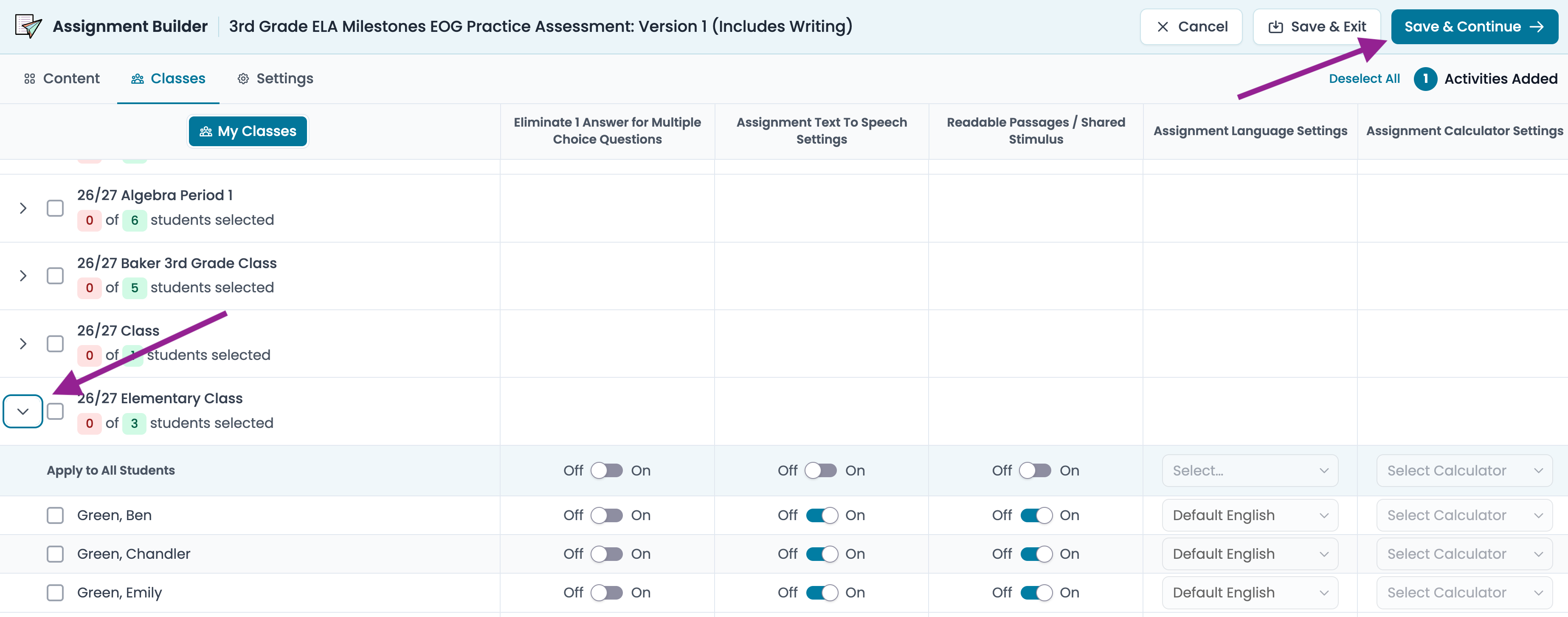
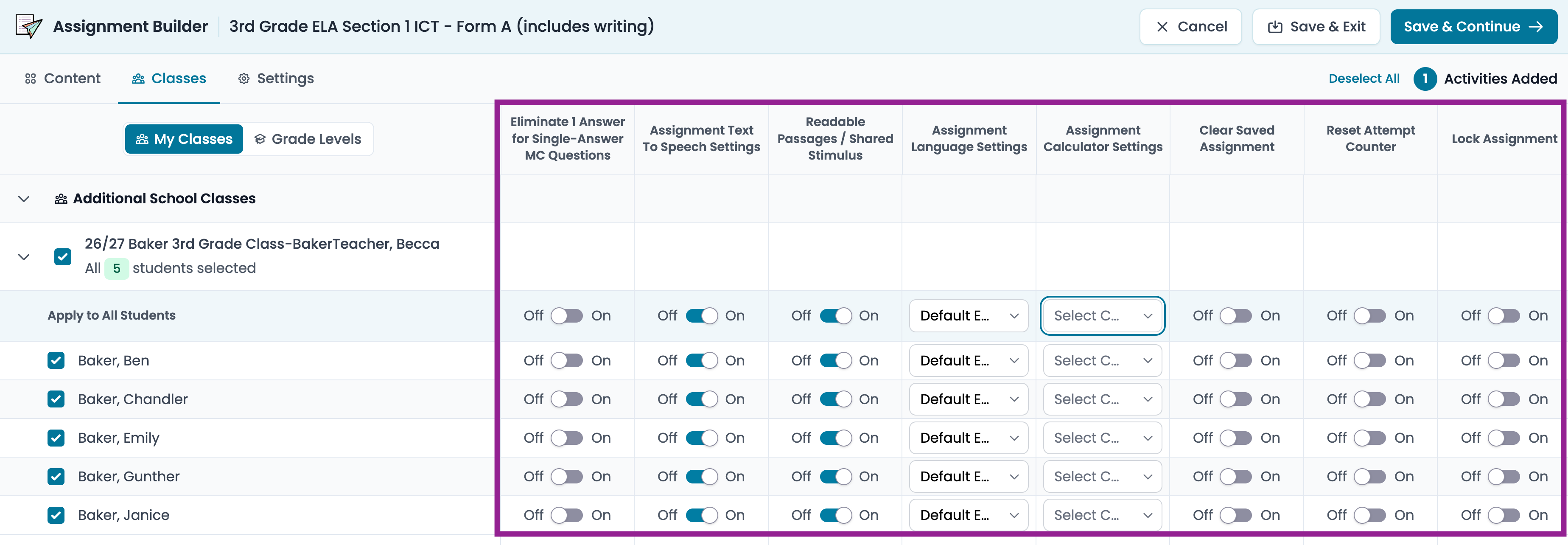
- My Classes - Teachers can check the boxes to select the class(es) and/or individual students who need to take the assessment. Click the carat next to the class name to view each student and adjust their accommodations.
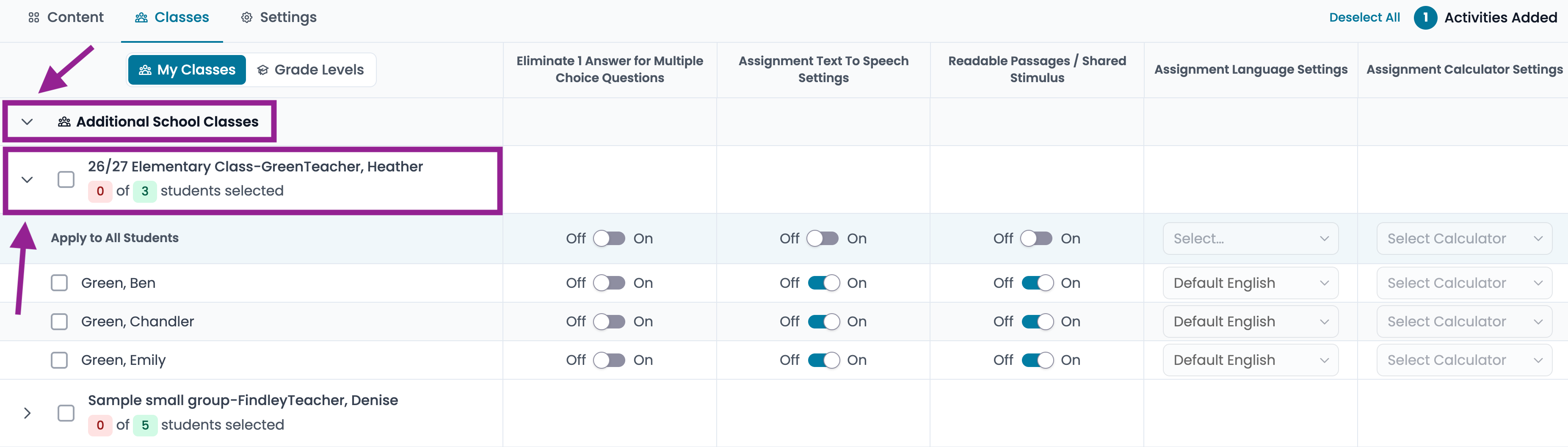
- Additional School Classes - School Administrators can click the carat next to Additional School Classes to assign to any class. Click the carat next to the class name to view each student and adjust their accommodations. Check the box next to the class(es) or student(s) who need to take the test.
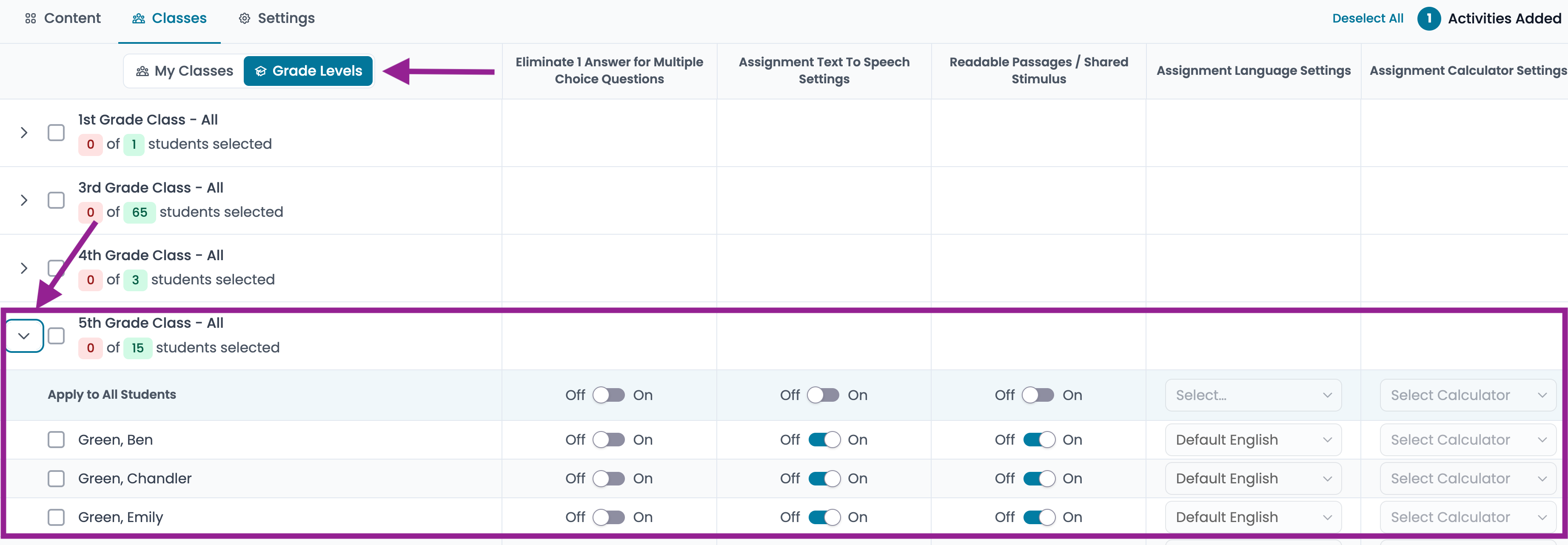
- Grade Levels - School Administrators can click on the Grade Levels button to assign to any grade level. Click the carat next to the grade level class to view each student and adjust their accommodations. Check the box next to the grade level or student(s) who need to take the test.
- Update individual student settings for this assessment only. Then, click Save and Continue.
Schedule
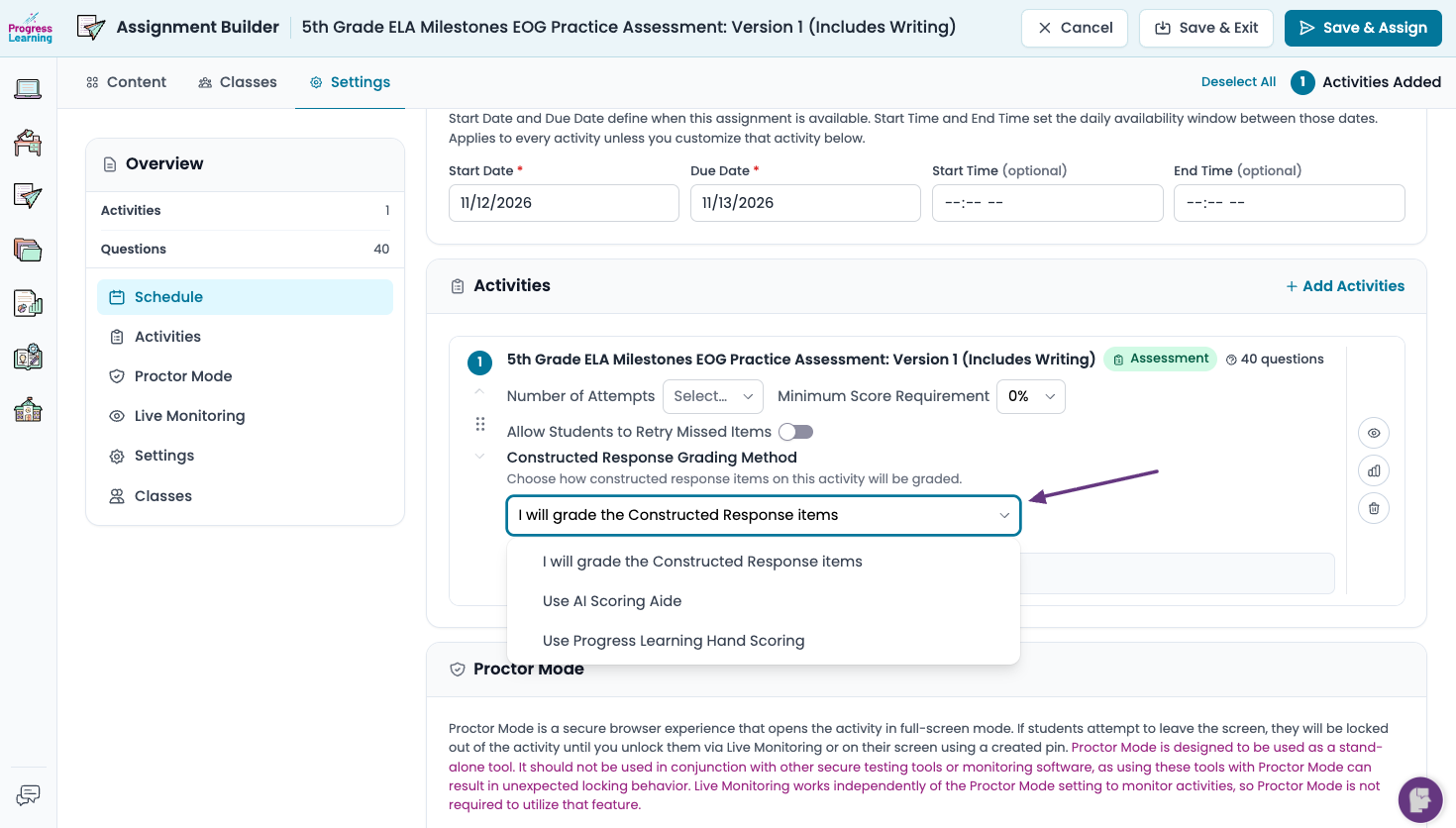
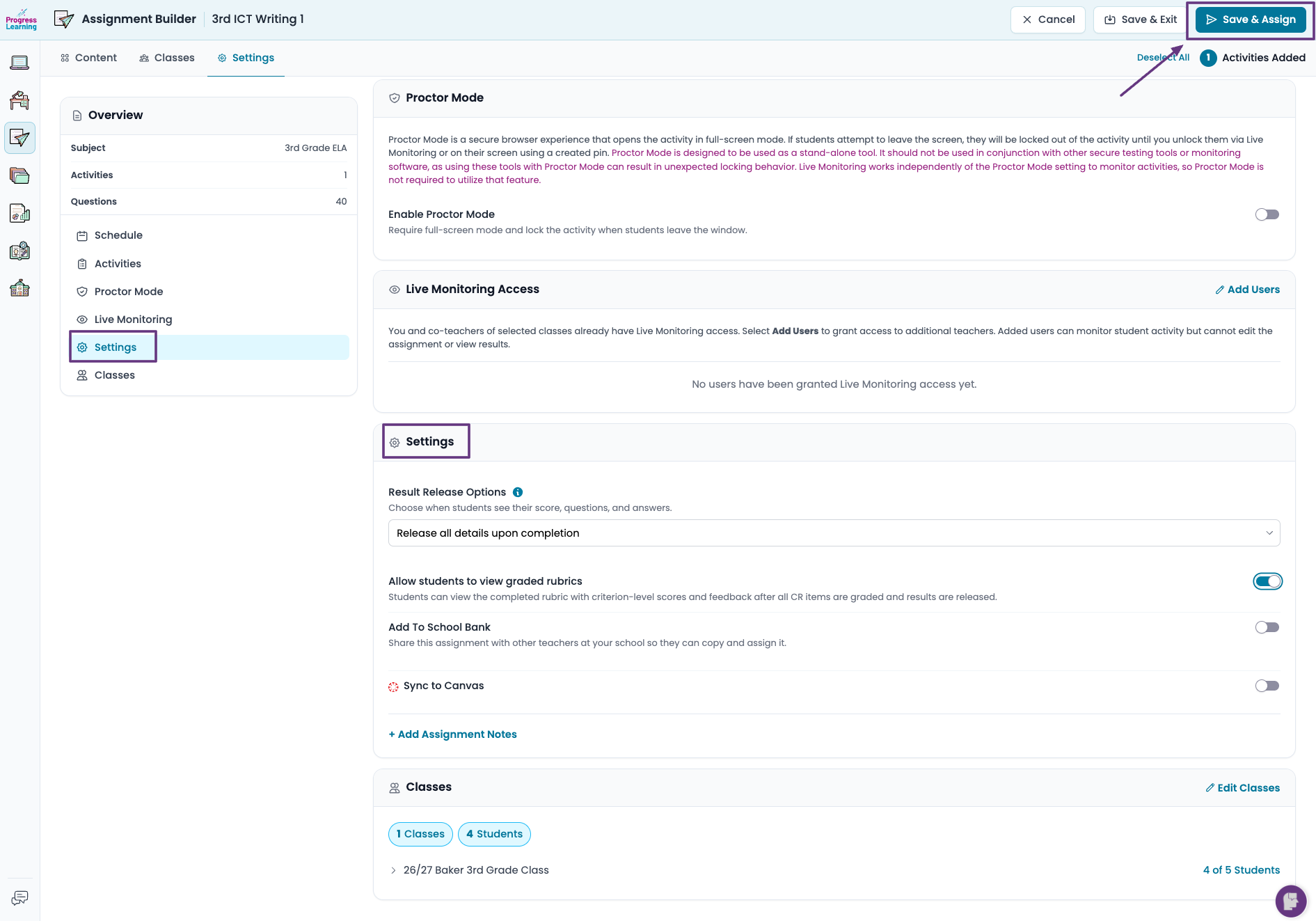
- Select your Constructed Response Grading Method from the dropdown menu.
- I will grade the Constructed Response items
- Teacher will manually grade the constructed response questions.
- Use AI Scoring Aide
- Use Progress Learning Hand Scoring
- If you choose this method, your start date cannot be within 5 days. For example, if you want your students to take the assessment on December 14, you must assign it on or before December 9.
- If you choose this method, the number of attempts defaults to 1, and you cannot set a minimum score requirement
- Hand Scoring is limited to three times per student per school year.
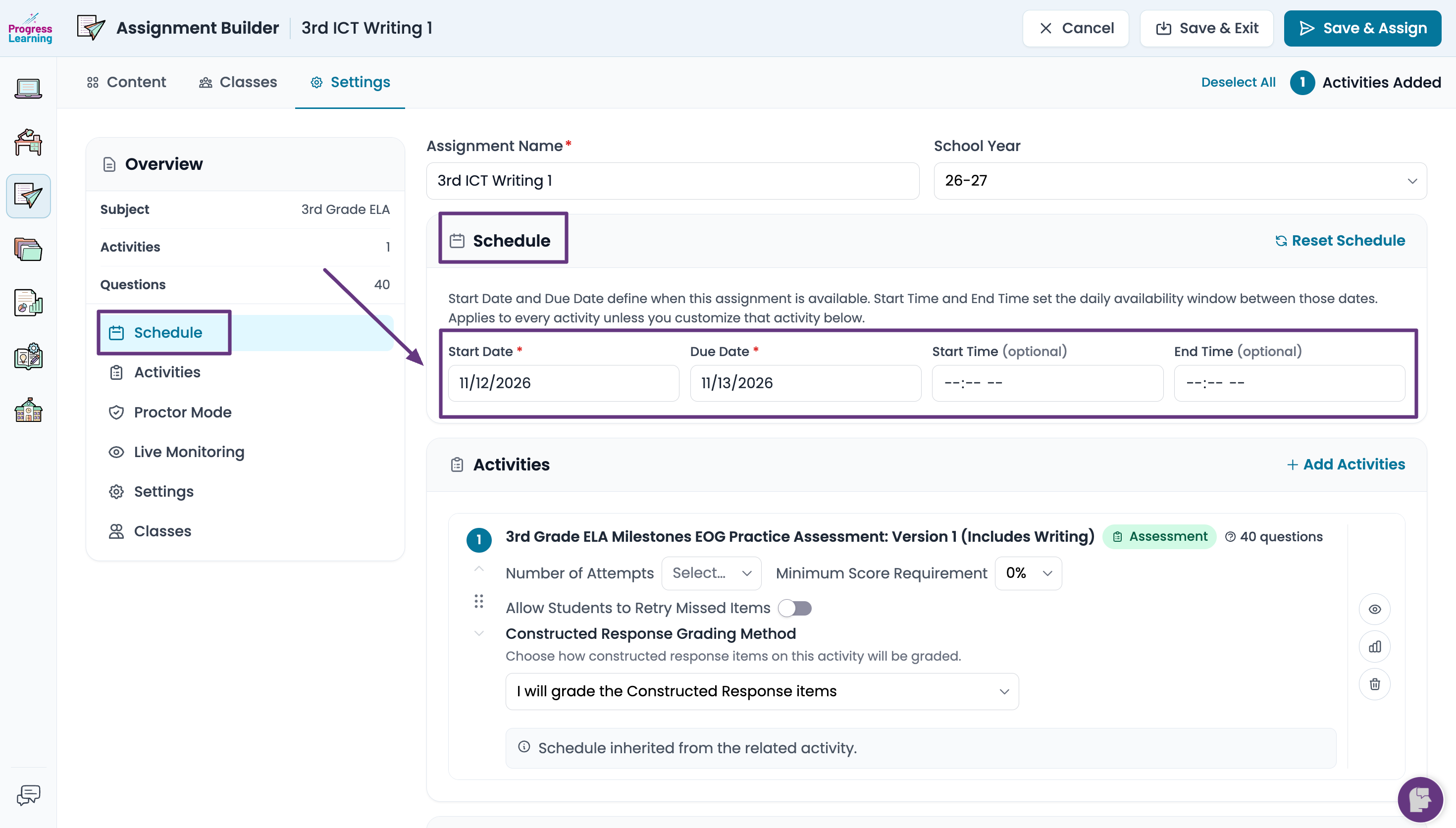
- Select a Start Date and End Date. You can also set a Start and End Time, but it is not required.
Activities
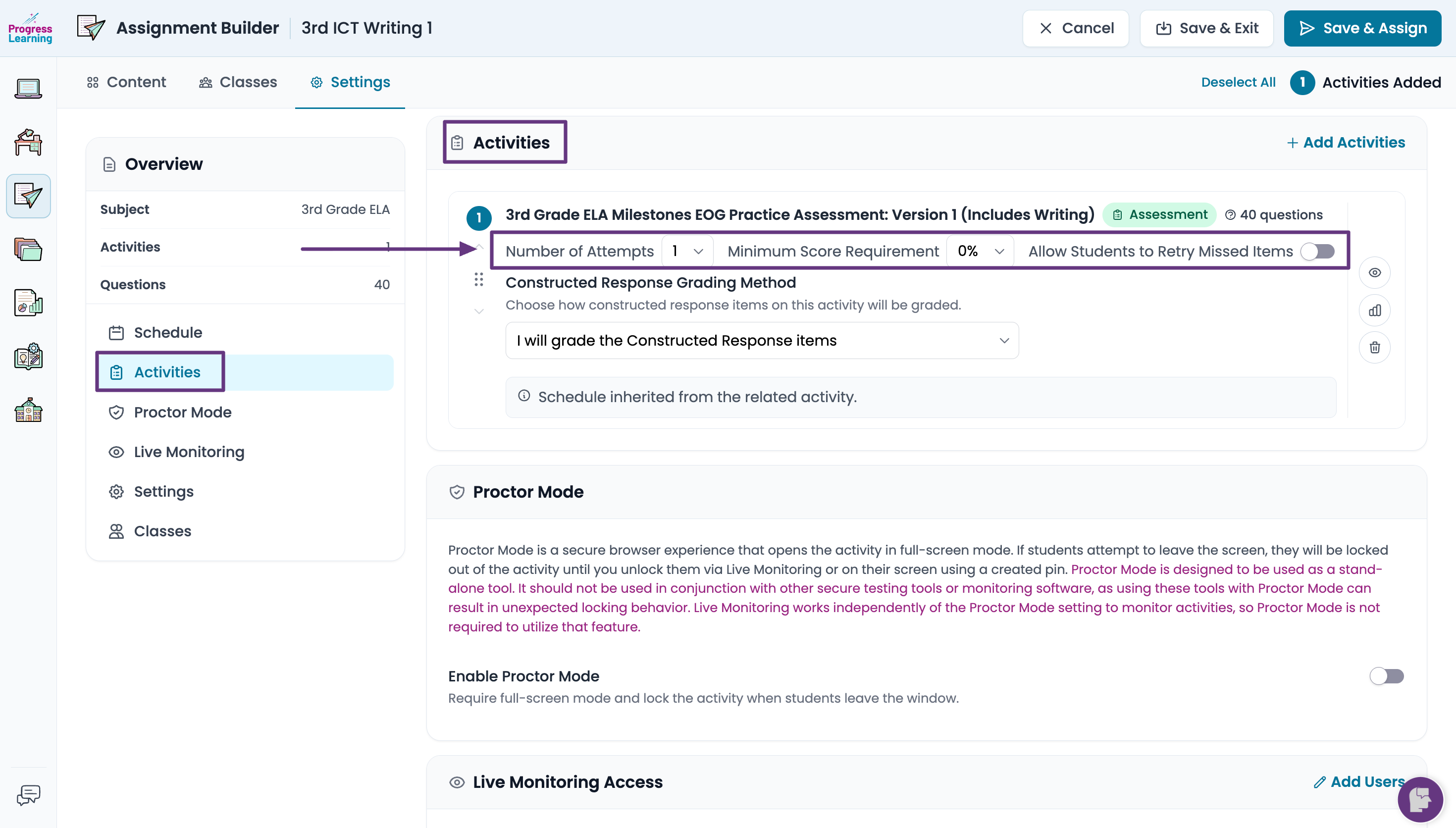
- You can adjust the students' Number of Attempts, Minimum Score Requirement, or Allow to Retry Missed Items from the dropdown boxes under the assignment name.
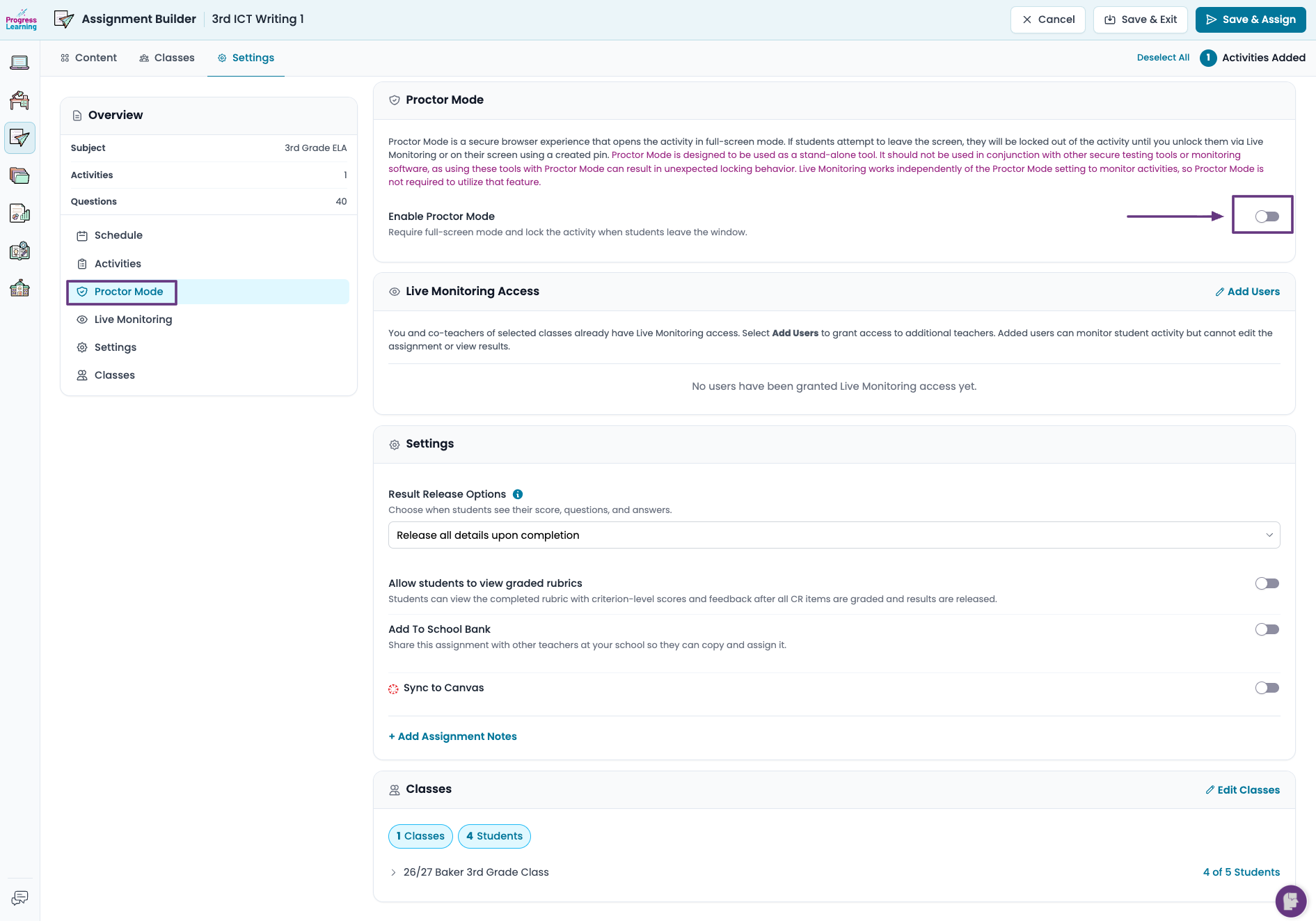
Proctor Mode
- Proctor Mode is a secure browser experience. Enabling Proctor Mode will open the assessment in full-screen mode. If students attempt to leave the screen, their assessment will be locked.
Proctor Mode is designed to be used as a stand-alone tool. It should not be used in conjunction with other secure testing tools or monitoring software, as using these tools with Proctor Mode can result in unexpected locking behavior. Live Monitoring works independently of the Proctor Mode setting to monitor activities, so Proctor Mode is not required to utilize that feature.
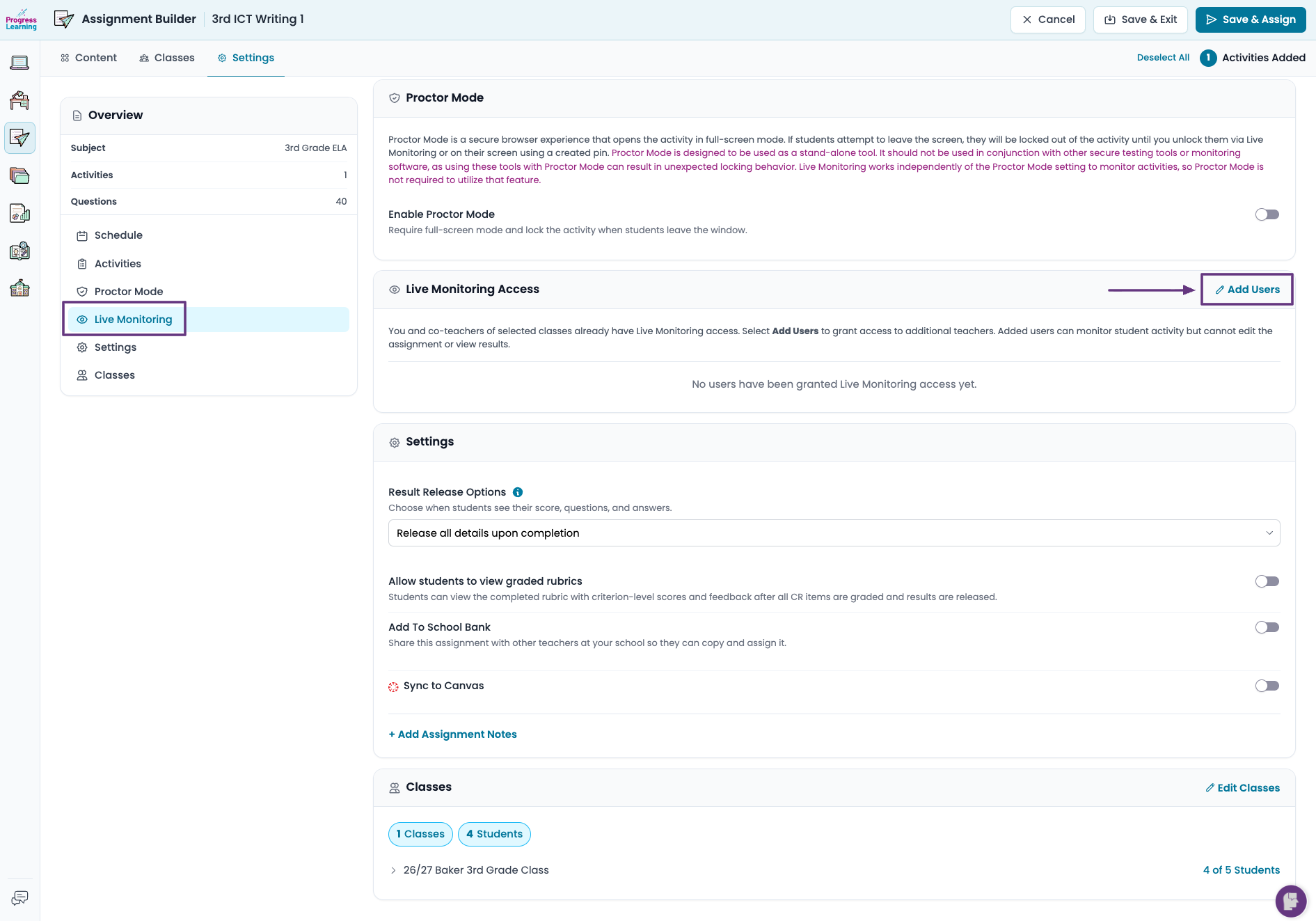
Live Monitoring
- As the one who assigned the assessment, you and the teachers and co-teachers of the selected classes automatically have Live Monitoring access. If more teachers need access to monitor students, you will need to Add Users.
If this was assigned by grade level, those grade level teachers are not automatically included and will need to be added.
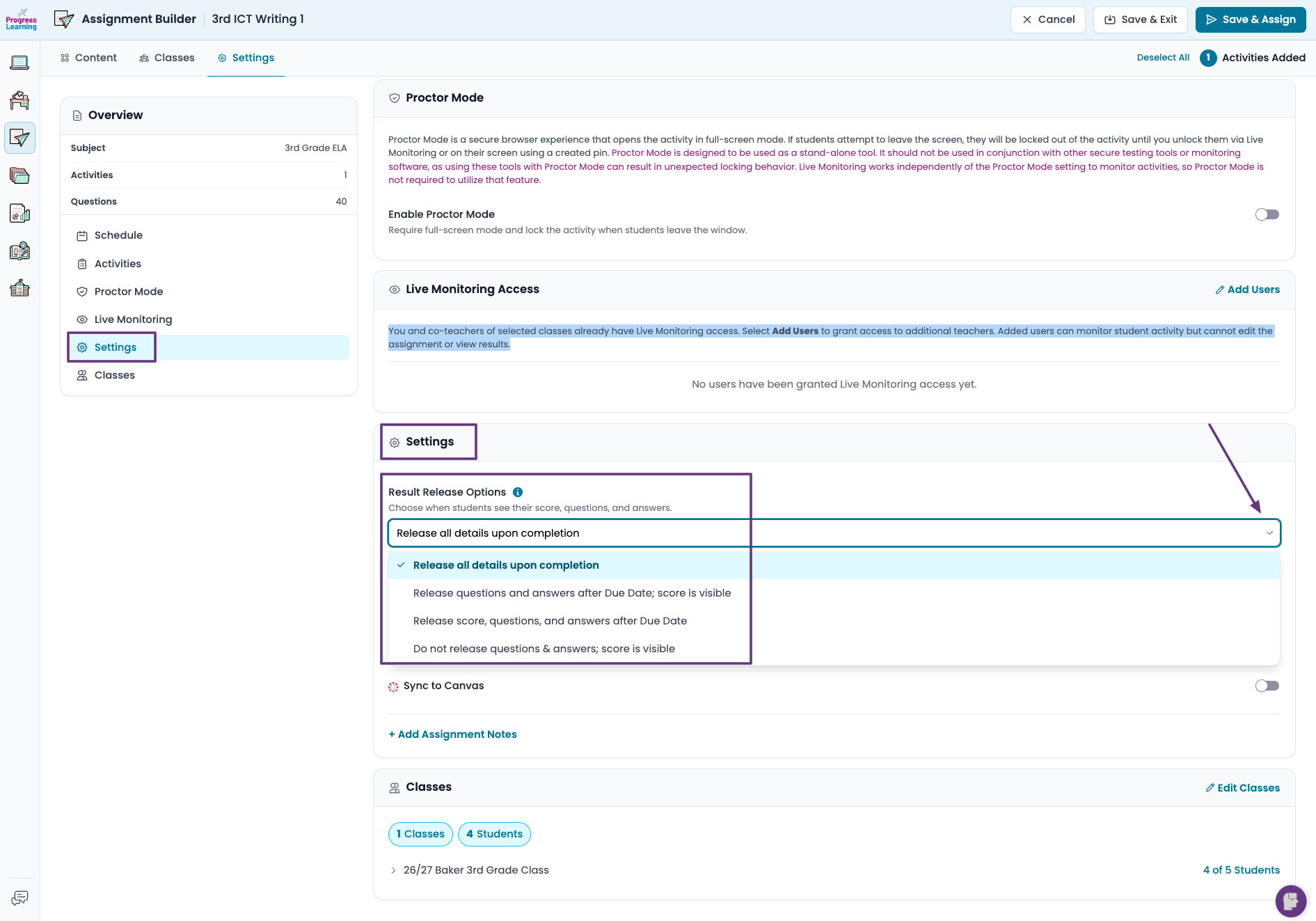
- Results Release Options: From the dropdown menu, choose what students will see when they submit their assessment.
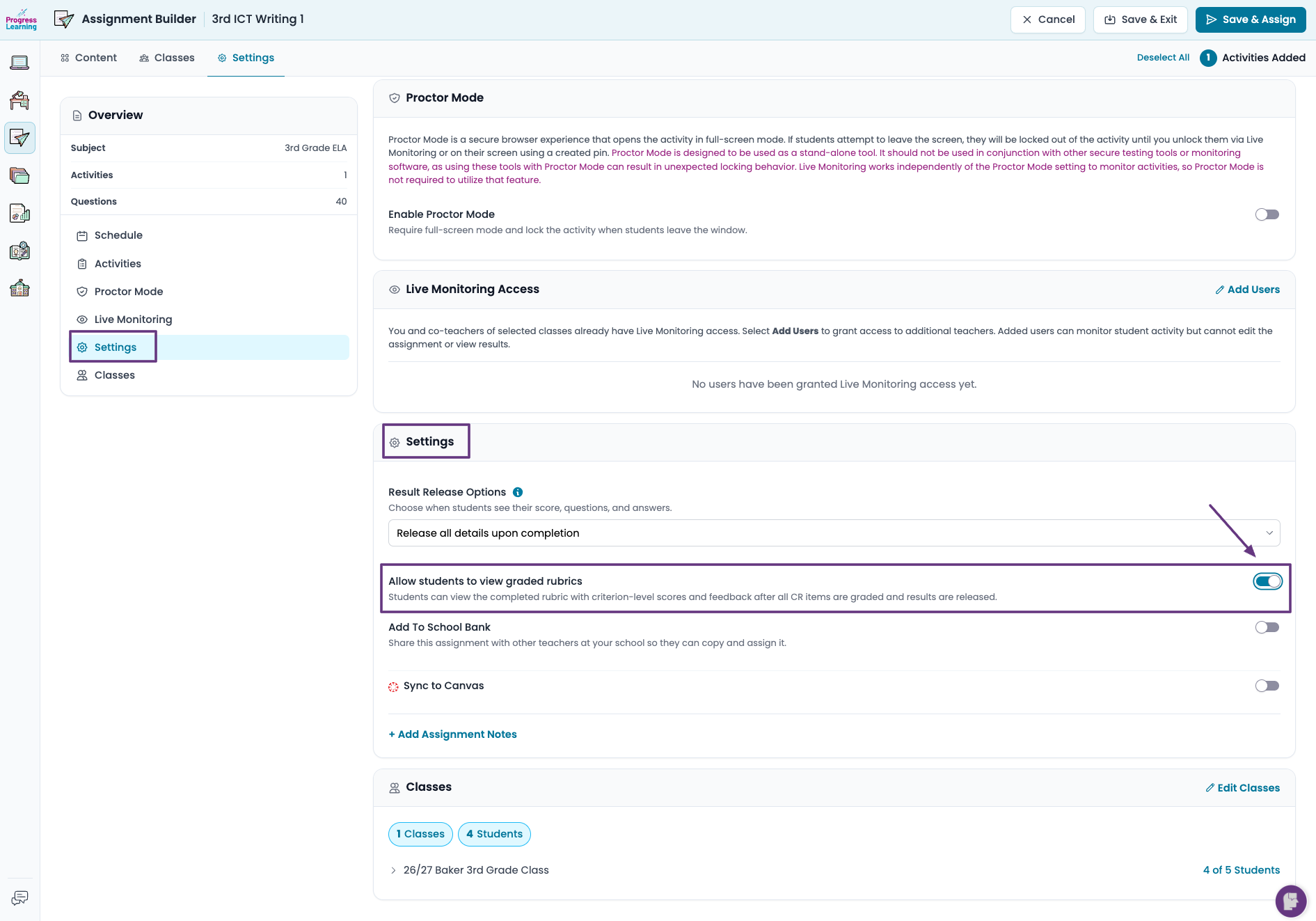
- Allow students to view graded rubrics: Enabling this setting will allow students to see the complete rubric with criterion-level scores and feedback after all constructed response items are graded and results released.
The rubrics are only available for assessments where AI Scoring Aide or Progress Learning Hand Scoring were selected.
- Click Save and Assign.
Scoring Constructed Response Items
- From the left-side menu, select Assessments and click on Assessment Bank.
- Click on the Premium Assessments tab.
- Click on the Filters button and use the drop-down menus to select the subject and assessment type. Click on Apply Filters.
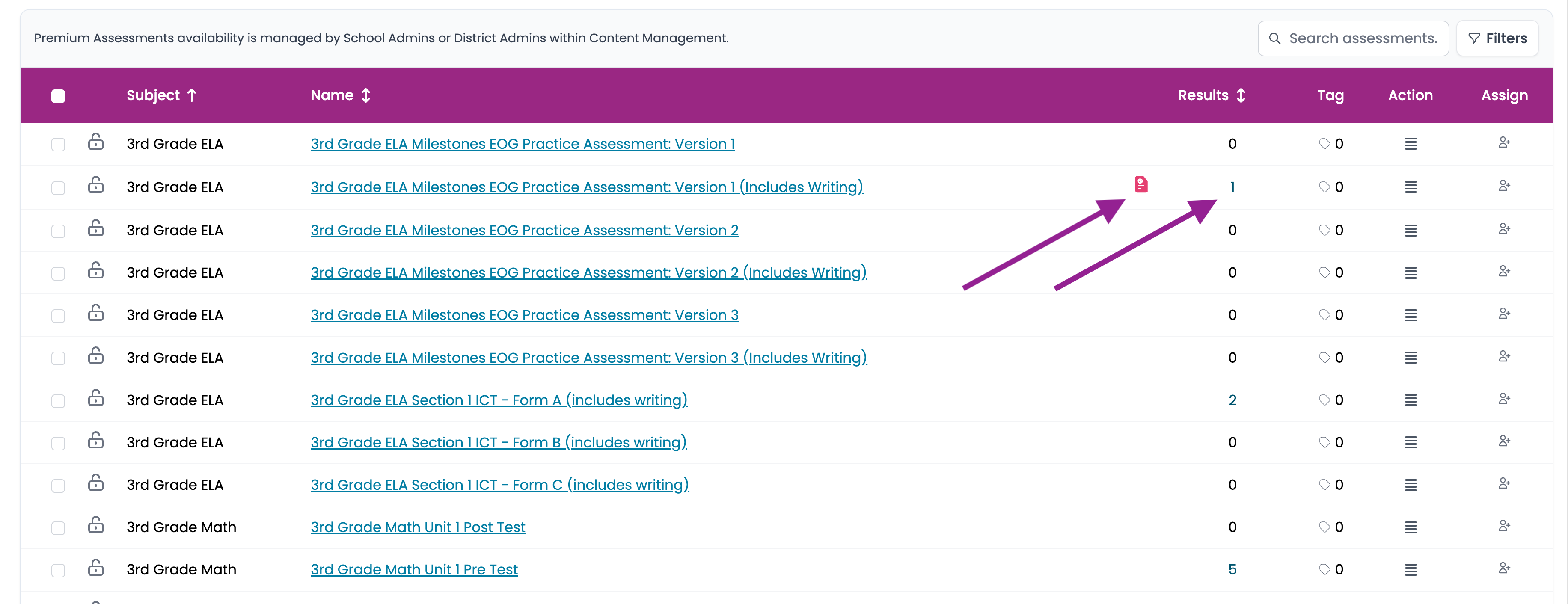
- Click on the pink icon or the hyperlinked number in the Results column to grade or review the submitted responses.
- Review or grade the responses.
- Teacher-Graded Items:
- Click the Grade button to view and score student responses. You have the option to Grade by Student- this allows you to grade all constructed response answers student by student. You have an option to Grade by Question- this allows you to grade, for instance, all of one question for all students, then move on to another question and grade it for all students.

- View the student's answer. A suggested response is found below the Grade and Feedback section. Type in any feedback (optional) for the student. Click Submit Grade/Next Question or Go to List.

- To edit a grade for a Constructed Response, click the Re-Grade button next to the student's name.

- Click the Grade button to view and score student responses. You have the option to Grade by Student- this allows you to grade all constructed response answers student by student. You have an option to Grade by Question- this allows you to grade, for instance, all of one question for all students, then move on to another question and grade it for all students.
- AI-Scored Items:
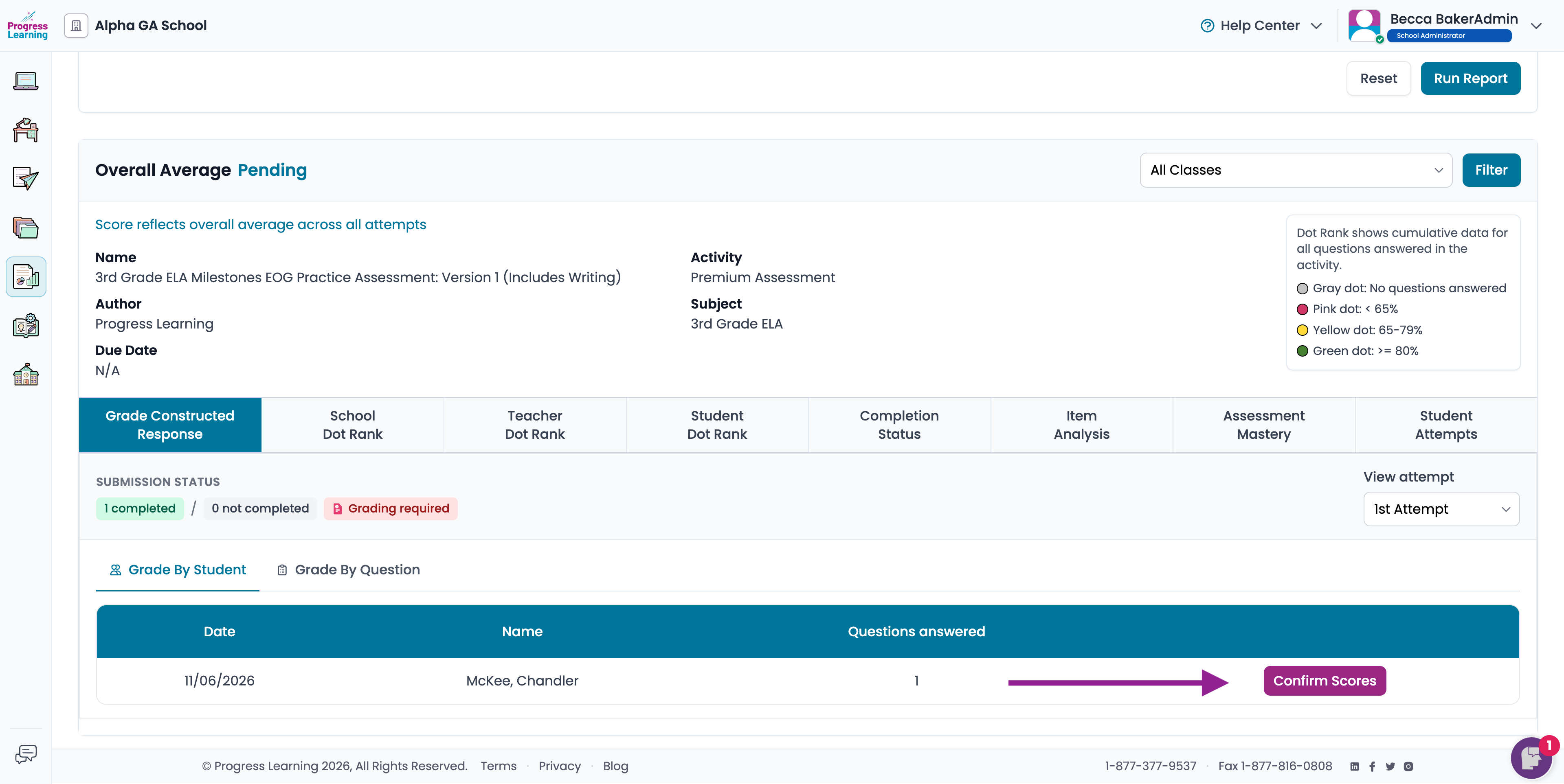
- From the Grade Constructed Response tab, click on Confirm Scores.
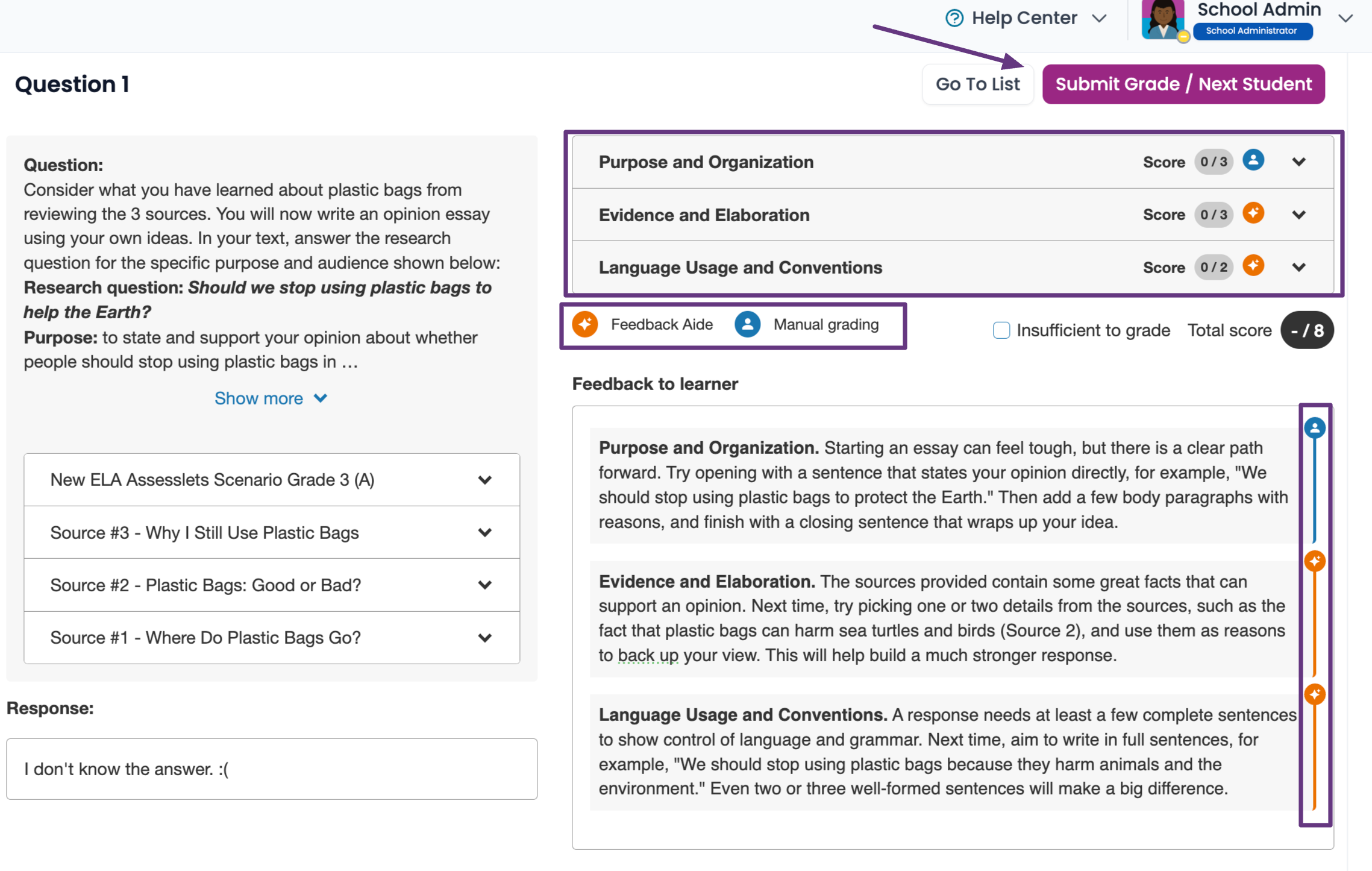
- Review the AI-suggested grade. Click on the name of each score section to change the score. In the Feedback to learner section, you have the option to edit the AI response or leave as-is. Click Submit Grade/Next Student or Go To List to return to the list of students.
- Progress Learning Hand-Scored Items:
- From the Grade Constructed Response tab, click on View to review the results.
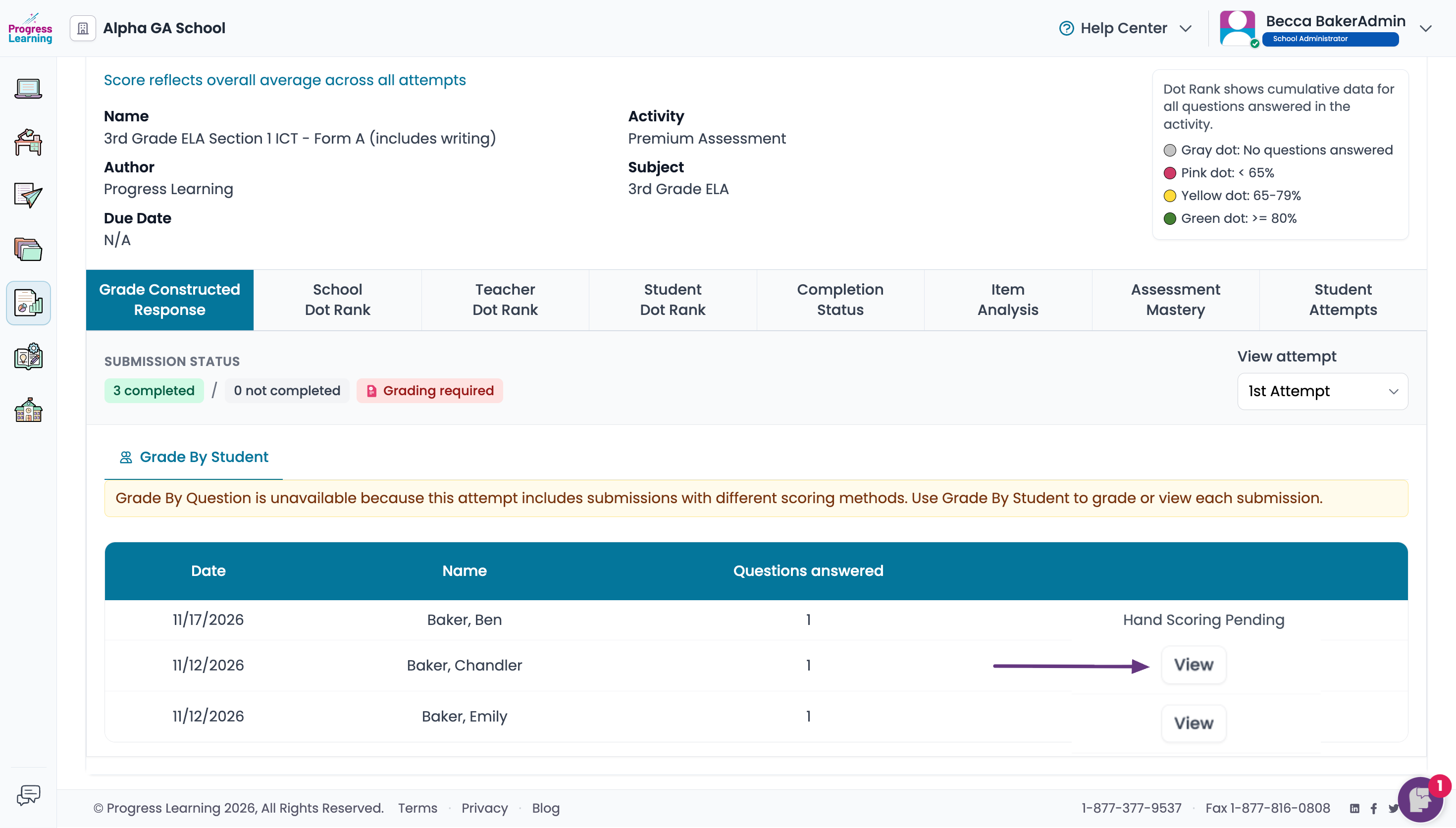
- Here you can review the student response and score. Click on Go to List to return to the list of students or click on a student's name on the left to view a different student's response.
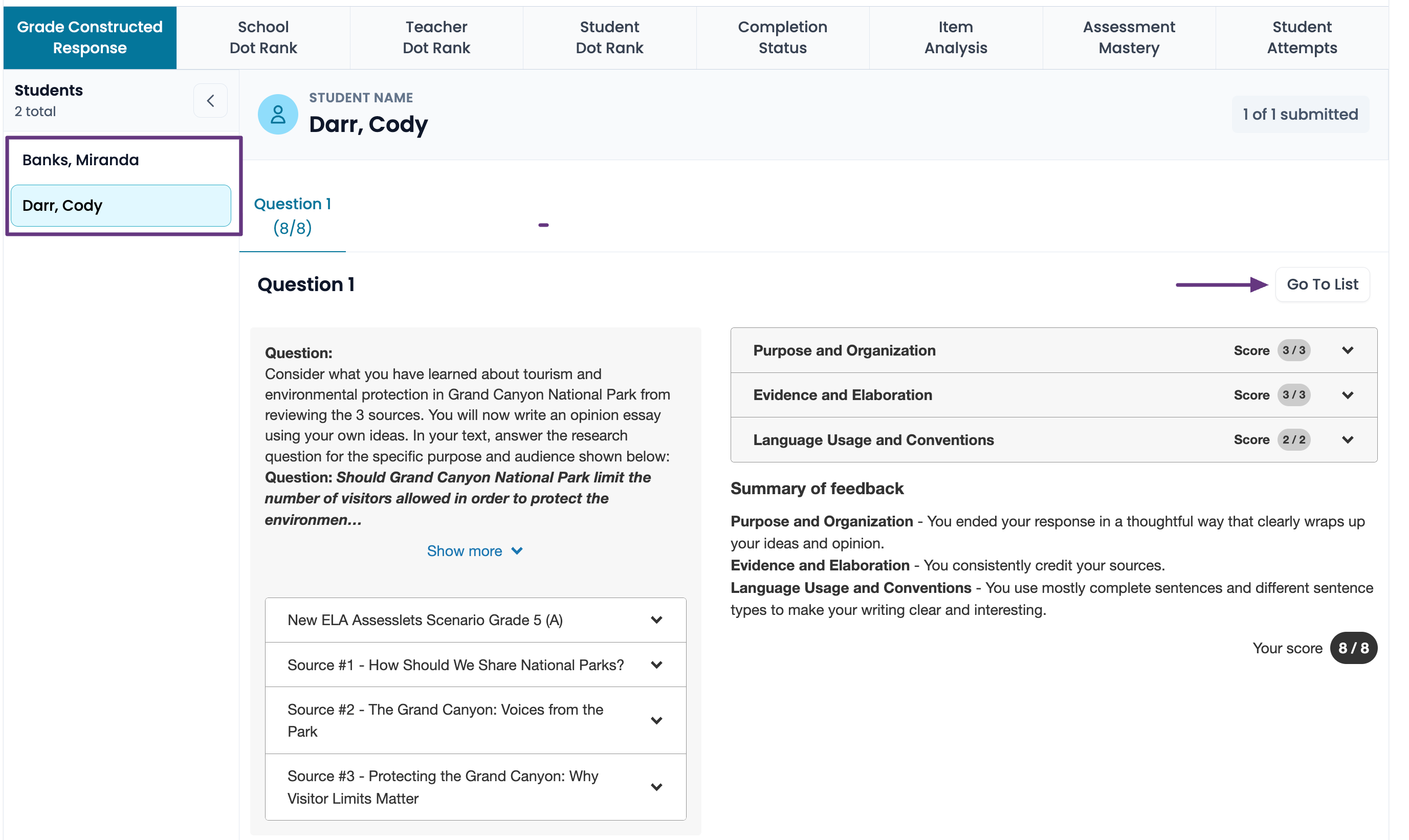
- From the Grade Constructed Response tab, click on View to review the results.
- Teacher-Graded Items:
Student View
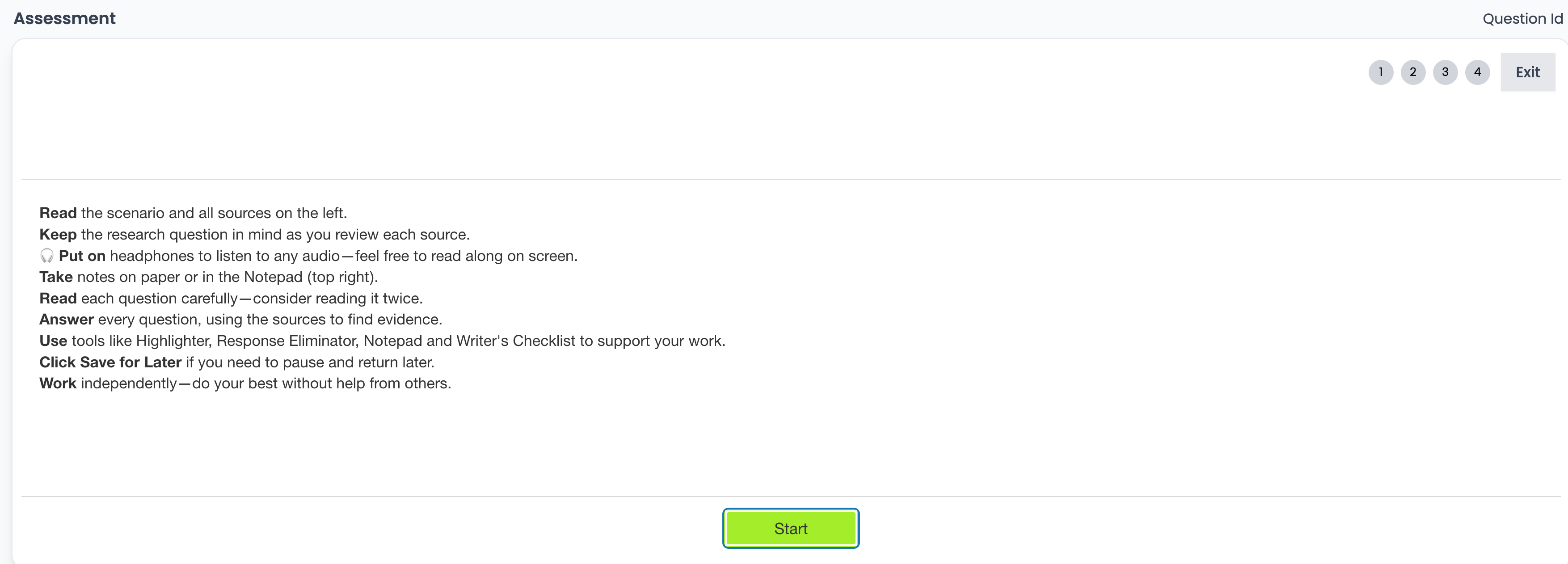
- Before the test, students will see this list of instructions.
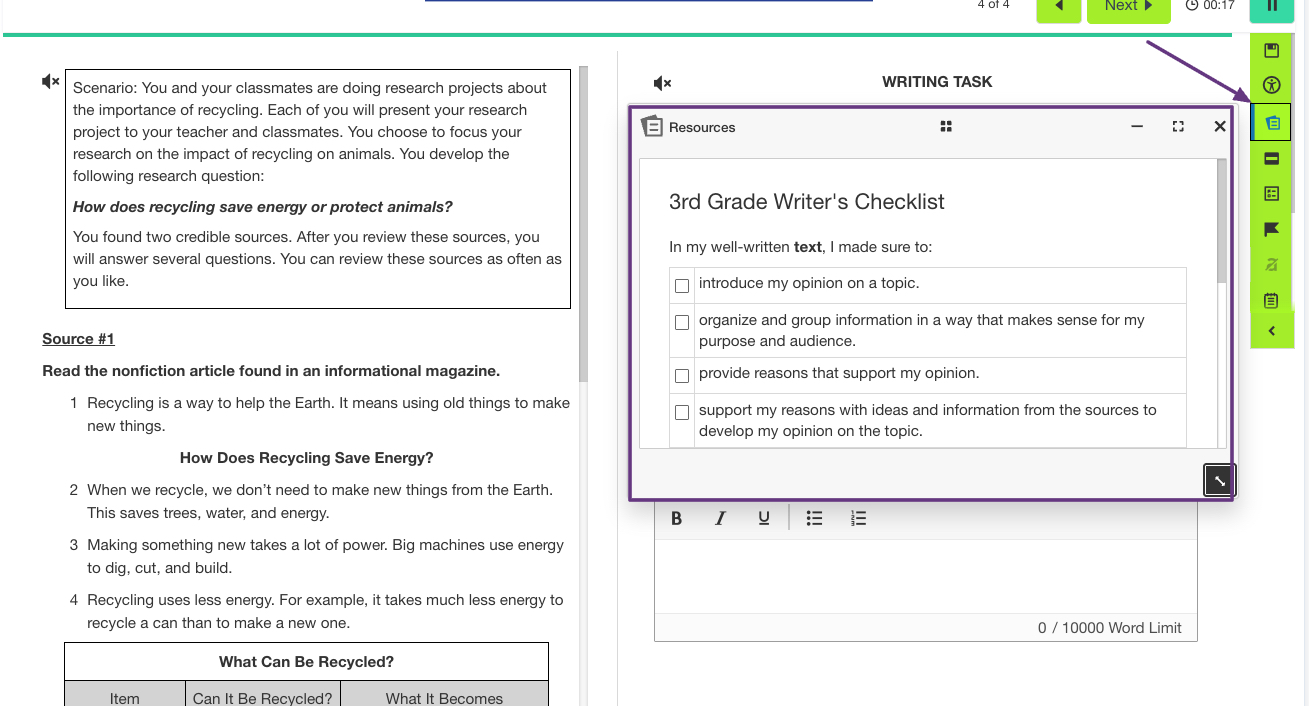
- Students have access to the Writer's Checklist in the accessibility toolbar. The window can be expanded for greater visibility.
- Students have access to their results via their Graded Work tab.
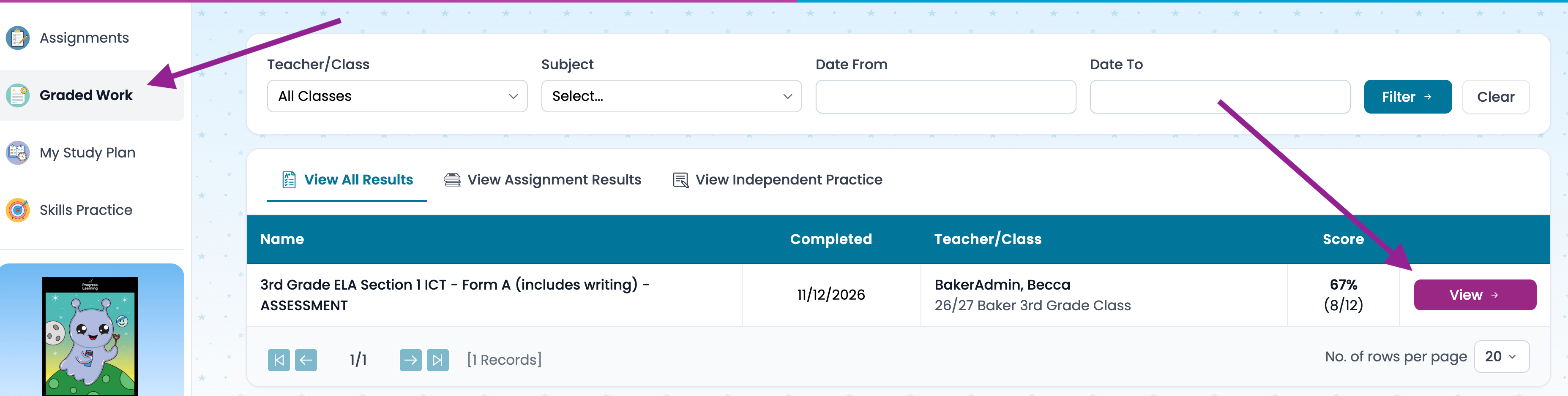
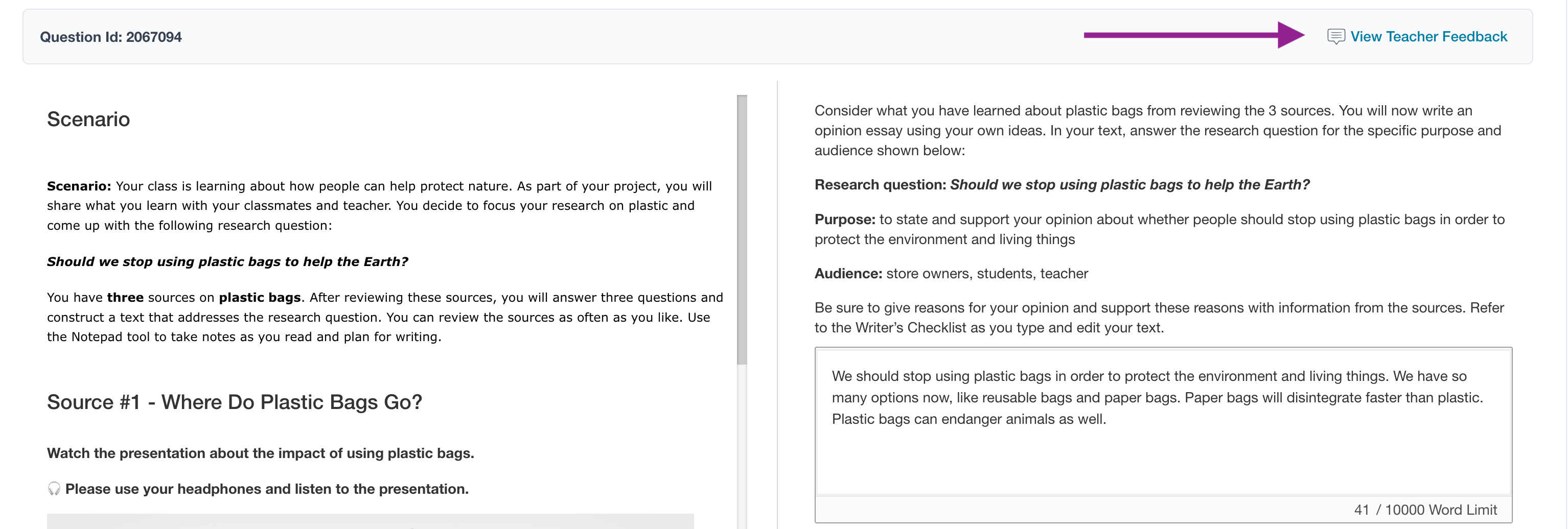
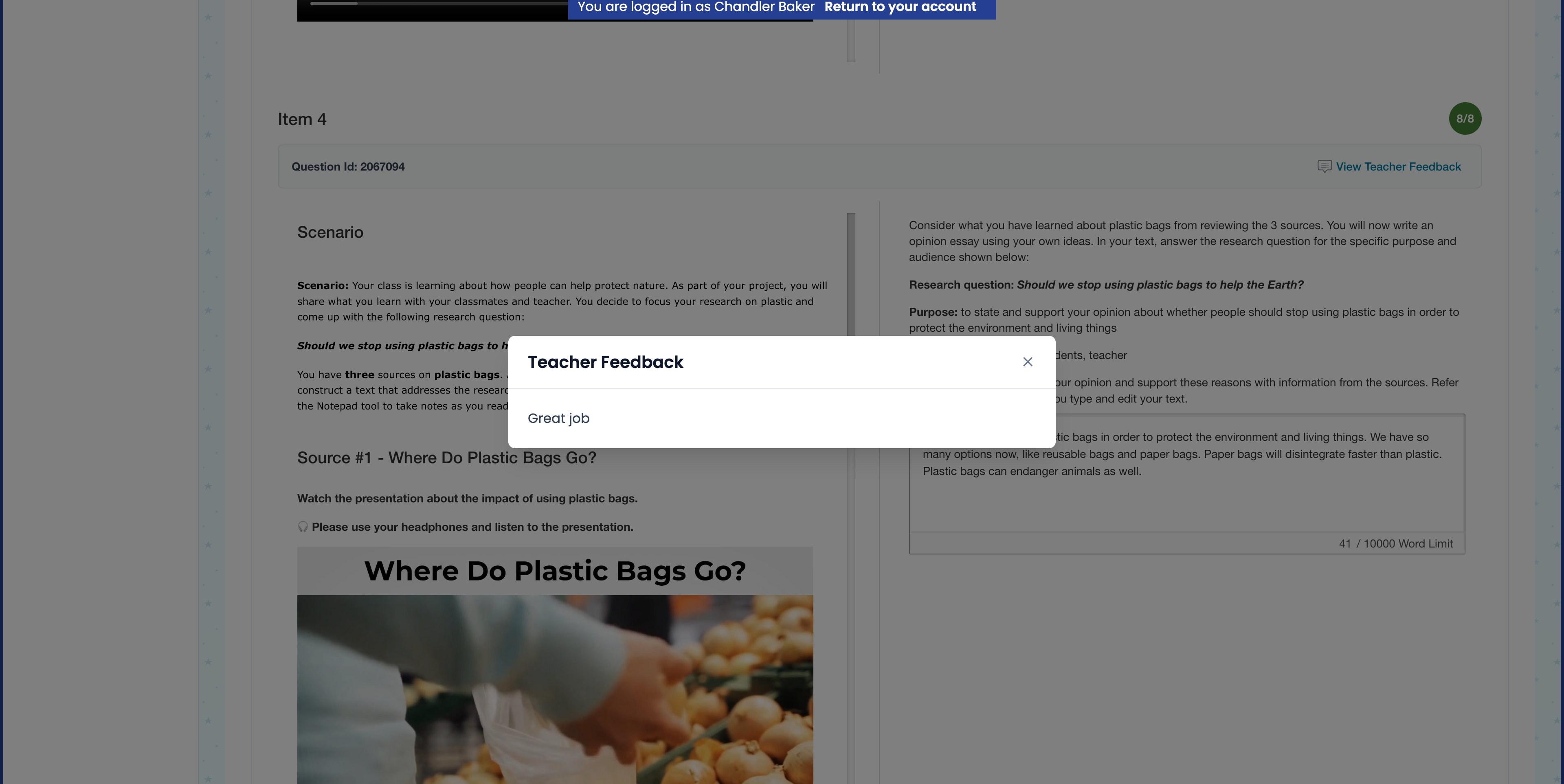
Students scroll down to view the questions and answers. Click on the View Teacher Feedback hyperlink.