School Administrator Setup for ACT®/SAT® testing with Checklist
 Updated
by
Gayle McKee
Updated
by
Gayle McKee
Before Test Day Checklist
Things to do
- Assessment Assignment (Performed By Admin):
- Lock the ACT®/SAT® Premium Assessments if you do not want teachers to assign them. (Click here for instructions)
- Assign the specific SAT/ACT assessment(s) to the correct student groups or classes within Progress Learning. (Click here for instructions)
- Double-check the assignment settings (start/end dates, start/end time, accommodations).
- Devices: Ensure all devices (computers, tablets) students will use are fully charged and in good working order.
- Internet Connectivity: Verify stable and strong internet access in all assessment locations.
- Browser Compatibility: Confirm that the browsers being used are compatible with Progress Learning (updated versions of Chrome, Firefox, Edge, Safari).
- Headphones (if applicable): If the SAT assessment includes audio components, ensure working headphones are available for each student.
- Verify all students have active accounts and can log in to Progress Learning successfully.
- Ensure teachers/proctors also have appropriate access.
- Confirm that all students are correctly rostered in their respective classes within Progress Learning. This is crucial for accurate reporting and assignment distribution.
- If using Clever/ClassLink for rostering, ensure the connection to Progress Learning is enabled and up-to-date. Remember that Horizon Education Clever/ClassLink rostering does not automatically transfer to Progress Learning and requires a new setup.
It's recommended to check in before test day to verify assessments are correctly assigned and that all Accommodations are in place. Click here to learn how to be prepared for ACT®/SAT® test day.
Enabling Accommodations (Set by Admins/Verified by Teacher)
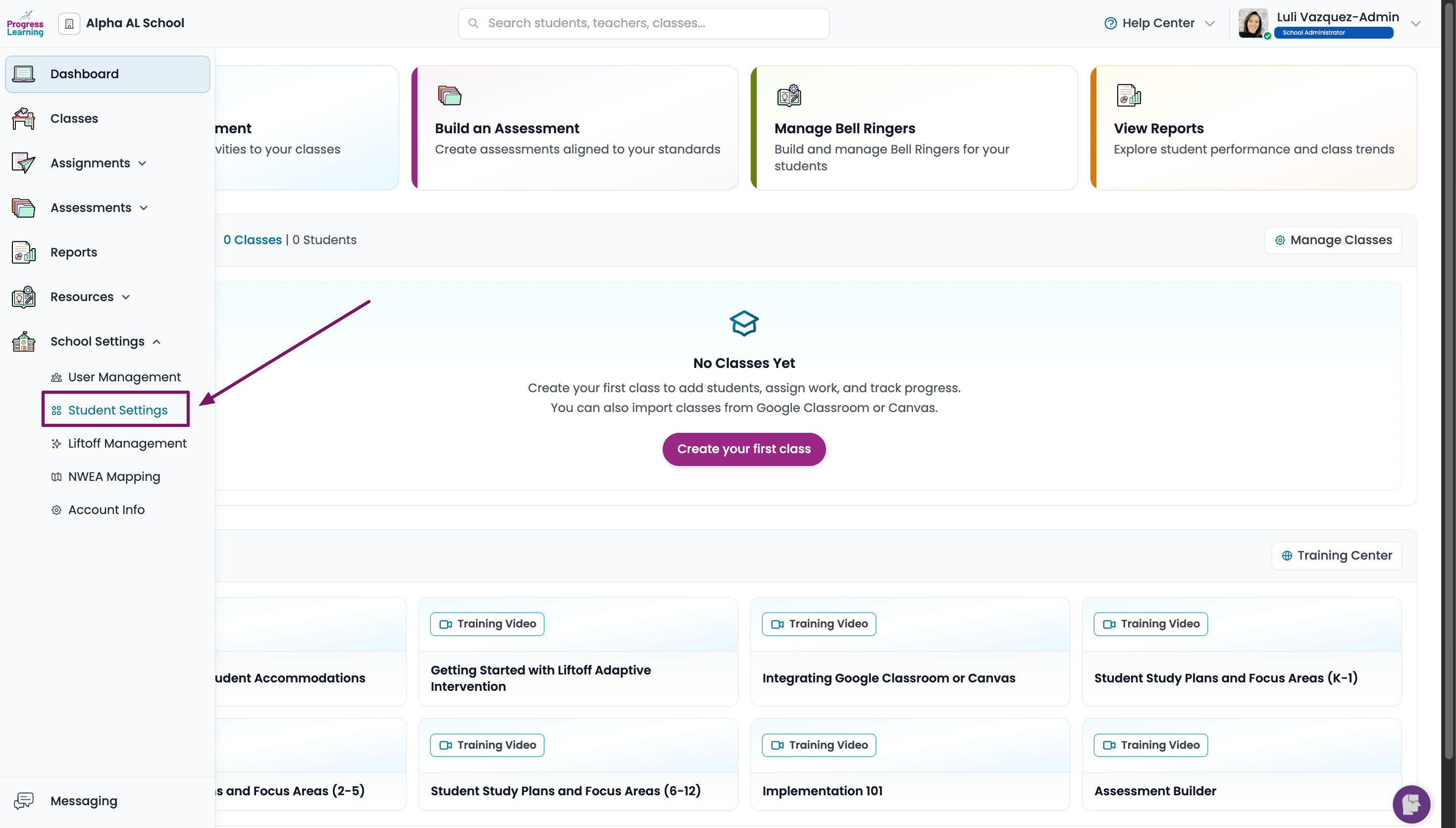
- From the admin dashboard, select School Settings, then Student Settings.
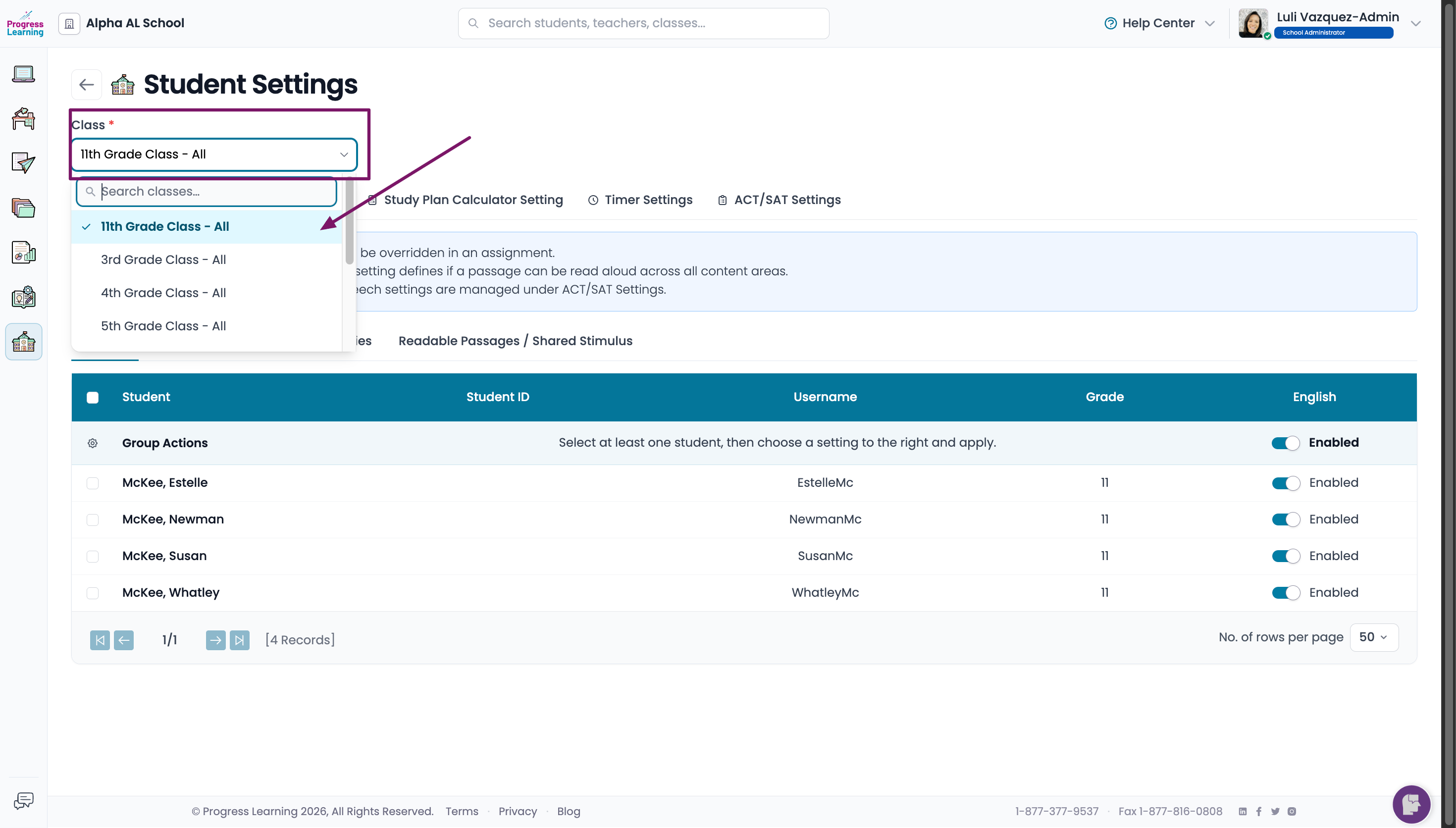
- Select the Class filter and press the Grade Level Class or Class name.
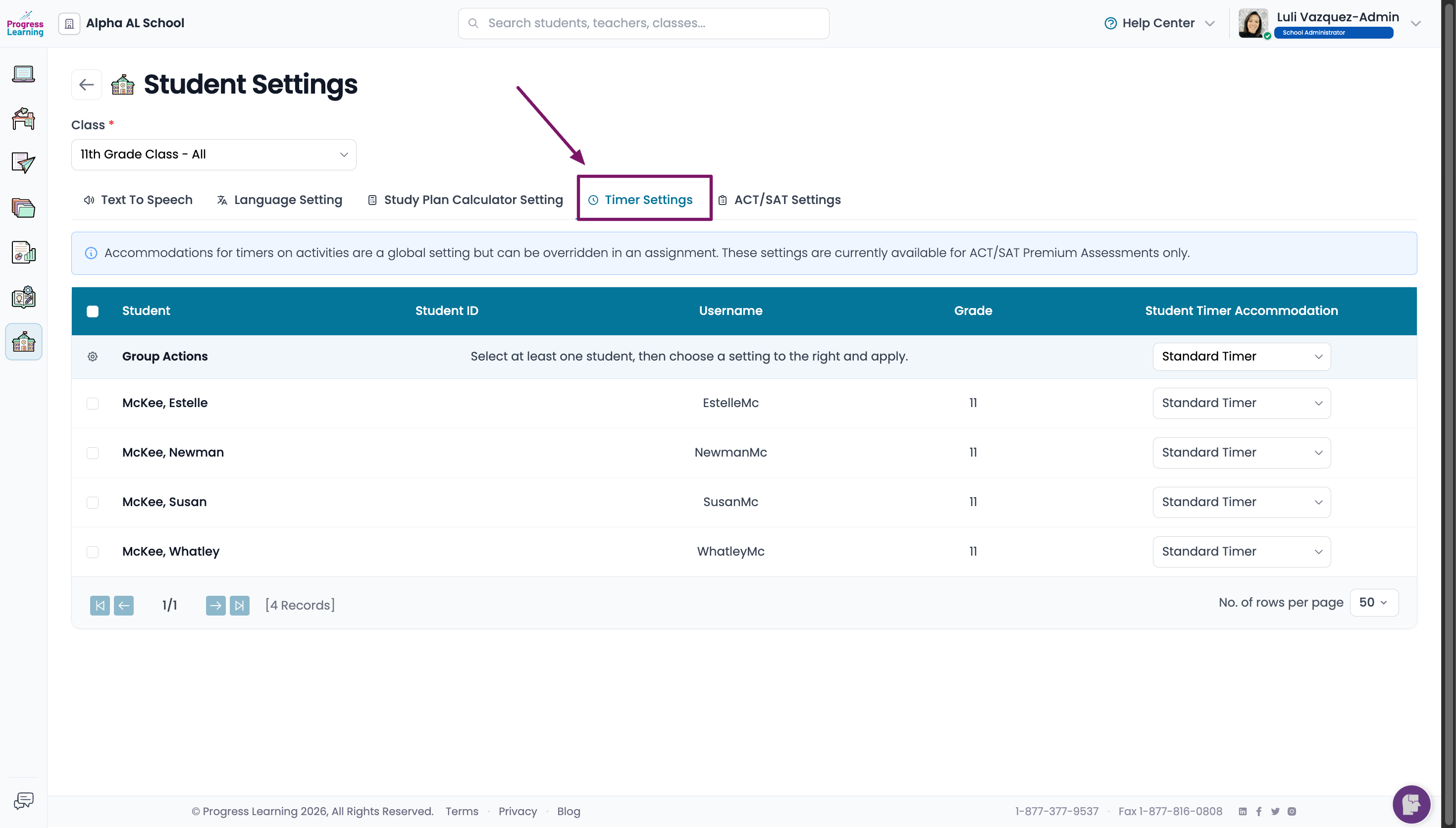
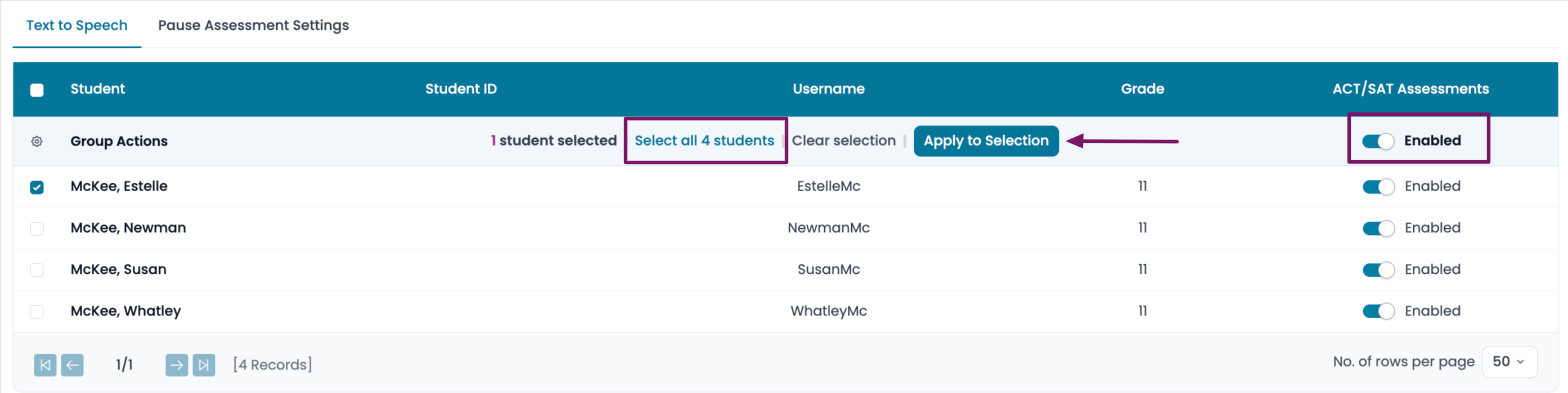
- Make adjustments to the Timer Settings, and to the ACT/SAT Settings.
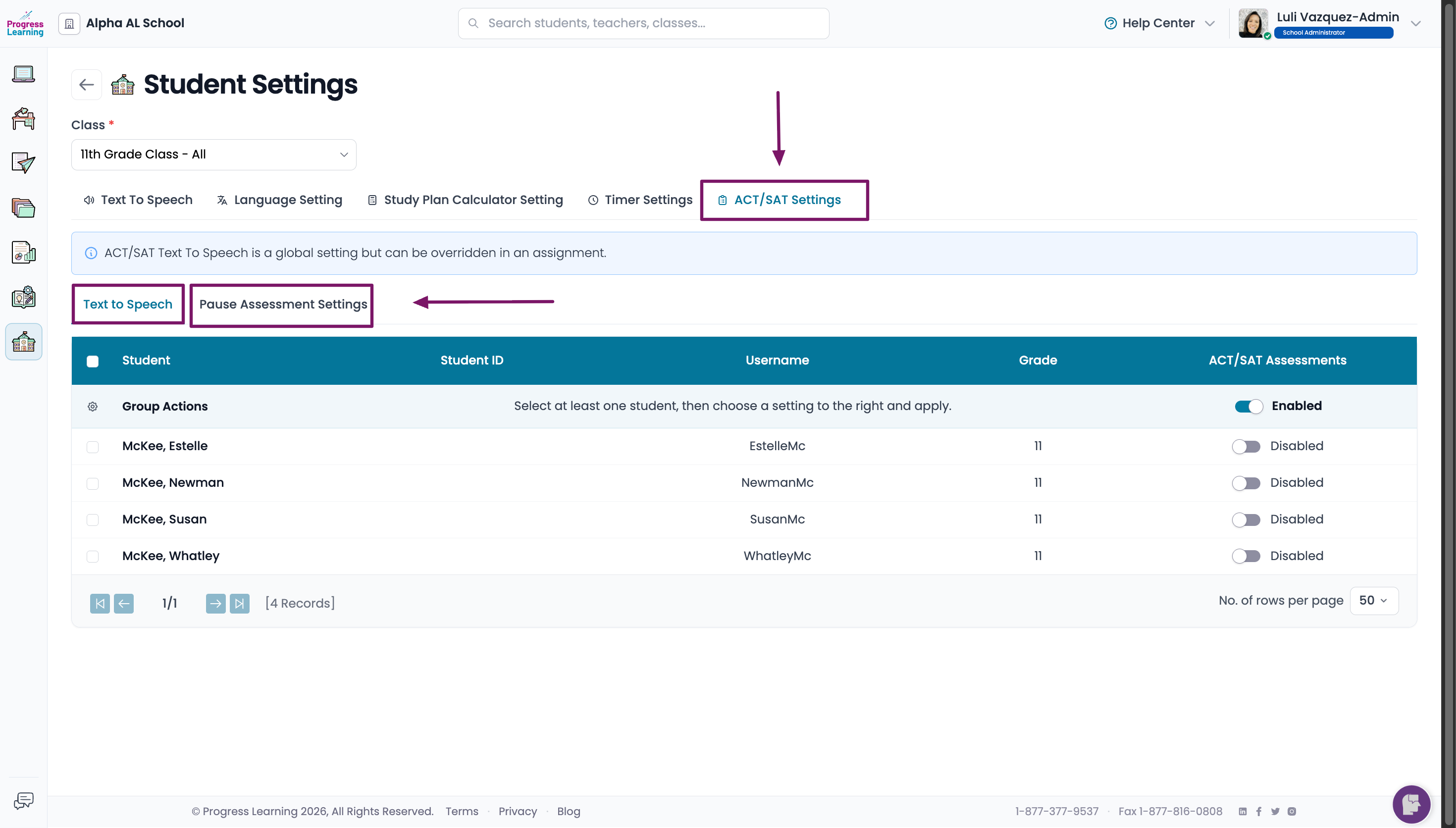
If you would like to apply the settings to all students, click on the checkbox next to any student's name, and then on the gear icon next to Group Actions. You may then choose to enable or disable the setting for all the students in that class.
Need Help During Testing?
- If you have any questions or concerns, please reach out to the Support Team via Chat With Us in the Resource Center, Contact via email in the Help Center at the top of our website, or Call at 1-877-377-9537.
ACT® and PreACT® are registered trademarks of ACT Education Corp. Progress Learning is a Preferred Test Prep Provider of the ACT® test. Except for this Preferred Test Prep Provider relationship, ACT Education Corp. is not associated or affiliated with Progress Learning and does not sponsor or endorse Progress Learning's goods or services. A Progress Learning predicted assessment score is intended to approximate performance on the ACT® but may not reflect an actual ACT score.
