How does a teacher see results and assign remediation on an assessment that was assigned by a School Administrator?
 Updated
by
Luli Vazquez
Updated
by
Luli Vazquez
When a School Administrator assigns an assessment, they have the ability to customize the settings. As long as the Administrator has allowed teachers to view assessment details, the teacher will be able to see a results report and this help doc will go over two ways in which teachers are able to pull that report.
Finding the Results Report from the Assessment Bank
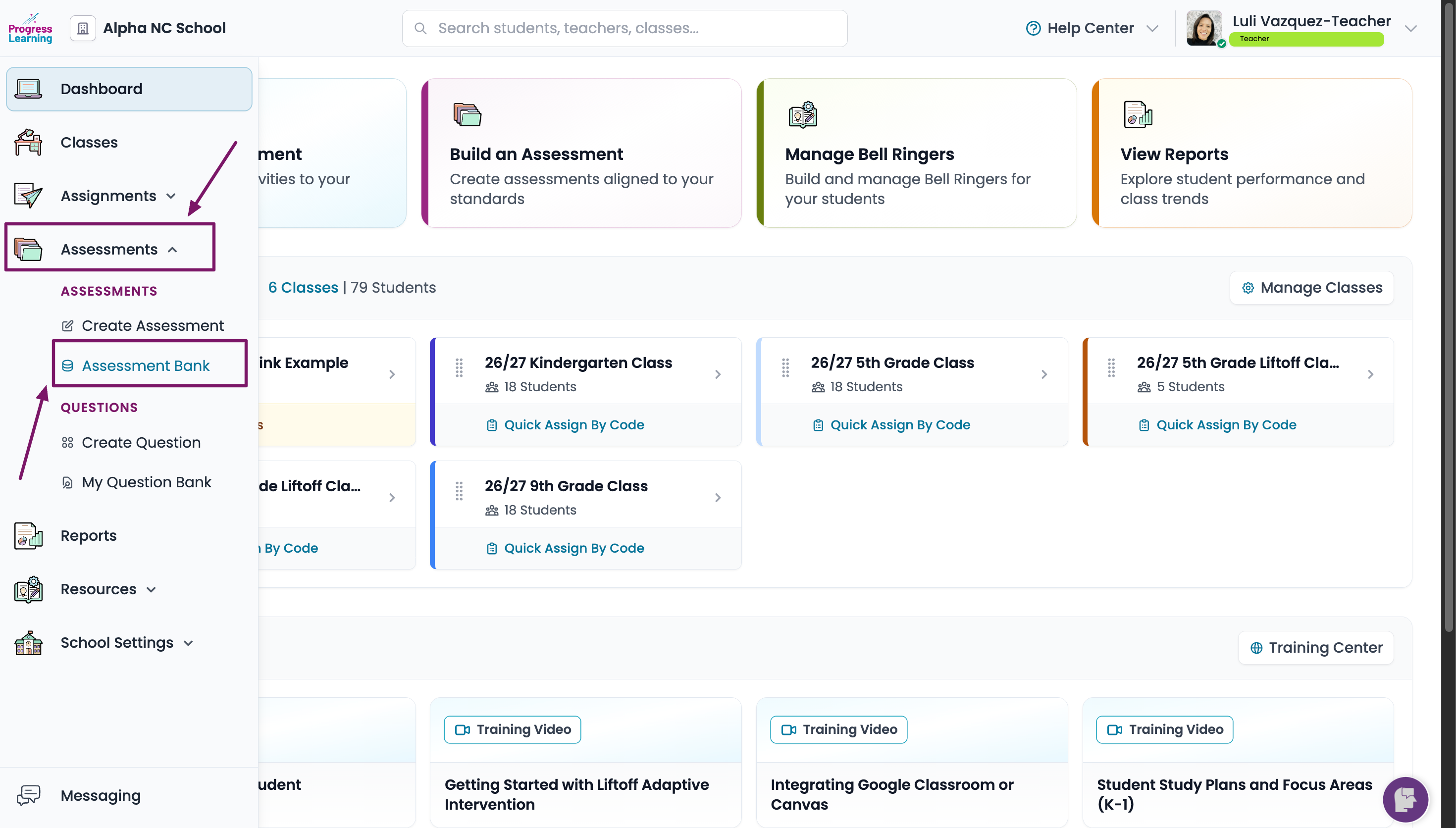
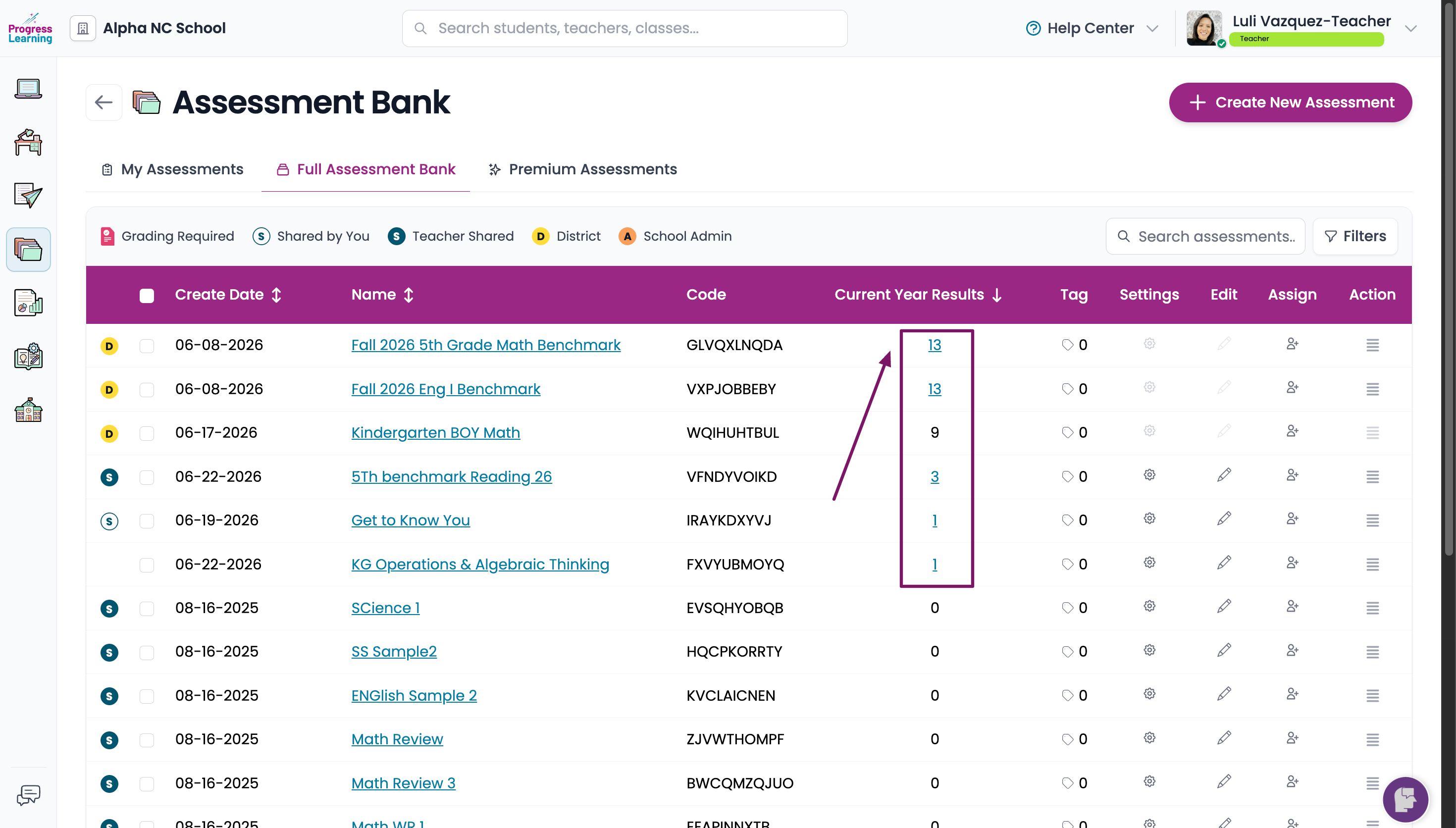
Navigate to the Assessment Bank from your teacher dashboard.
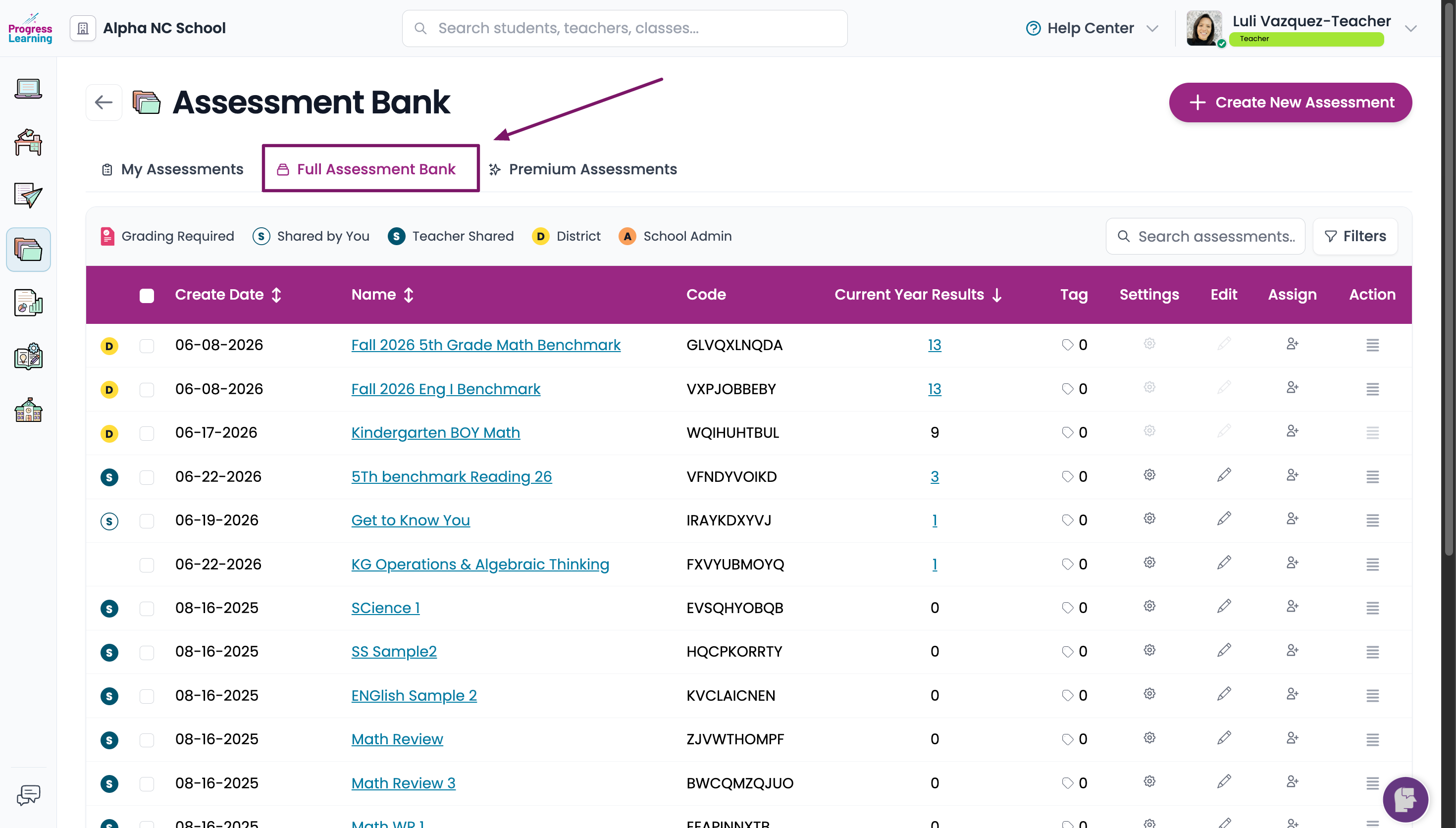
Click on the Full Assessment Bank tab.
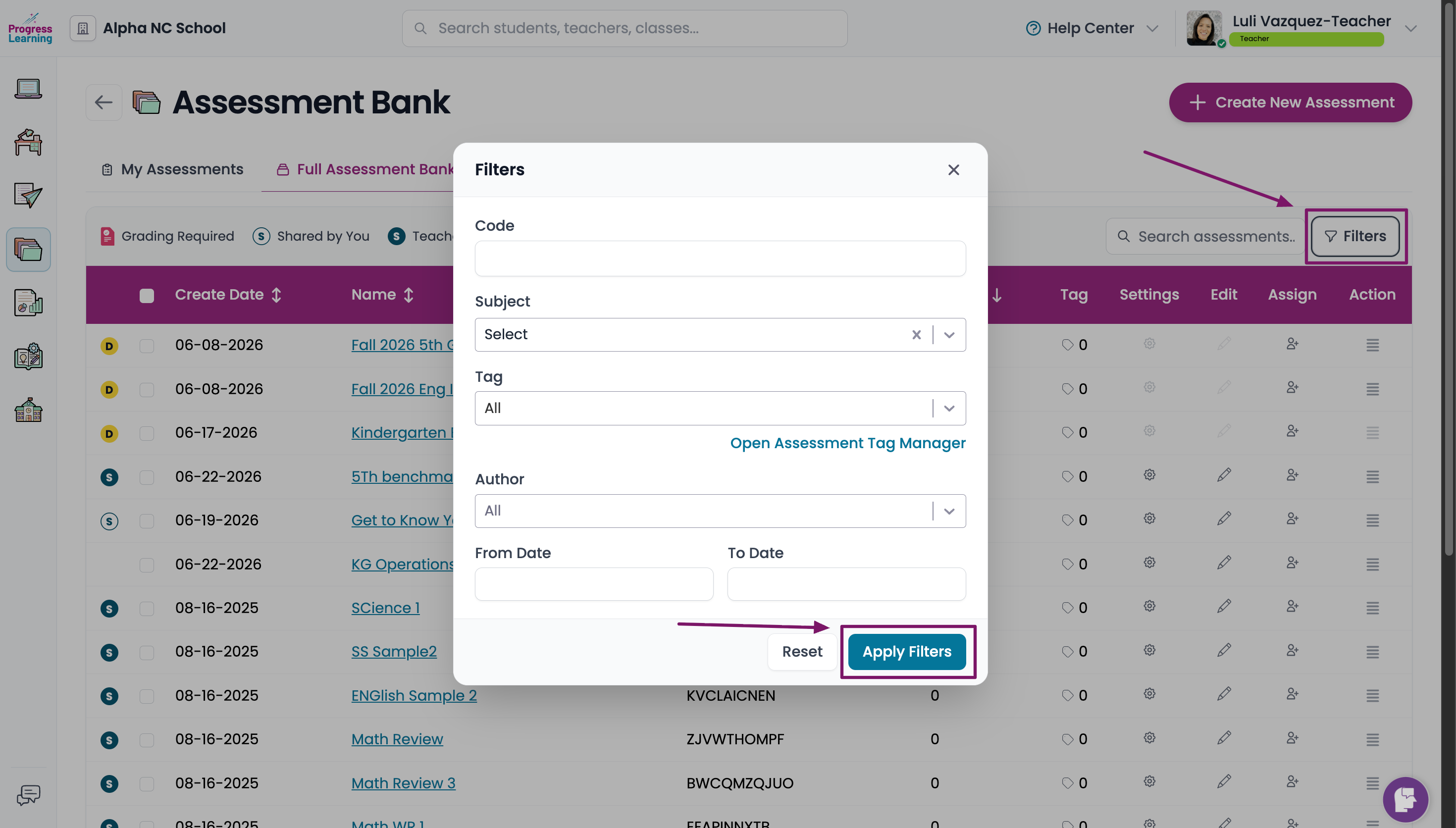
Optional: Click on Filters to search for the desired assessment.
Click on the hyperlink under Current Year Results.
Click on Filter to see your results for each individual class.
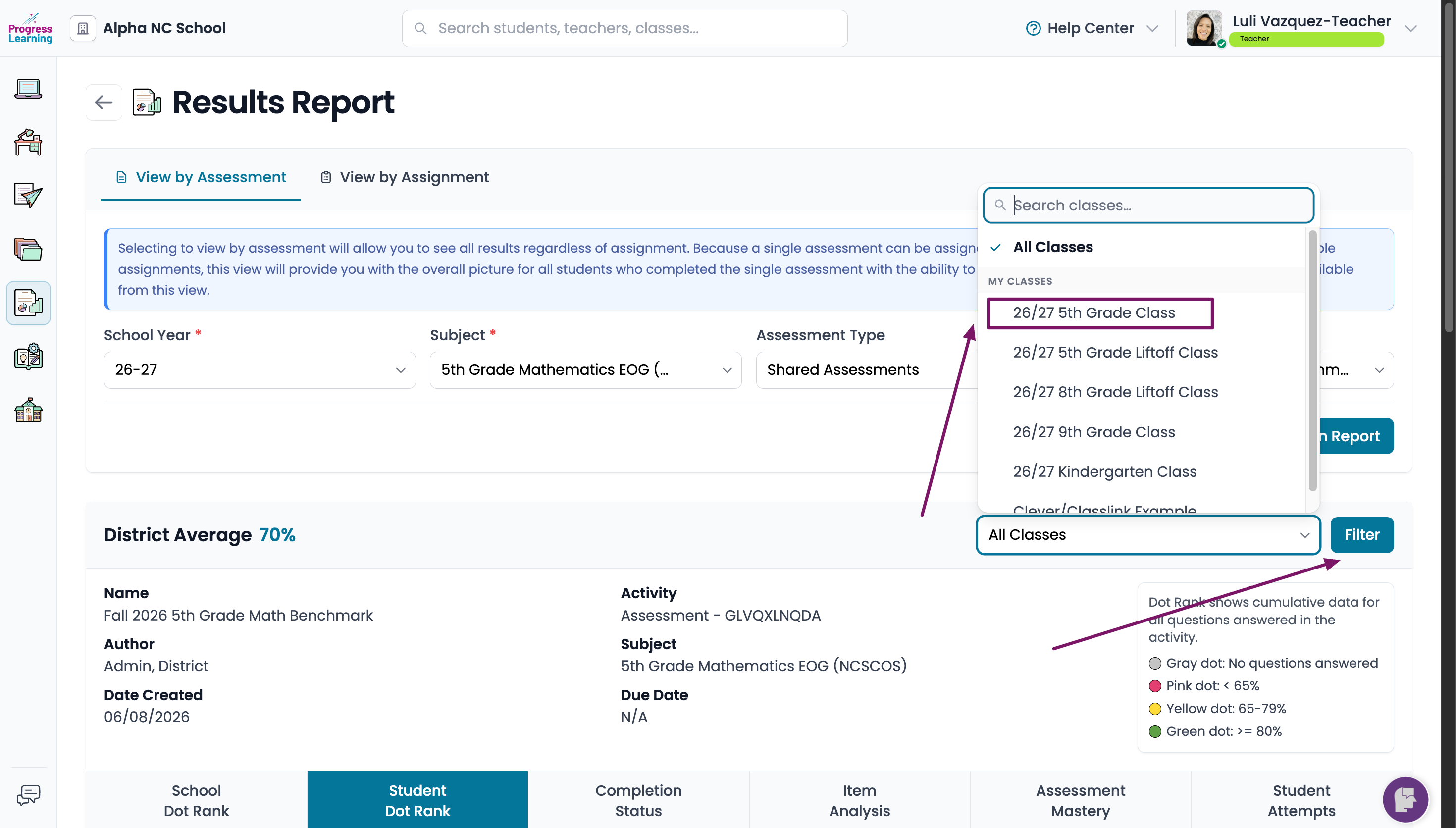

- The Student Dot Rank tab will show how each student performed on each standard assessed.
- The Completion Status tab will indicate how many students the assessment was assigned, how many students have completed it, and how many are pending completion.
- The Item Analysis tab will give you a breakdown of results in a question by question view.
- The Assessment Mastery tab allows you to see results aligned to our colored rating system.
- The Student Attempts tab allows you to see scores for each student, what date the assessment was completed, and how long the student spent on the assessment.
Finding the Results Report from the Reports menu
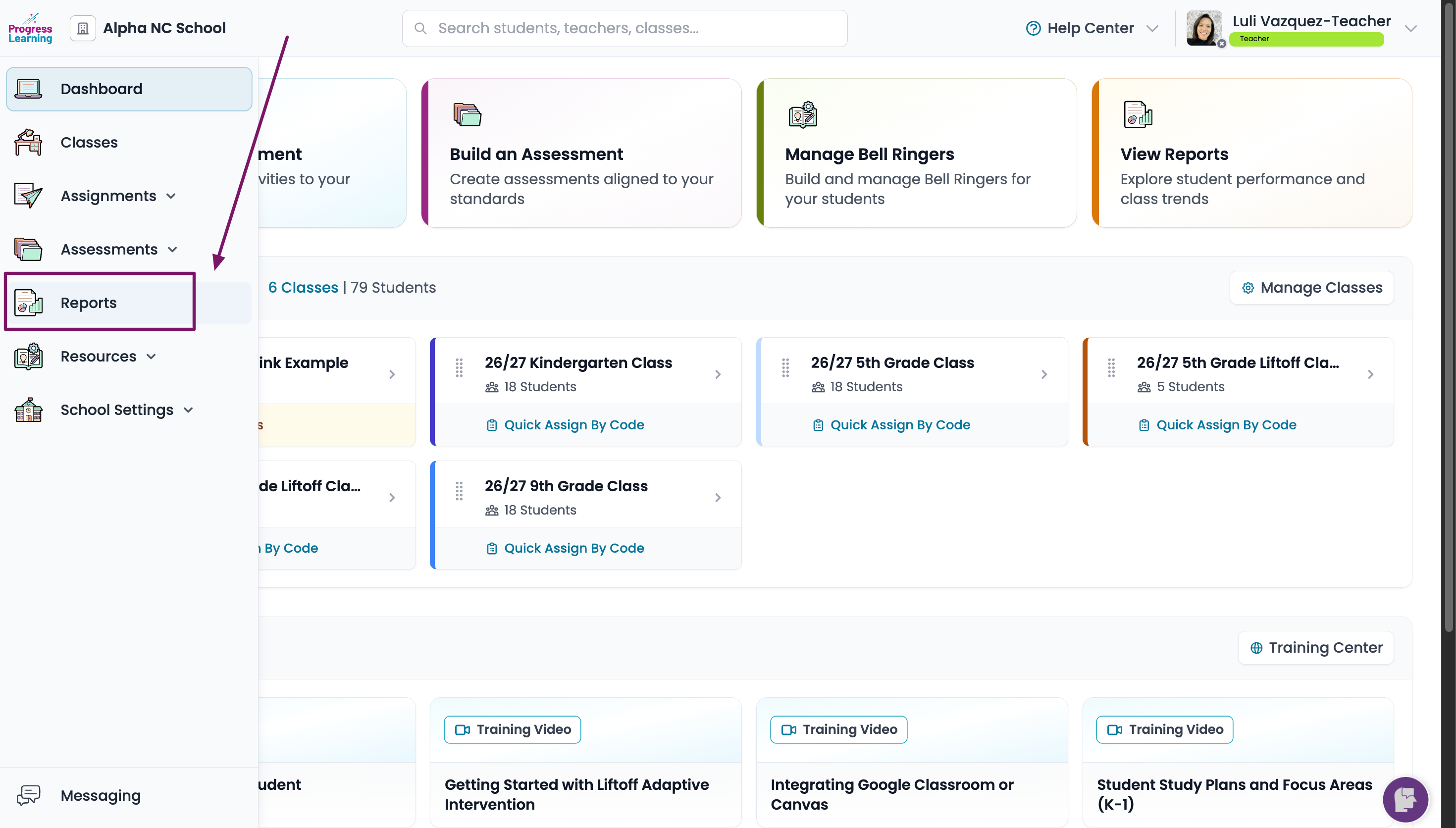
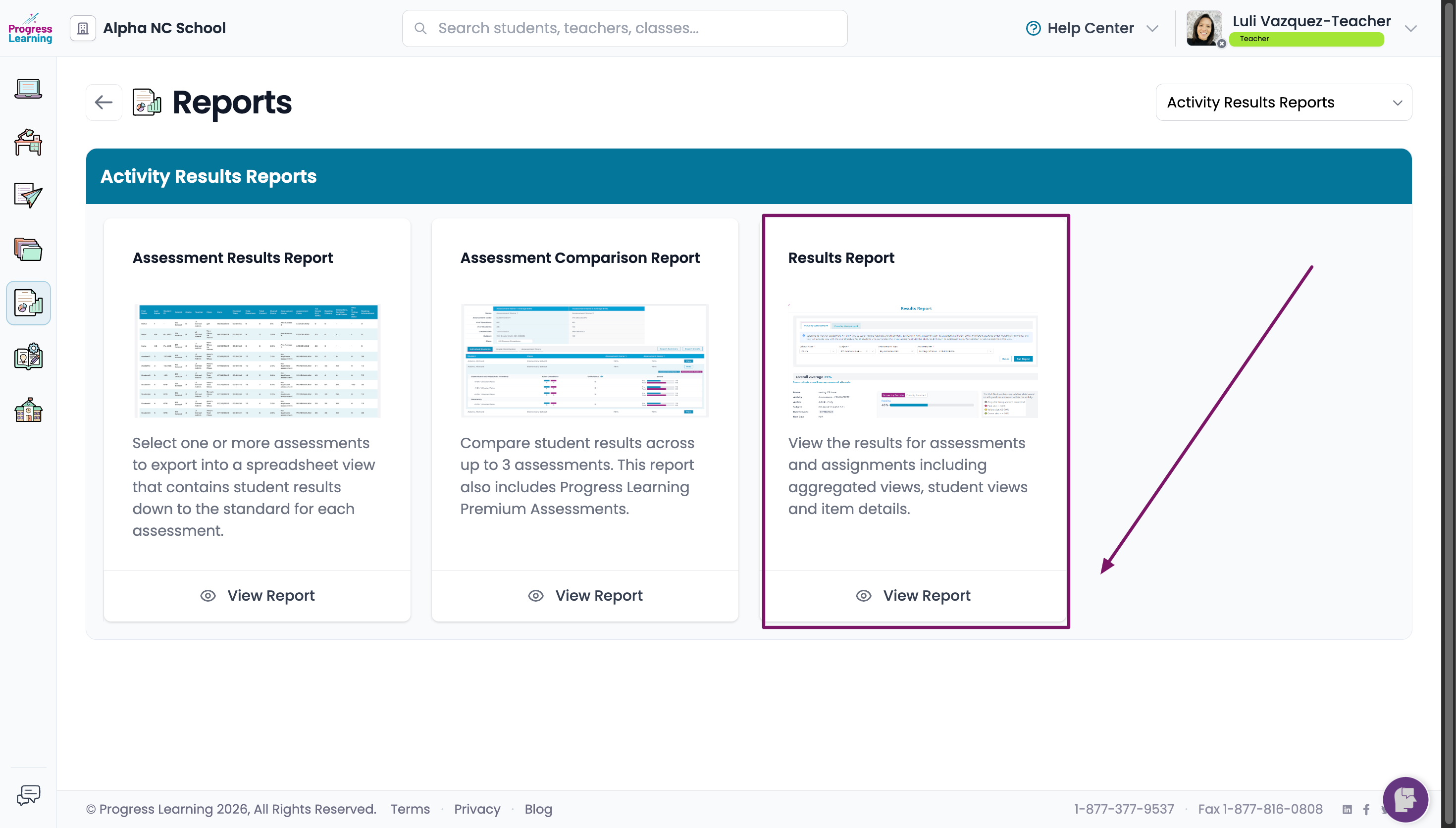
Navigate to Reports from the left side menu.
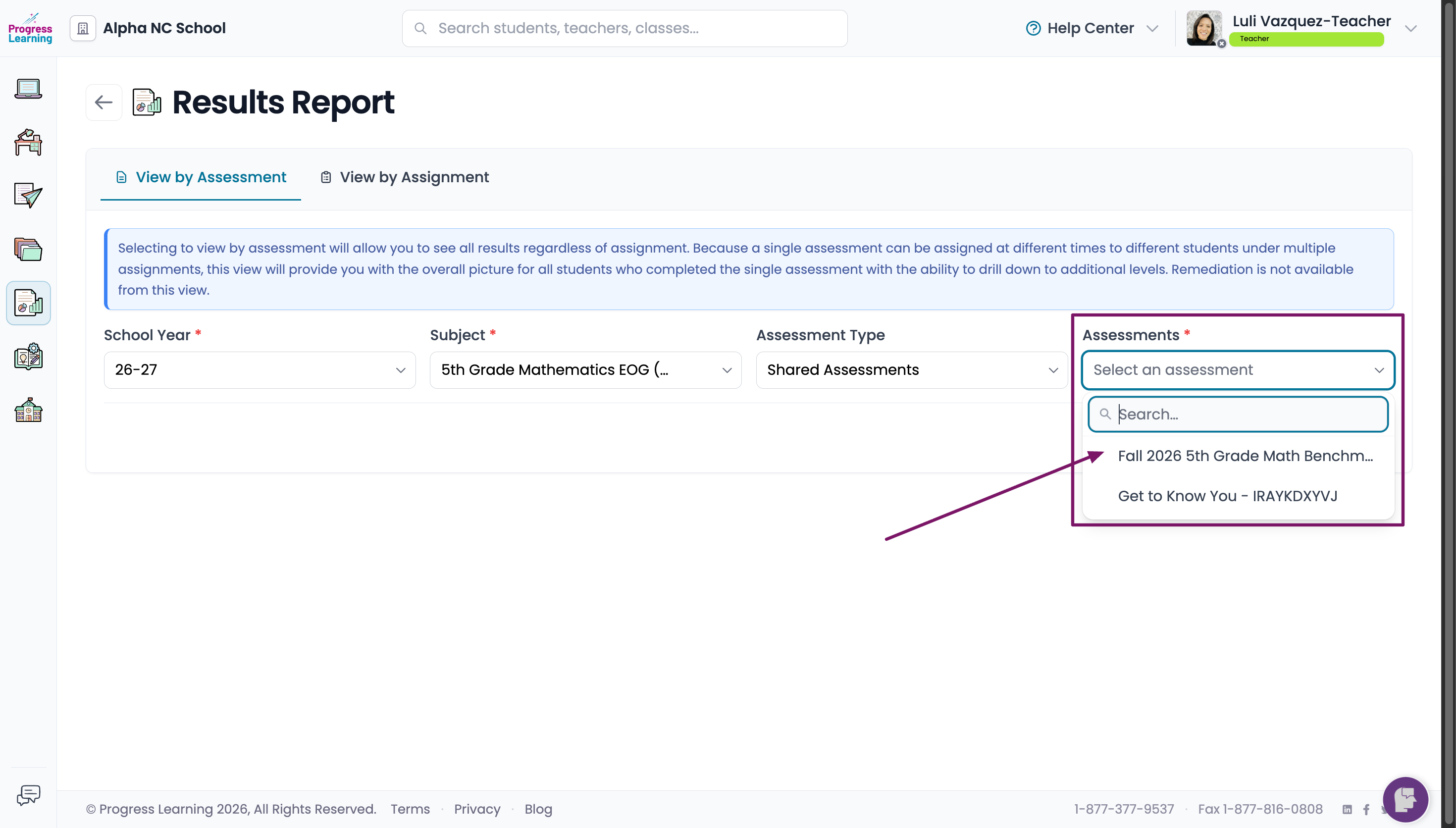
From the drop down menu, select Activity Results Reports.
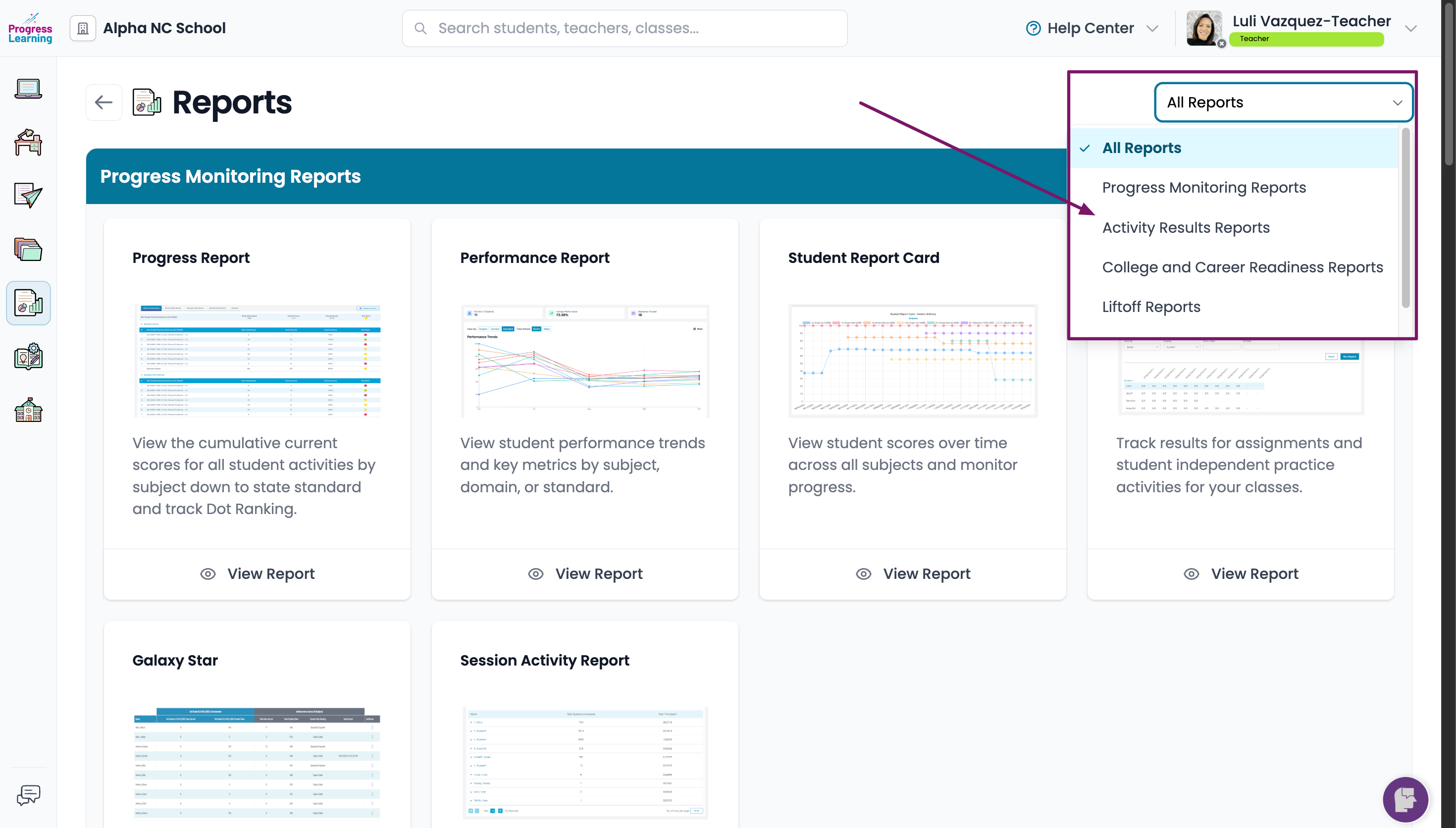
Click on Results Report.
Select the filter for the Subject. From the Assessment Type drop down menu, select Shared Assessments.
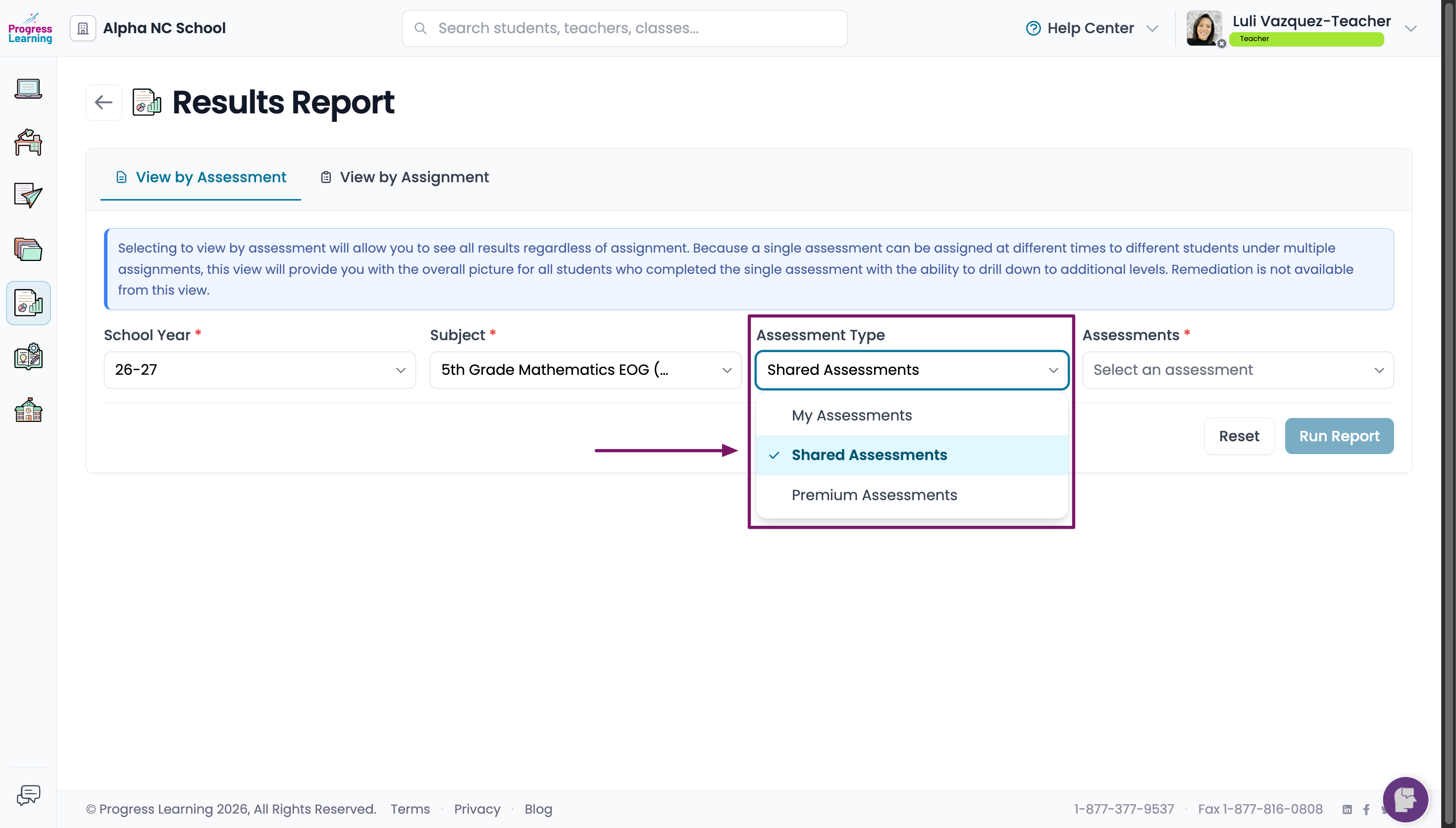
From the Assessments drop down menu, select the name of the Assessment for which you want to view results and then click on Run Report