What is Proctor Mode?
 Updated
by
DaCota Cole
Updated
by
DaCota Cole
Proctor Mode can be enabled on individual assignments, giving educators the flexibility to create a secure testing environment when needed. When enabled, Proctor Mode keeps students within the assessment and automatically locks the activity if they leave the secure testing environment.
Progress Learning recommends testing Proctor Mode with a test student before administering assignments to students.
Should I use Proctor Mode?
Before enabling Proctor Mode, consider the secure testing tools your school or district already has in place.
Does your school or district already use a lockdown browser or another tool that creates a secure testing environment?
- Yes: Do not enable Proctor Mode. You can still enable Live Monitoring to monitor student activity, pacing, and progress in real time.
- No: Enable both Proctor Mode and Live Monitoring. Proctor Mode creates a secure testing environment, while Live Monitoring allows educators to monitor student activity, pacing, and progress throughout the assessment.
Proctor Mode and Live Monitoring serve different purposes: Proctor Mode creates a secure testing environment, while Live Monitoring provides real-time visibility into student activity, pacing, and progress. Live Monitoring can be used with or without Proctor Mode.
When Proctor Mode is enabled
- Students are notified that they are entering a secure assessment.
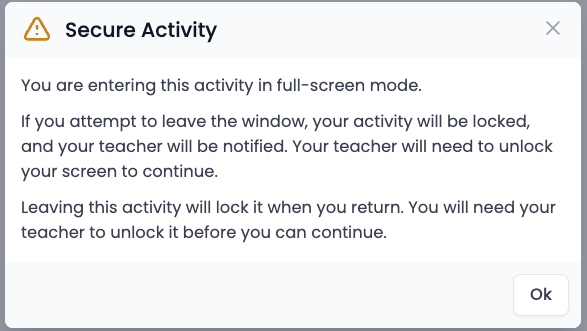
- Activities launch in a secure full-screen environment.
- If a student leaves the secure testing environment, the activity is automatically locked.
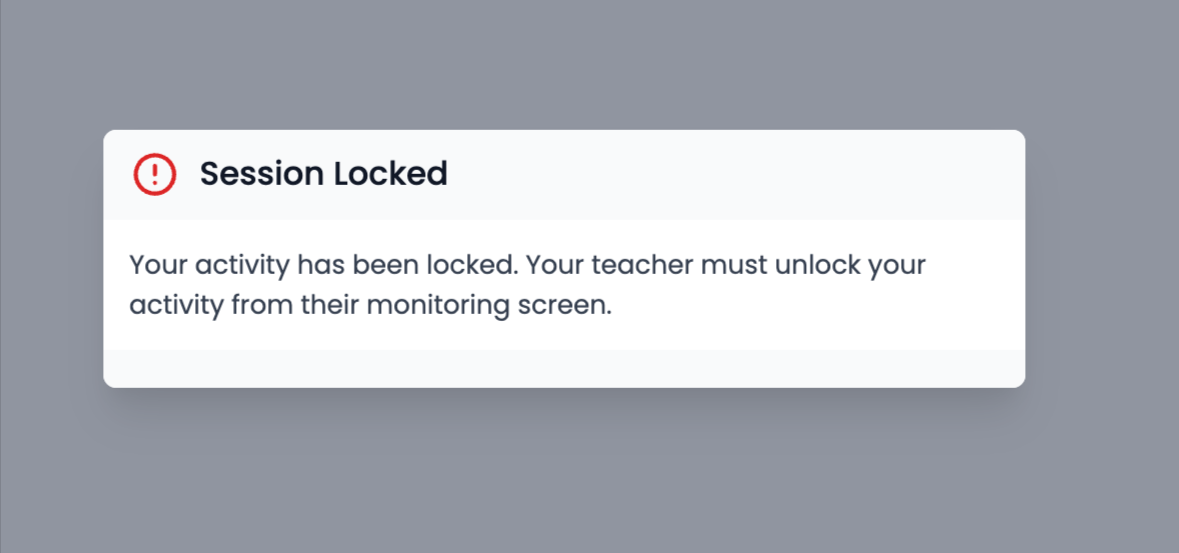
- Educators can quickly unlock students via Live Monitoring or by using an optional Proctor Mode PIN.
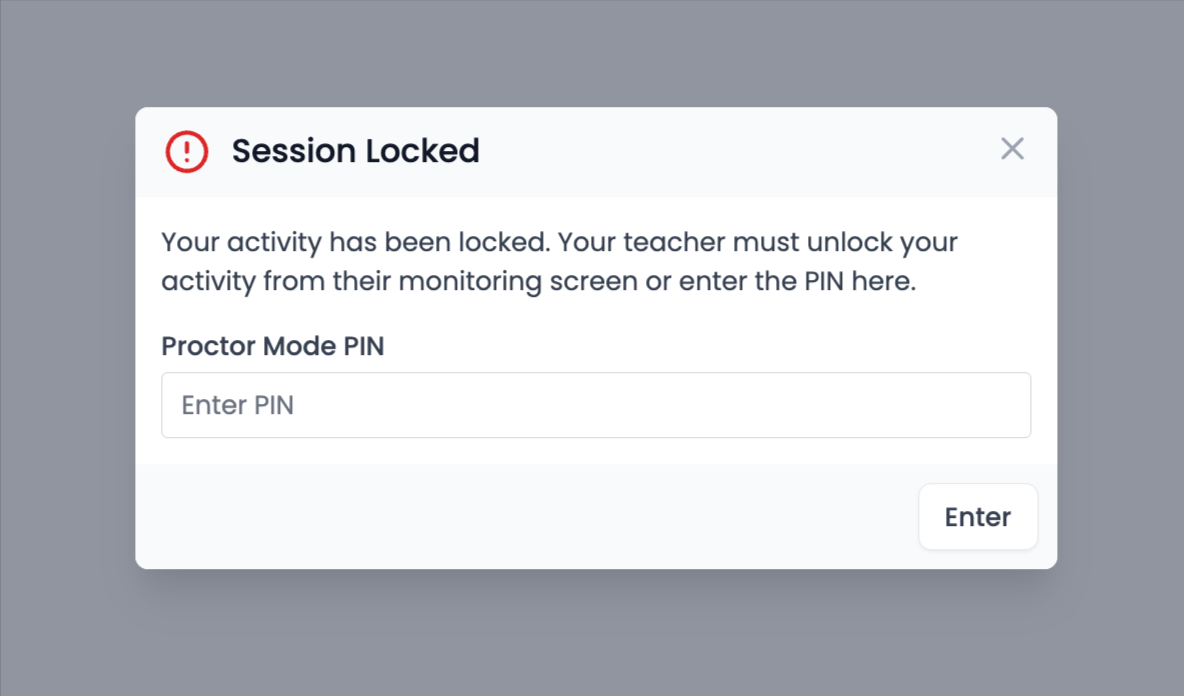
Educators can unlock it via Live Monitoring or by using the optional PIN on the student's device.
How to enable Proctor Mode
- Build your assignment, select the class(es) which will receive the assignment, and this will bring you to the Settings tab in the Assignment Builder. First, set the Start Date and Due Date in the Schedule section.
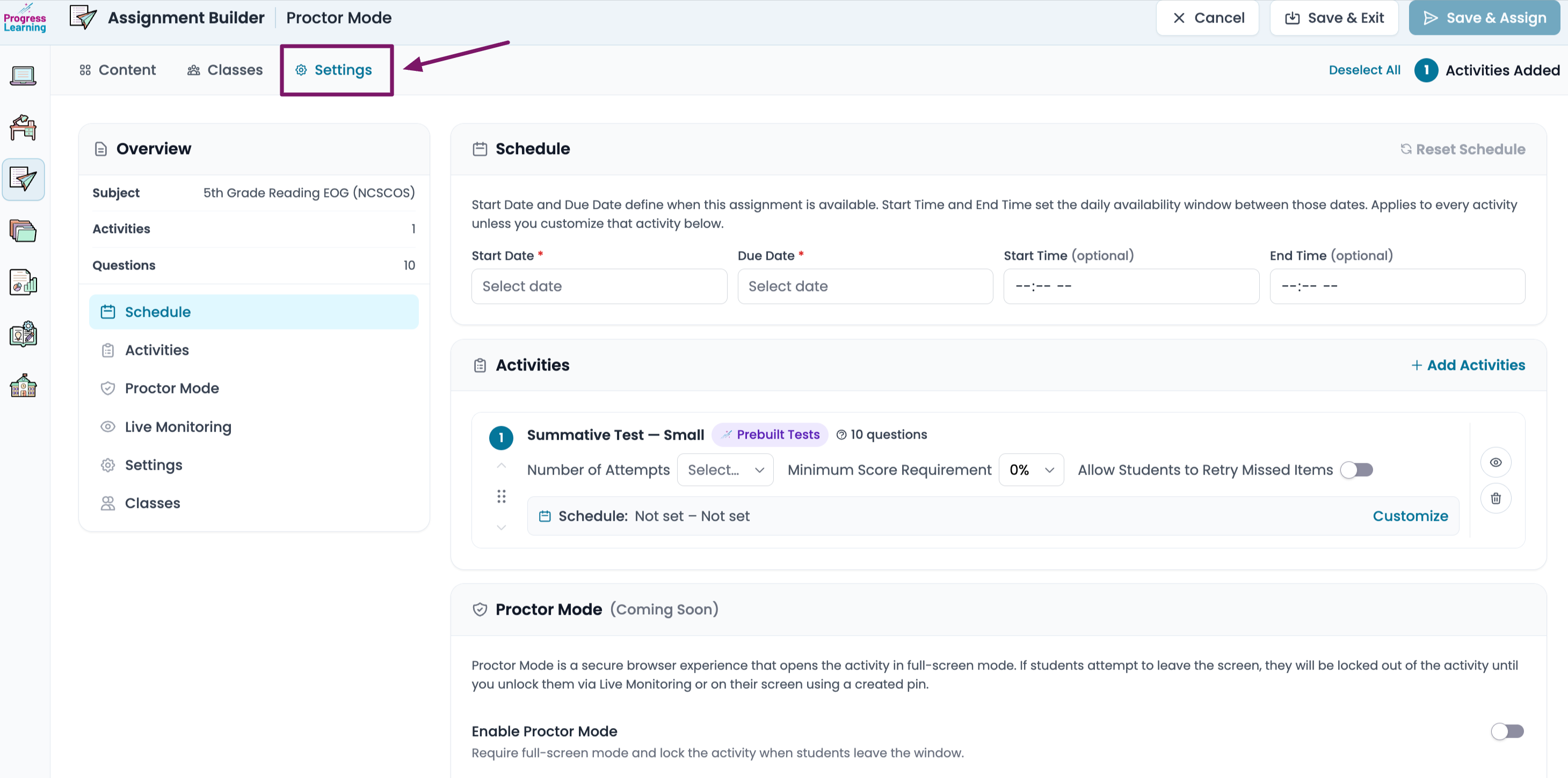
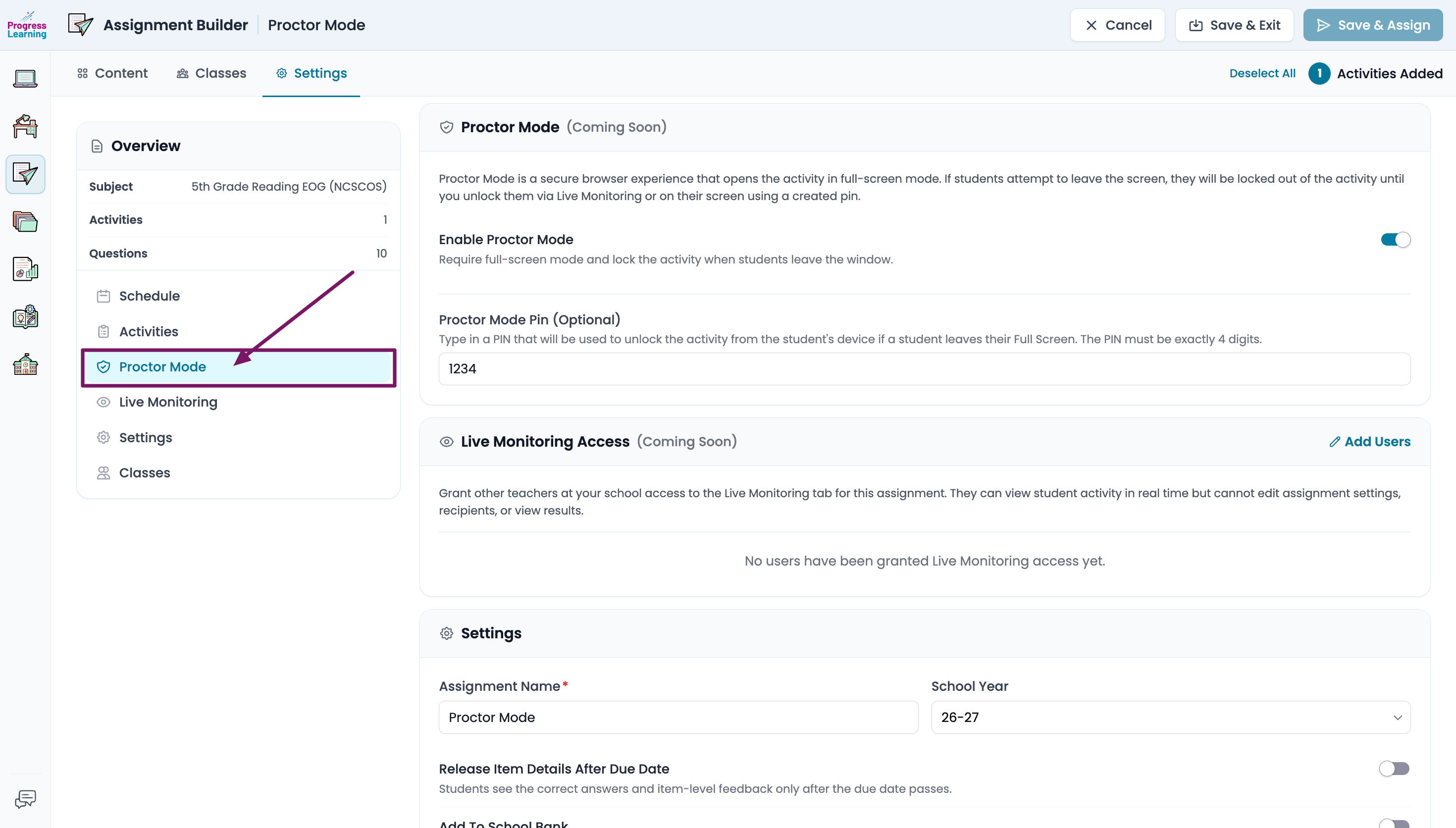
- Click on Proctor Mode from the left side Overview menu
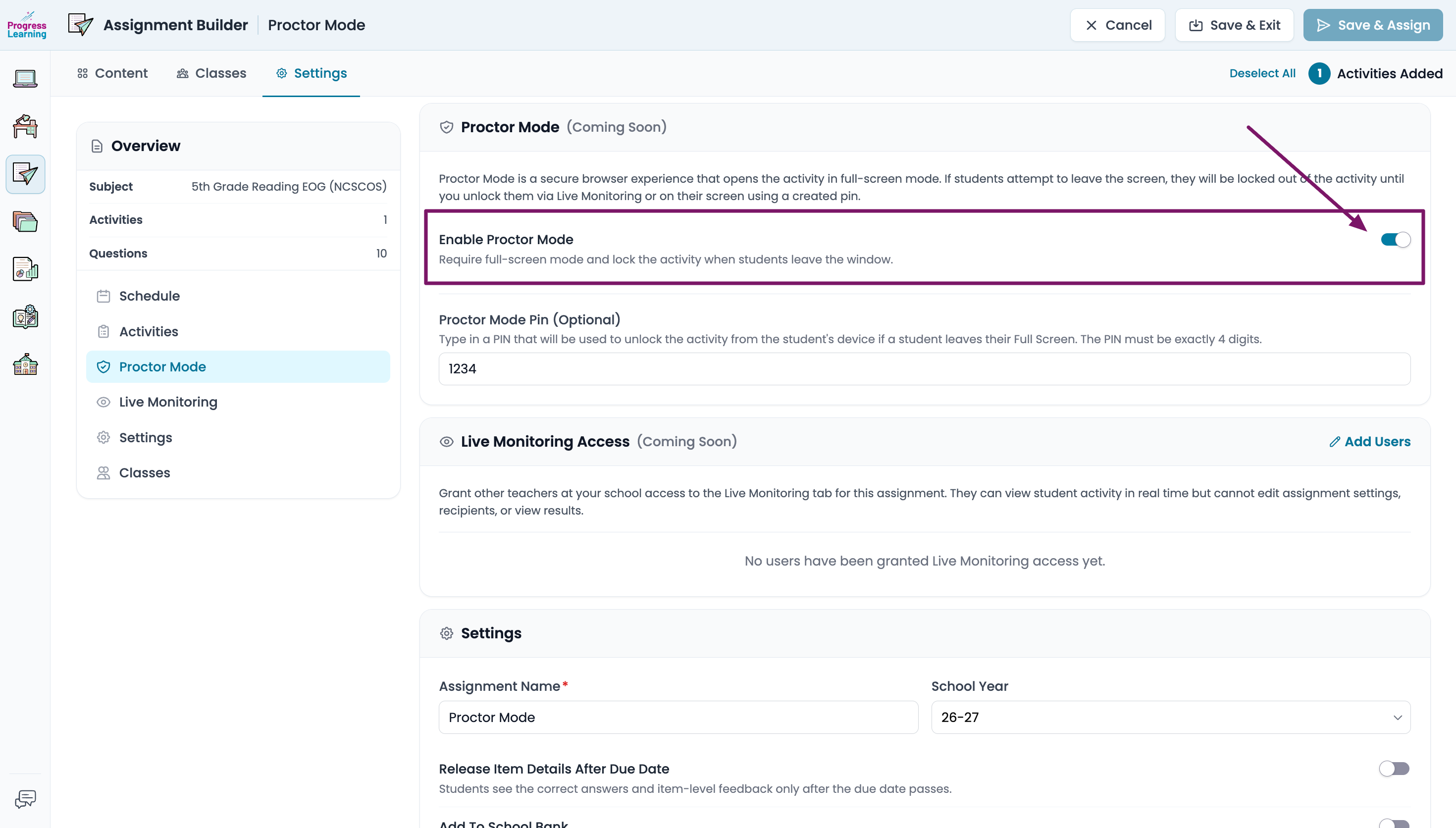
- Enable Proctor Mode: To enable Proctor Mode, toggle the button into the on position (blue)
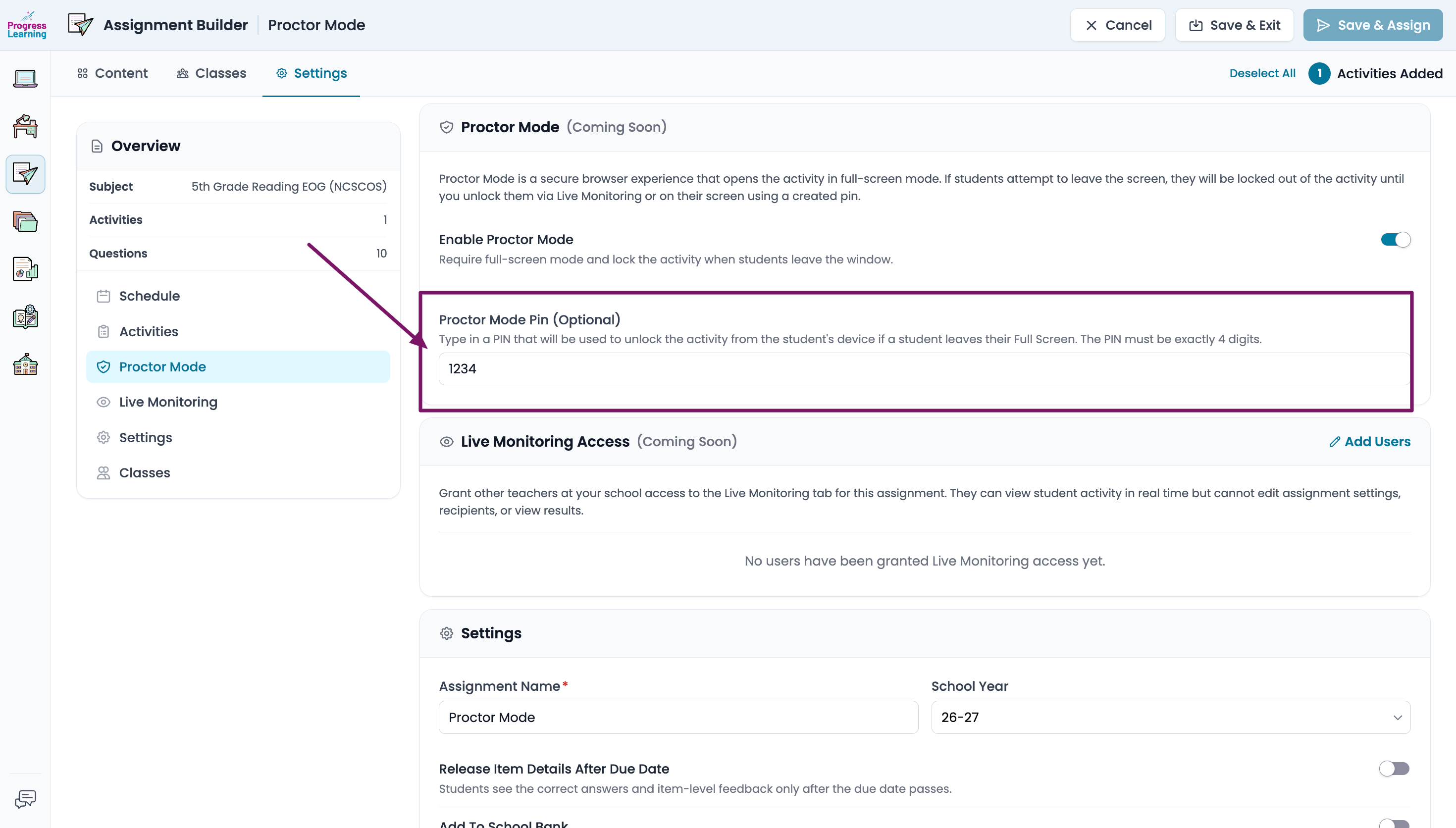
- Proctor Mode Pin (Optional): You can create a 4-digit PIN that educators can use to unlock a student's activity directly from the student's device. Educators can also unlock students remotely via Live Monitoring on their teacher device. The PIN must be 4 digits and can be changed at any time.
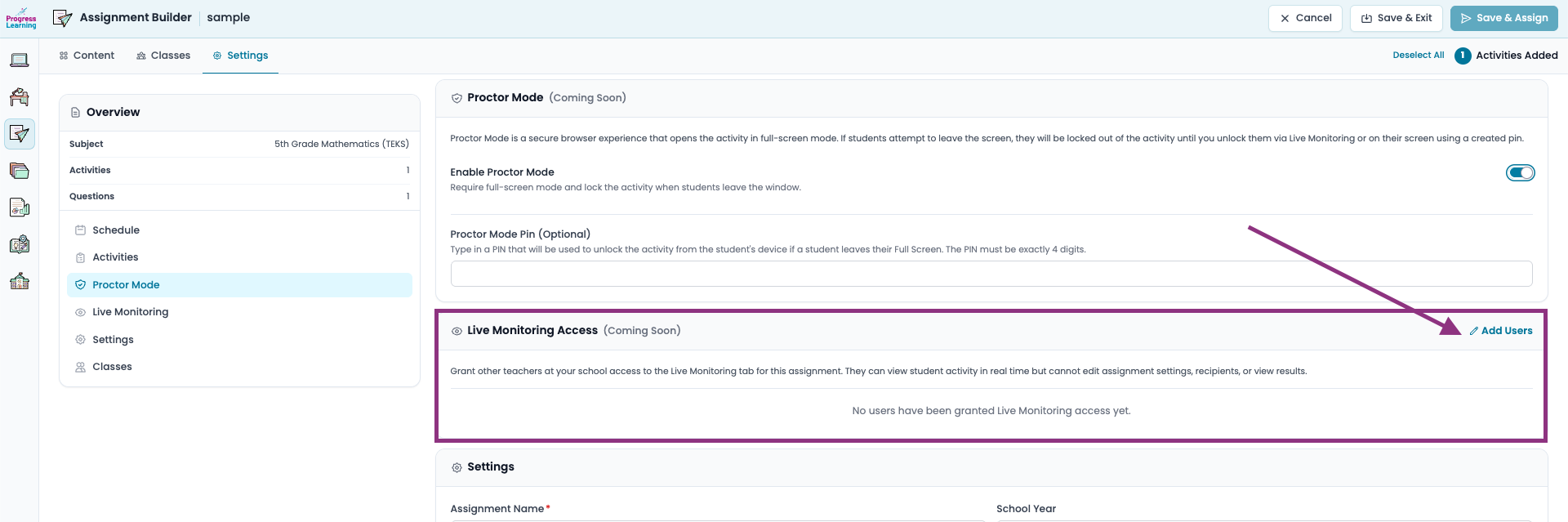
- Live Monitoring Access: You and any co-teachers assigned to the selected classes automatically have access to Proctor Mode through Live Monitoring. Select Add Users to grant access to other teachers at your school.
- Co-Teachers are able to access Live Monitoring by going to the Assignment Bank > Shared Class Assignments > Click on Assignment Name > Live Monitoring tab
Frequently Asked Questions (FAQs)
- Will my students be able to use dual screens/monitors to cheat on one and take the activity on the other?
- No. Proctor Mode will detect if the student clicks away from the screen where the activity is being taken.
- Will my students be able to use extensions like Gemini or ChatGPT to look up answers?
- No. Proctor Mode will detect if the student attempts to type into any extension to look up answers and lock the student's activity.
- Will students be able to go to any other site if Proctor Mode is enabled?
- No. They can still type in the address bar, but attempting to go to any other URL will lock the student’s activity.
- Can students open any other tabs or browser windows?
- No. Proctor Mode will trigger if they attempt to leave the activity.
- Can students use their accommodations, like highlighting to read and speak, and ones you provide?
- Yes. Accommodations are not prohibited for students while using Proctor Mode.
- Do I have to use a PIN to unlock the activity? I won’t always be in front of my students to type on their computers.
- We provide two options for ensuring you can get a student unlocked. You may use the optional 4-digit PIN or use Live Monitoring to unlock the students directly from your own screen.
- Can I change my PIN if a student figures it out, or I just want to simply update it?
- Yes. You can update your PIN at any time to any 4-digit combination.
- Do you track how many times the student is locked out and provide reporting on it?
- Not at this time. This is something we are exploring as a future enhancement.
- Will Proctor Mode work on mobile devices, like tablets, and in any browser?
- Yes.
- Do I have to download any additional software?
- No. We provide the experience directly in the activity. There is no need to download any additional software or IT installation.
- Is it free to use?
- Yes!
- Can I enable Proctor Mode on all my assignments?
- Yes! Proctor Mode works on any activity you assign. Including Group Assignments.
Note for technology departments
Device management policies can block Proctor Mode from working the way it should. Before a test window opens, check that the device restrictions below are either turned off for testing devices or set up so Progress Learning is allowed through. This applies no matter what kind of device your students use.
Windows laptops and desktops
Look for restrictions delivered through Group Policy Objects (GPO) from Active Directory, or through the Local Group Policy Editor. Also check:
- Microsoft Intune configuration profiles and settings catalog policies
- Browser policies pushed through ADMX templates or the registry for Chrome, Edge, or Firefox
- Assigned Access (kiosk mode) and Shared PC mode
- Filtering or classroom management agents like GoGuardian, Securly, Lightspeed, Linewize/ContentKeeper, Blocksi, LanSchool, or NetSupport
Chromebooks
Restrictions come from the Google Admin console under Devices > Chrome > Settings. Check all three sections, since they apply at different times:
- User & browser settings
- Device settings
- Managed guest session settings
Pay attention to URL blocklists and allowlists, force-installed extensions, screen capture restrictions, and kiosk or managed guest session setups. Policies are set per organizational unit, so a student OU can have restrictions that your test account doesn't. Also check any filtering extensions like GoGuardian, Securly, Lightspeed, Hapara, Linewize, or Blocksi.
iPads
Restrictions come from configuration profiles pushed by your MDM. Common ones are Jamf School or Jamf Pro, Mosyle, Meraki Systems Manager, Intune, FileWave, and Apple Configurator, usually tied to Apple School Manager. Check:
- The Restrictions payload and Content & Privacy Restrictions
- Guided Access, Single App Mode, and Autonomous Single App Mode
- Automatic Assessment Configuration, which other testing apps use and which can conflict if it's still active
- Web content filter payloads and per-app VPN
- Screen Time restrictions
- Screen locking through the Apple Classroom app
Android tablets
Check Android Enterprise policies in the Google Admin console or your MDM, including managed configurations, work profile restrictions, and screen pinning or lock task mode.
Macs
Check configuration profiles from your MDM, the Restrictions payload, and Screen Time.
If you're troubleshooting
Try the same test on a device with no management profile, or move a test account into an organizational unit that has no restrictions applied. That tells you quickly whether a policy is the cause. Make sure you've implemented our safelisting guide for any web filter or firewall.
