ACT®/SAT® Accommodations
 Updated
by
Gayle McKee
Enabling Accommodations (Set by Admins/Verified by Teacher)
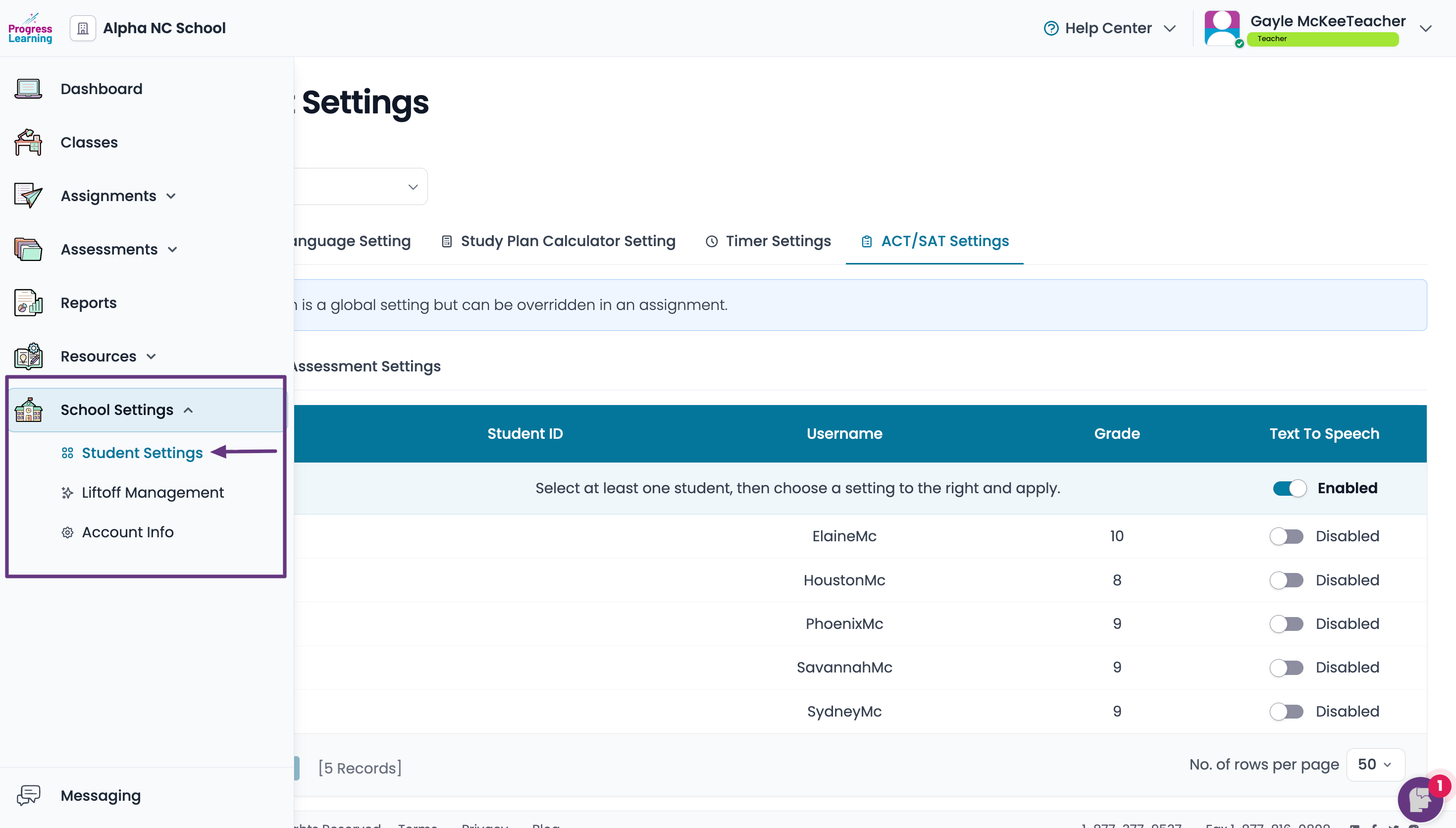
- From the side navigation bar, select School Settings and click on Student Settings
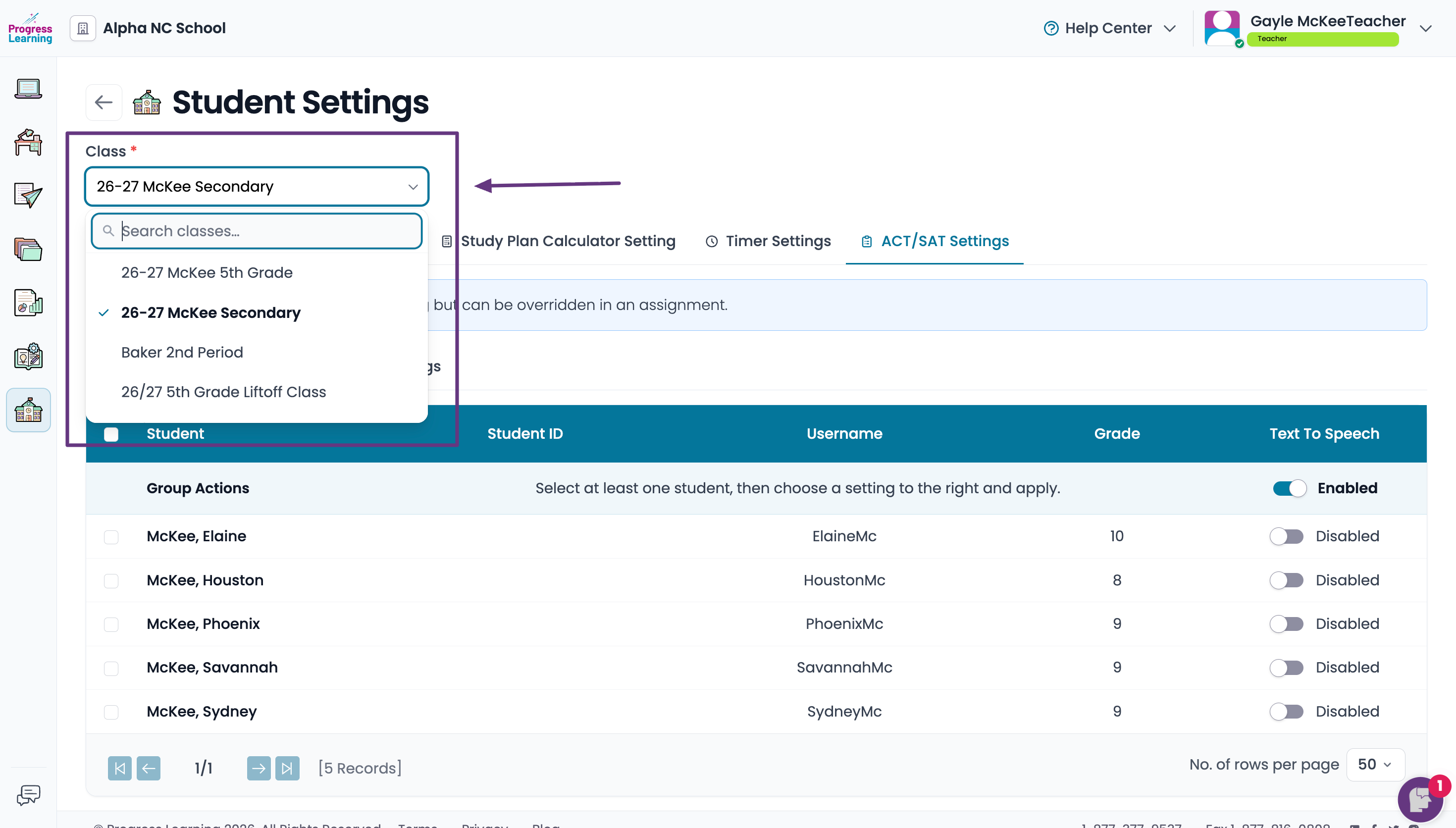
- Select the Class filter and choose the Grade Level Class or Class name.
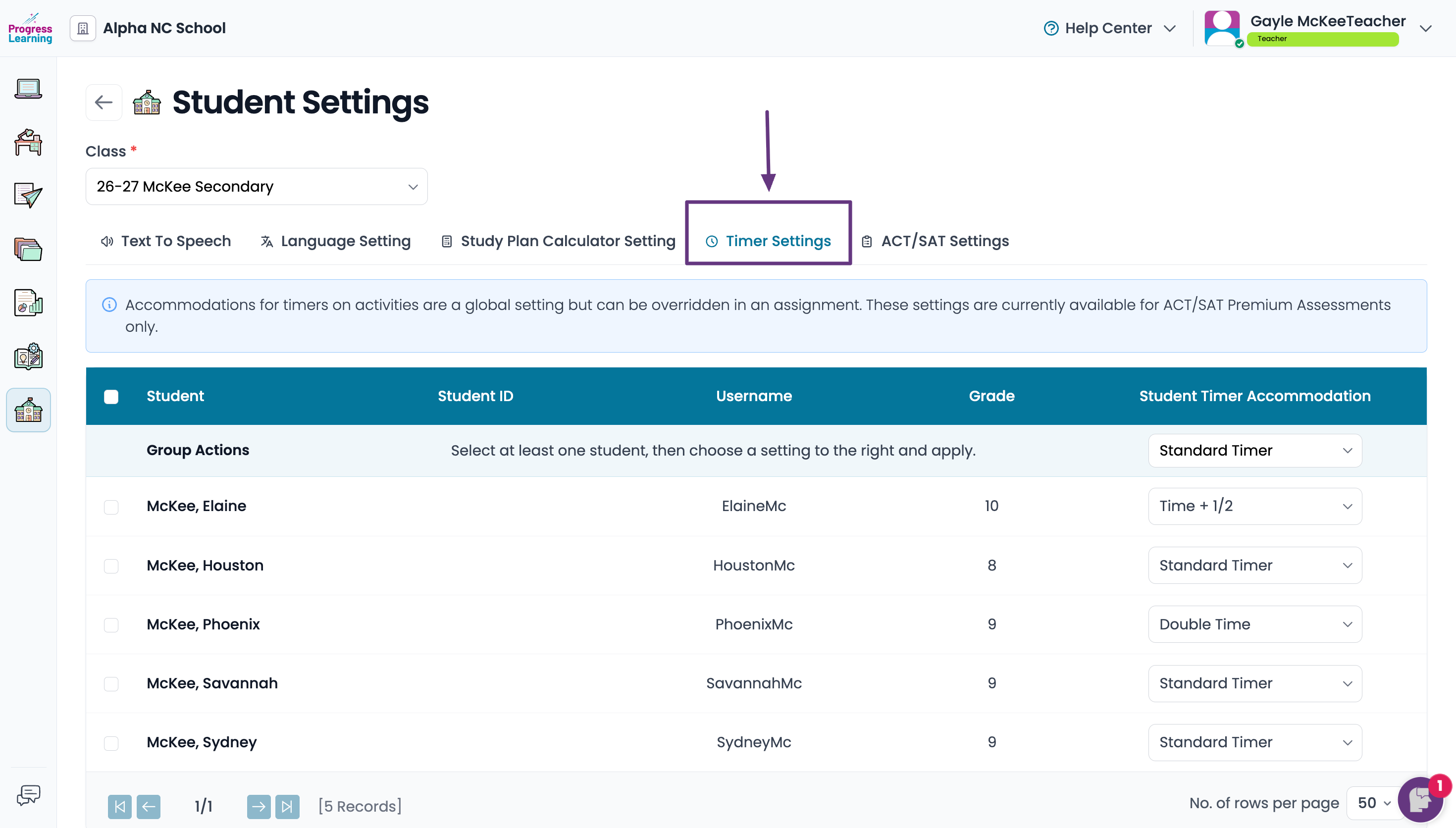
- Make adjustments to the Timer Settings by clicking on the Timer Settings tab.
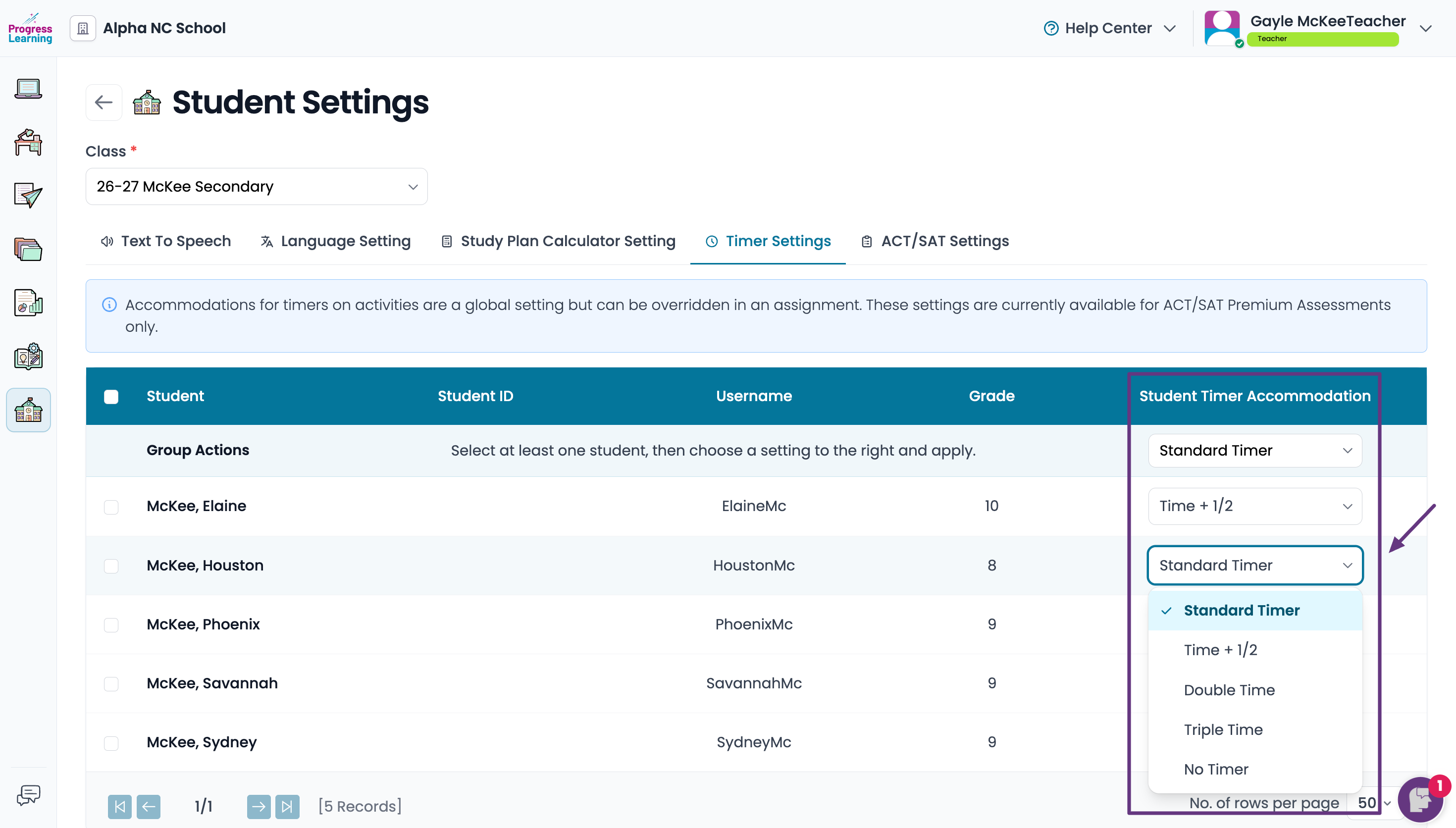
- To select a timer accommodation, click on the dropdown menu next to the student's name and select the appropriate accommodation. The student's individual timer is automatically set according to the accommodation assigned to them.
- Example: The standard time for the ACT® Math test is 50 minutes. If you select the Time + 1/2 accommodation, the student's timer will automatically be set to 75 minutes.
- Example: The standard time for the ACT® Math test is 50 minutes. If you select the Time + 1/2 accommodation, the student's timer will automatically be set to 75 minutes.
- To select a timer accommodation, click on the dropdown menu next to the student's name and select the appropriate accommodation. The student's individual timer is automatically set according to the accommodation assigned to them.
- Select the ACT/SAT Settings tab to set accommodations for Text to Speech and Pause Assessment Settings
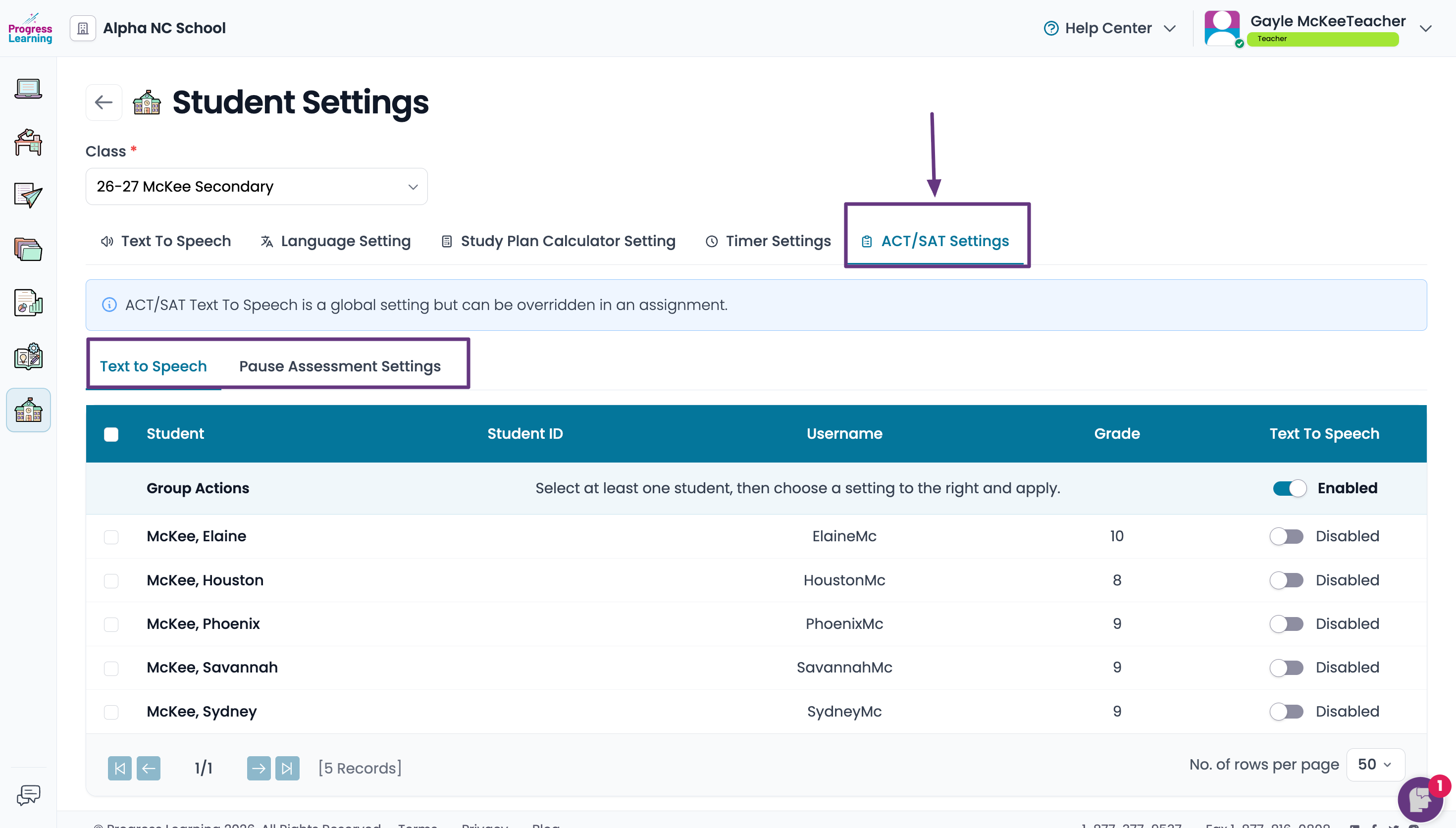
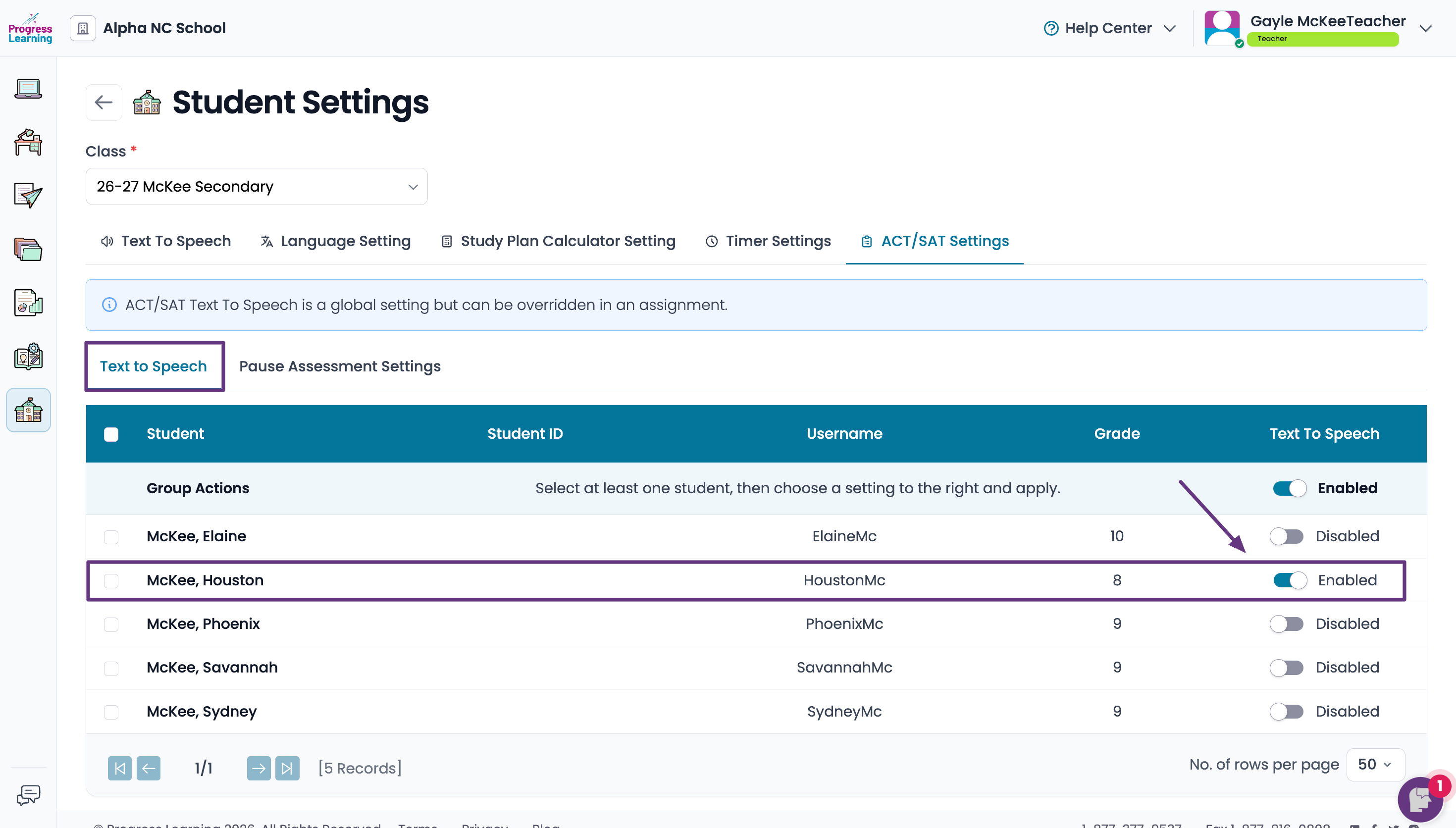
- Text to Speech: If a student receives the Text to Speech accommodation, set the toggle button to the Enabled position for that student.
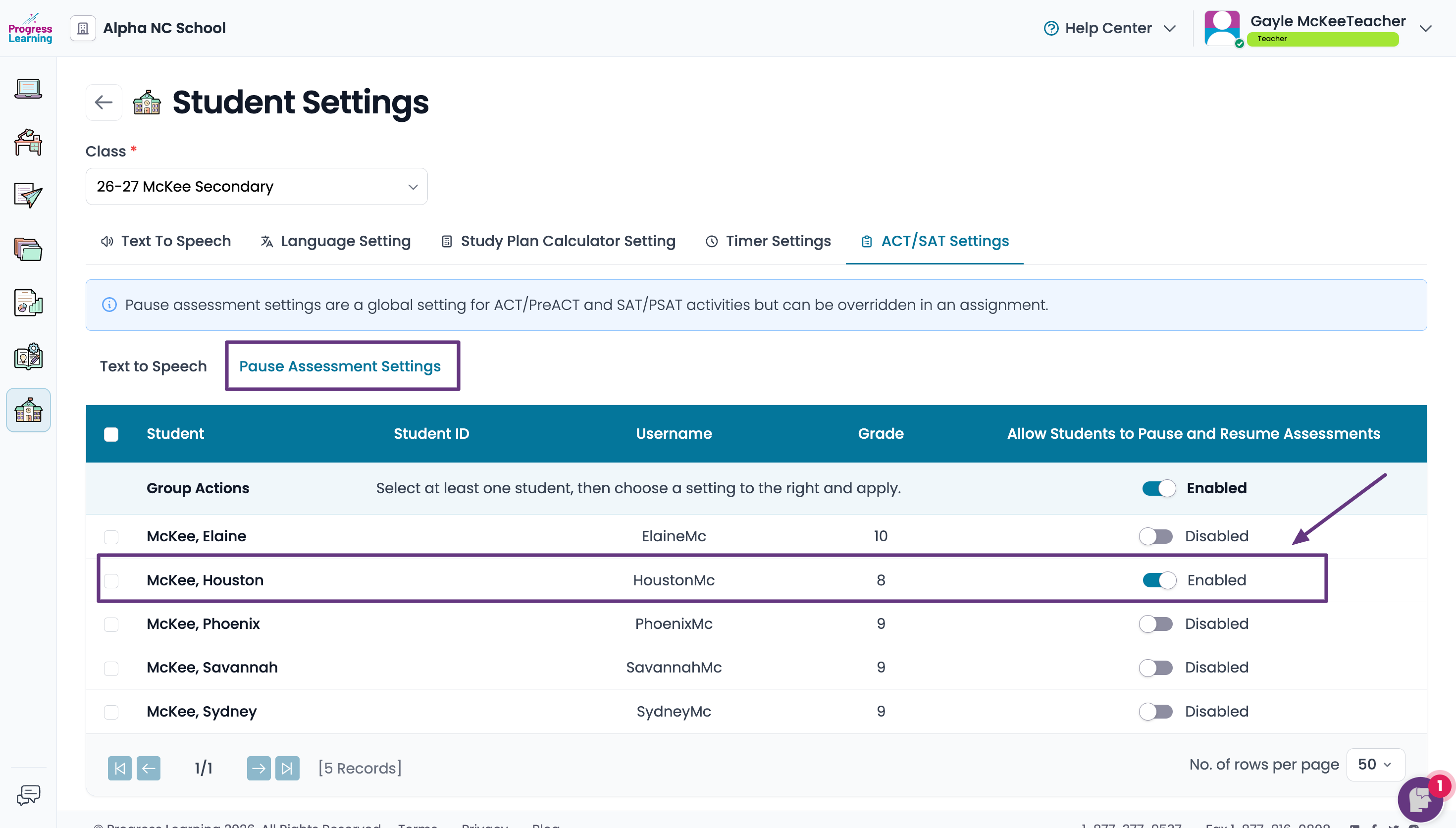
- Pause Assessment Settings: Enabling this feature allows students to Pause and Resume their timer from their dashboard.
- Text to Speech: If a student receives the Text to Speech accommodation, set the toggle button to the Enabled position for that student.
SAT®, PSAT 8/9®, PSAT 10/NMSQT®, Advanced Placement®, and AP®, are trademarks registered by the College Board, which was not involved with the creation of, is not affiliated with, and does not endorse services provided by progresslearning.com. ACT® and PreACT® are trademarks registered by ACT, which was not involved with the creation of, is not affiliated with, and does not endorse services provided by progresslearning.com. A Progress Learning assessment score is intended to approximate performance on the ACT®, it may not reflect the same score. Progress Learning is not affiliated with ACT, Inc. and does not have access to ACT’s proprietary data.
